How To Fix Face Unlock Failing In Dark Rooms On Laptops?
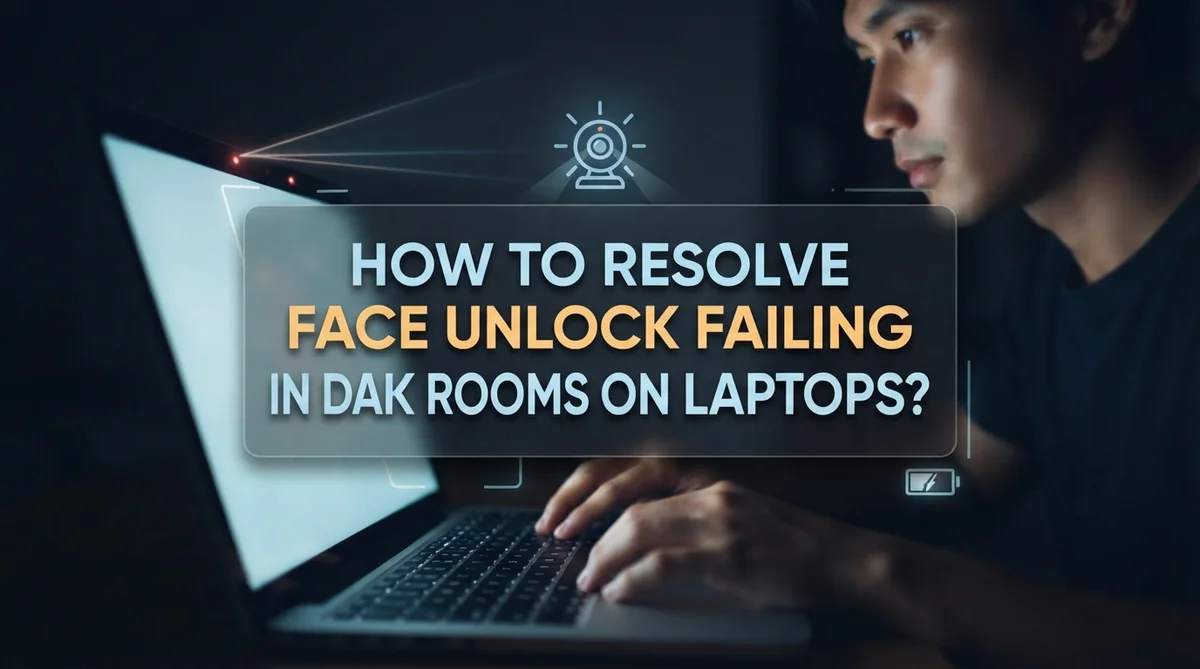
You sit down at your laptop in a dimly lit room, and your face unlock just refuses to work. It’s frustrating, especially when you’re in a hurry.
Face unlock failing in dark rooms is actually a common issue on laptops running Windows Hello. The problem has both a technical side and a security side. Microsoft intentionally limited dark room face recognition to fix a known vulnerability that bad actors could exploit.
But that’s not the whole story. Environmental factors like poor lighting, a dirty camera lens, or even changes in your appearance can all play a role.
The good news is that many of these issues are fixable with a few simple steps.
In this guide, you’ll learn exactly why your face unlock struggles in low-light conditions. You’ll also get clear, practical steps to improve performance and keep your login experience smooth.
In a Nutshell
- Windows Hello uses infrared (IR) cameras to scan your face, and these cameras need at least some light to work properly in dark conditions.
- Microsoft intentionally disabled dark room face unlock on some systems after a security vulnerability was discovered. This means the failure may be by design.
- A dirty or obstructed camera lens can make face recognition worse, especially in already low-light situations. Keeping the lens clean matters.
- Your appearance can affect recognition too. Certain makeup styles or significant changes to how you look can cause the system to fail.
- Improving your ambient lighting is one of the most effective fixes. Even a small lamp or screen light can make a big difference.
- Some fixes require adjusting Windows Hello settings or updating your camera drivers. These steps are straightforward and do not require advanced technical knowledge.
Why Windows Hello Face Unlock Fails In Dark Rooms
Windows Hello relies on infrared technology to map your facial features and verify your identity. This infrared system needs adequate light to function properly, even though infrared works differently than visible light.
In dark rooms, the infrared camera struggles to capture enough detail about your face. The system cannot create an accurate facial map when light levels drop too low. Microsoft discovered a security vulnerability where unauthorized users could unlock devices in complete darkness, so the company intentionally restricted dark room authentication on many systems.
The infrared camera emits light and reads how it reflects off your face. Without enough ambient light or infrared reflection, the camera gets insufficient data. Your laptop’s camera then fails to match your facial features against the stored template.
Additionally, Windows Hello requires a clear line of sight to your face. Shadows across your face in dim lighting confuse the recognition algorithm. The system may struggle to distinguish between your actual facial features and shadow patterns.
Certain environmental factors make dark room failures worse. If your camera lens has dust or smudges, low light amplifies this problem significantly. The infrared light cannot penetrate or reflect properly through a dirty lens.
Your appearance also matters more in low light conditions. Makeup, glasses, or facial hair changes that might work fine in bright rooms can cause failures in darkness. The reduced light data means the system has less information to work with when comparing your current appearance to your stored face profile.
Understanding these technical reasons helps explain why your face unlock works perfectly during the day but fails at night. The issue stems from both intentional security measures and the physical limitations of infrared technology in low light environments.
How Windows Hello Facial Recognition Actually Works
Windows Hello facial recognition uses infrared technology to identify you. Your laptop has an infrared camera that emits invisible light and reads how it bounces off your face. This creates a detailed map of your facial features. The system compares this map to your stored facial data to verify your identity.
The infrared camera works differently than regular cameras. It doesn’t rely on visible light like your phone’s front camera does. Instead, it uses infrared wavelengths that humans cannot see. This technology allows face unlock to work even when your room lights are off.
However, dark environments still cause problems. The infrared camera needs sufficient reflective surfaces to work properly. When your room is completely dark, the infrared light has fewer surfaces to bounce off and return to the camera sensor. This reduces the quality of the facial map the system creates.
Microsoft discovered a security vulnerability in dark room conditions. Attackers could potentially bypass Windows Hello authentication in very low light situations. As a result, Microsoft intentionally added restrictions to face unlock performance in dark rooms on many devices. This was a deliberate security measure to protect your account.
The infrared camera also needs a clear line of sight to your face. Obstructions like your hand, hair covering your eyes, or objects between you and the camera interfere with the infrared signal. In dark rooms, these obstructions become even more problematic because the camera captures less overall detail.
Understanding this technology helps you troubleshoot issues. You now know why lighting matters so much. You also understand why camera cleanliness affects recognition. This knowledge guides you toward practical solutions for improving face unlock reliability.
How To Check If Your Camera Hardware Is The Problem
Your camera hardware is often the first place to check when face unlock fails in dark rooms. A dirty lens is one of the most common culprits that people overlook.
Start by examining your laptop camera closely. Look for dust, fingerprints, smudges, or debris on the lens surface. Even a thin layer of dust blocks infrared light from working properly. Use a soft, dry microfiber cloth to gently clean the lens in circular motions. Avoid paper towels or rough materials that can scratch the glass.
Next, check if anything physically blocks your camera. Make sure no stickers, tape, or privacy covers are partially covering the lens. Some people use camera covers for privacy, and these can interfere with infrared detection even when you think they are fully open.
Inspect the camera’s position too. Verify that your camera has a clear, unobstructed view of your face. Tilt your laptop screen to different angles and test if the angle affects recognition. Sometimes repositioning your device improves results.
Test your camera in your system settings to confirm it works at all. Open your camera app and verify you can see yourself on screen. If the camera feed appears dark, blurry, or won’t display, you may have a hardware failure.
Check your device’s hardware specifications to confirm what type of camera your laptop has. Some older models use standard cameras instead of infrared sensors. Windows Hello requires compatible infrared camera hardware to function properly.
If cleaning and checking positioning don’t help, your camera hardware may be faulty or incompatible. In this case, you might need professional inspection or hardware replacement to restore face unlock functionality.
How To Improve Lighting Conditions For Reliable Face Unlock
Lighting is the most direct solution to face unlock problems in dark rooms. Your laptop’s infrared camera needs sufficient light to map your facial features accurately. Without it, authentication fails every time.
Start by adding ambient light to your space. Position a desk lamp or overhead light source in front of your face, not behind it. Light coming from behind creates shadows on your face and confuses the camera. Aim for light that illuminates your face evenly from the front.
Natural light works exceptionally well. If you’re in a dark room at night, move closer to a window or turn on ceiling lights. Even moderate lighting improves recognition rates significantly. The camera doesn’t need bright, harsh light. Soft, consistent illumination is enough.
Adjust your laptop position too. Tilt your screen so the camera has a clear view of your face without shadows. Keep your face at eye level with the camera. Avoid tilting your head down or to the side during unlock attempts.
Test different lighting angles in your space. Some positions work better than others depending on your room’s layout. Keep the light source stable and consistent. Flickering or changing light confuses the infrared sensors.
If you work in consistently dark environments, consider a small desk lamp as a permanent solution. Place it where it lights your face without creating glare on your screen.
Remember that adequate lighting is non negotiable for Windows Hello. The system was designed with bright and moderately lit environments in mind. Dark rooms simply don’t provide enough visual information for reliable authentication. Improving your lighting conditions removes the guesswork and restores consistent face unlock performance.
How To Update And Reconfigure Windows Hello Face Recognition
Windows Hello face recognition relies on specific software settings to function properly in any lighting condition. If your device struggles in dark rooms, reconfiguring these settings often solves the problem.
Start by accessing your Windows Hello settings through your system preferences. Open Settings and navigate to the Accounts section. Look for the Sign in options menu where you’ll find Windows Hello Face Recognition controls. This is where you can review your current configuration.
Delete your existing face data first. This step is important because corrupted or incomplete recognition profiles cause frequent unlock failures. Select the option to remove your current face recognition setup. Your device will no longer have stored facial data to reference.
After deletion, restart your laptop completely. A fresh restart ensures all system processes reset properly. This prevents background processes from interfering with your reconfiguration.
Now set up Windows Hello Face Recognition again from scratch. During setup, position your face directly in front of your camera in a well lit area. Move your head slowly through the full range of motion the system requests. The setup process captures multiple angles of your face for better recognition accuracy.
Pay close attention to the lighting during this setup phase. The conditions you use while setting up become your baseline. If you set up in bright light, your device learns to recognize you under those conditions.
After completing setup, test face unlock in various lighting situations. Try it in moderate light first, then gradually test in darker environments. This helps you understand your device’s actual limitations.
If problems persist after reconfiguration, your camera hardware itself may need inspection or your infrared sensor could require professional evaluation.
Other Factors That Interfere With Face Unlock Performance
Several factors beyond your camera and lighting can interfere with face unlock performance in dark rooms. Understanding these elements helps you troubleshoot more effectively.
Makeup and appearance changes significantly impact facial recognition accuracy. Certain makeup styles, especially heavy foundation or contouring, can alter how your face appears to the camera. Thick eyeliner, false eyelashes, or dramatic eyeshadow may confuse the recognition system. Even wearing glasses or sunglasses when you didn’t during setup causes problems.
Facial hair changes also matter. If you grew a beard or shaved since setting up face recognition, the system may not recognize you. The same applies to hairstyle changes or wearing hats and headbands.
Reflections and glare create additional challenges in any lighting situation. Reflective surfaces near your laptop screen, including windows or mirrors, bounce light onto your camera lens. This glare distorts the image the camera captures of your face.
Your face position and angle matter too. Face unlock works best when you look directly at the camera. Tilting your head too far to the side, looking down, or positioning yourself at extreme angles reduces recognition success. The system expects your face to be roughly centered in the camera’s view.
Environmental changes between setup and daily use cause failures. If you set up face recognition in your office but try unlocking in your bedroom, the different surroundings and lighting may trigger recognition errors.
Dust, fingerprints, or smudges on your camera lens block the sensor from capturing clear images. Even small obstructions reduce accuracy significantly. Regular cleaning prevents many unnecessary failures.
These factors work together with dark room conditions to create recognition problems. Addressing them systematically improves your overall unlock reliability.
Common Mistakes That Make Dark Room Face Unlock Worse
Many people make simple mistakes that make face unlock problems worse in dark rooms. Understanding these errors helps you avoid them.
Not cleaning your camera lens is the first major mistake. Dust, fingerprints, and smudges block the infrared sensors that Windows Hello uses. Your camera cannot see your face clearly when the lens is dirty. Wipe your lens gently with a soft cloth before troubleshooting other issues.
Positioning your face incorrectly during the unlock attempt causes frequent failures. Your face needs to be directly in front of the camera. Tilting your head at odd angles or sitting too far away prevents proper recognition. Keep your face centered and at a normal distance from your screen.
Ignoring appearance changes leads to repeated unlock failures. If you wear glasses during setup but remove them later, the system may not recognize you. The same applies to sunglasses, hats, or significant changes in facial hair. Try to maintain consistent appearance when using face unlock.
Assuming dark room face unlock will work like bright room unlock sets unrealistic expectations. Windows Hello intentionally limits dark room authentication for security reasons. Microsoft disabled this feature after discovering vulnerabilities. Expecting the same performance in darkness and daylight is unrealistic.
Not giving the camera time to adjust creates immediate failures. After moving from bright areas to dark rooms, your camera needs seconds to adapt. Rushing the unlock attempt before the camera adjusts causes recognition errors. Wait briefly after your face appears on screen.
Placing obstacles between you and the camera blocks the sensor’s view. Laptop stands, monitors, or objects in front of the camera interfere with recognition. Keep your camera path clear and unobstructed for best results.
When Dark Room Failure Is Intentional: The Security Reason
Dark room face unlock failures on laptops happen for a specific reason. Microsoft intentionally limited Windows Hello facial recognition in low light environments. This decision came after security researchers found a vulnerability that allowed unauthorized access in dark conditions.
The vulnerability worked like this: facial recognition systems rely on infrared light to map your face. In complete darkness, attackers could potentially bypass this system using infrared devices or techniques. Microsoft chose to disable dark room authentication rather than leave this security gap open.
This intentional limitation protects your account. Your laptop refuses to unlock in darkness because that refusal keeps your data safe. The system prioritizes your security over convenience in this specific scenario.
Understanding this helps you see why some face unlock failures are actually features, not bugs. Your device is working exactly as designed when it rejects authentication attempts in dark rooms.
However, not all dark room failures are intentional security measures. Sometimes genuine problems cause failures even in moderately lit spaces. Your camera lens might have dust blocking the sensor. Appearance changes like new glasses or facial hair confuse the recognition system. Incorrect face positioning during setup can also cause problems.
The key difference is this: Intentional failures happen in complete darkness. Environmental or technical failures happen in normal lighting where the system should work.
You can distinguish between the two by testing your setup in a well lit room first. If face unlock works reliably in good lighting, dark room failures are intentional security features. If face unlock fails everywhere, you have a technical problem to solve.
This understanding helps you decide whether to improve lighting conditions or investigate other issues with your camera setup.
Final Thoughts
Face unlock failing in dark rooms is a mix of security design and environmental factors. Some failures are intentional protections built into Windows Hello. Others come from avoidable issues like dirty lenses, poor positioning, or appearance changes.
The most important takeaway is this: adequate lighting is not optional. Your laptop’s infrared camera needs enough light to map your face accurately. Without it, authentication will fail, and sometimes it is supposed to fail to keep your account safe.
Start with the basics before assuming something is broken. Clean your camera lens regularly. Make sure your face is centered and at the right distance. Ensure your appearance matches what the system learned during setup.
If you changed your hairstyle, grew facial hair, or wear heavy makeup, re-enroll your face in the settings. This simple step fixes a large number of recurring failures.
For dark room use specifically, add a small ambient light source near your screen. A desk lamp or even a nearby monitor can provide enough light for the infrared sensor to work correctly.
If failures continue in reasonable lighting, check for Windows updates. Microsoft has released patches that improve facial recognition performance and address known vulnerabilities.
Remember that complete darkness failures are partly a security feature. Your laptop is protecting you, not malfunctioning. Work with the system by improving your environment rather than fighting the design.
Face unlock is a convenient and fast authentication method when conditions are right. Understanding its limits helps you use it more effectively every day. Small adjustments to your setup and habits will make a noticeable difference in reliability.
Frequently Asked Questions
Why does face unlock fail completely in dark rooms?
Windows Hello uses infrared technology to map your facial features. In complete darkness, the system cannot capture enough detail to verify your identity. Microsoft intentionally limited dark room authentication to prevent a security vulnerability where infrared spoofing could bypass your account protection.
This is partly a security feature, not just a technical limitation. Your laptop refuses to unlock in complete darkness to keep your account safe.
Can I use face unlock in low light instead of total darkness?
Yes. Face unlock works in dim rooms as long as some ambient light exists. Your laptop needs enough light to detect your facial features clearly. Even a small desk lamp or phone flashlight near your screen helps significantly.
The key is adequate ambient light, not bright sunlight. Low light conditions are different from complete darkness.
What should I do if face unlock fails in my bedroom at night?
Add a small light source near your screen first. A bedside lamp or desk light positioned to illuminate your face works well. Make sure the light does not shine directly into the camera lens.
If failures continue after adding light, your camera lens may need cleaning. Dust and fingerprints block infrared signals.
Does my appearance affect face unlock in dark rooms?
Yes. Makeup, facial hair, and hairstyle changes impact recognition accuracy. These changes matter even more in low light because the system has less detail to work with.
If you recently changed your appearance, re-enroll your face in Windows settings. This updates your facial profile for better recognition in all lighting conditions.
Should I give up on face unlock for nighttime use?
No. Add lighting and you solve most problems. A small ambient light source makes face unlock reliable even during evening hours. Complete darkness is the real issue, not low light generally.

Hi, I’m Lusi. I’m a tech enthusiast who loves digging into gadgets, testing products, and helping people find the best tech for their needs and budget. Got a question or a product you’d like me to review? Drop me a mail— I’d love to hear from you!