How To Fix Ghosting On E Ink Smartphone Secondary Displays?
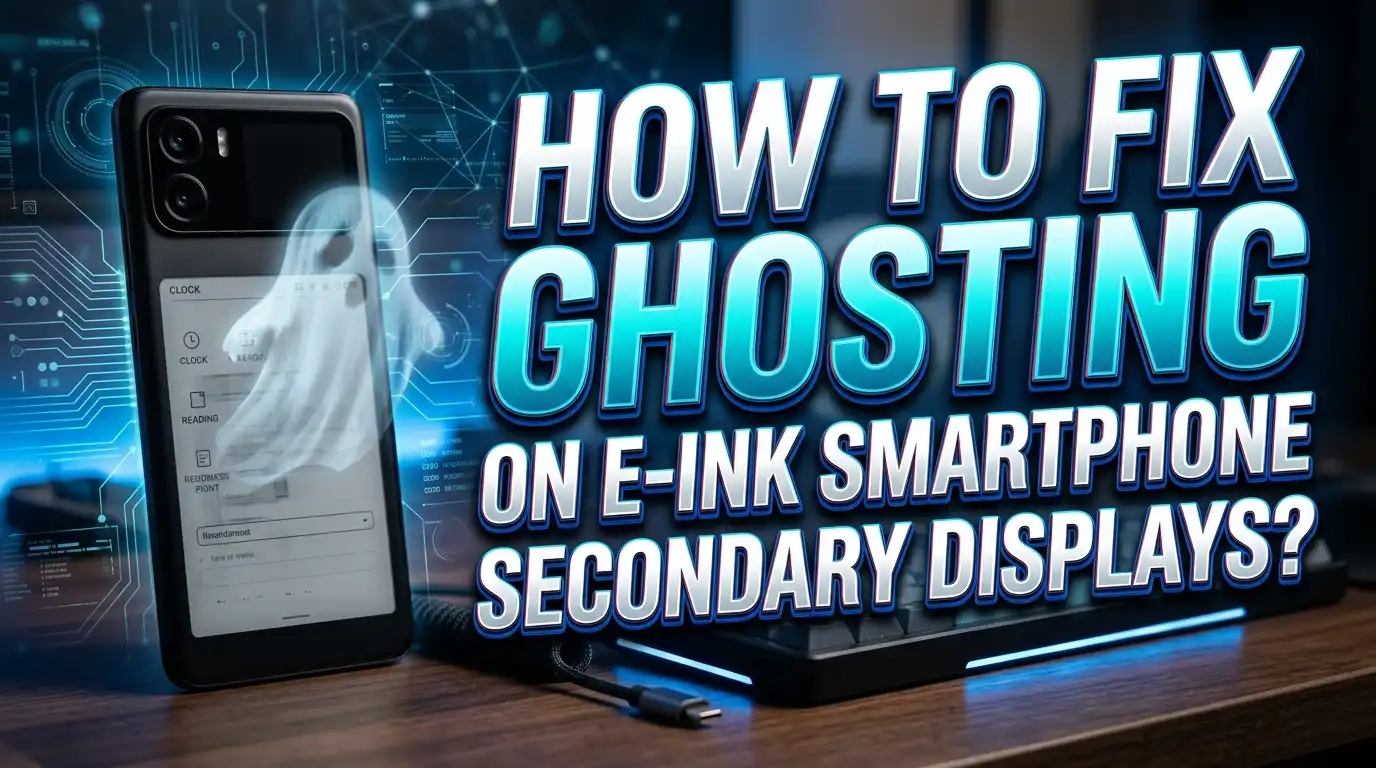
If you own a smartphone with an e ink secondary display, you have probably noticed faint outlines or shadow images that linger on the screen after it updates. This issue is called ghosting, and it can make your secondary display look cluttered or hard to read.
The good news is that ghosting is not a permanent defect. It is a natural behavior of e ink technology, and you can reduce or even eliminate it with the right settings and habits.
This post covers everything from quick fixes like manual screen refreshes to deeper solutions like firmware updates and refresh mode changes. Each section gives you clear, actionable steps that work on most e ink smartphones and secondary displays. Let us dive in.
Key Takeaways
- Ghosting is a normal e ink behavior. It happens because tiny charged pigment particles inside the display do not always fully reset between screen updates. It does not mean your device is broken.
- Full screen refreshes are the fastest fix. Most e ink devices offer a manual refresh option that forces every pixel to reset. Use this whenever ghosting builds up during use.
- Switching refresh modes reduces ghosting significantly. Modes like Normal or Clear prioritize display accuracy over speed. Select these modes for reading or static content to keep the screen sharp.
- Firmware updates often include ghosting fixes. Manufacturers regularly improve waveform algorithms and refresh logic through software updates. Always keep your device firmware current.
- Temperature and battery level affect ghosting. Cold environments slow down pigment particle movement, and low battery reduces the voltage needed for clean refreshes. Charge your device and use it in moderate temperatures for best results.
- Adjust your habits based on content type. High contrast images, grayscale graphics, and apps with static UI elements cause more ghosting. Use aggressive refresh settings for heavy visual content and lighter settings for plain text.
What Is E Ink Display Ghosting
E ink display ghosting is the faint visual residue of previously shown content that stays visible after the screen updates. It appears as soft shadows, outlines, or traces of text and images that should no longer be on the screen. This residue makes the display look messy and can reduce readability.
The phenomenon is tied directly to how e ink technology works. E ink screens use millions of tiny microcapsules filled with black and white charged pigment particles suspended in fluid. An electrical charge moves these particles up or down inside each capsule to create text, images, and interface elements on the display surface.
Ghosting occurs when these particles do not fully shift to their correct positions during a screen update. Some particles remain stuck in a middle state or fail to move completely. The result is a faint leftover image from the previous screen. This happens most often during partial refresh cycles, where only some parts of the display update rather than the entire screen.
On smartphones with e ink secondary displays, ghosting tends to appear more frequently because these screens handle a mix of content types. Notifications, widgets, clocks, and app interfaces all create different visual patterns. Each content switch requires the pigment particles to rearrange, and incomplete transitions leave visible traces on the display.
Understanding that ghosting is a physical limitation of e ink technology, not a hardware defect, is the first step to fixing it. The solutions focus on helping those pigment particles reset fully and consistently.
Why Does Ghosting Happen On E Ink Secondary Displays
Ghosting on e ink secondary displays happens because of how pigment particles respond to electrical signals during screen updates. Every time the screen changes, a series of voltage pulses called a waveform tells each particle where to move. If the waveform does not match the content perfectly, some particles end up in the wrong position.
Partial refreshes are a primary cause. Most e ink smartphones use partial refresh mode by default on secondary displays because it is faster and uses less battery. In this mode, only the pixels that need to change get updated. The rest of the screen stays untouched. Over time, the unchanged areas accumulate small errors that become visible as ghosting.
Temperature plays a measurable role as well. E ink pigment particles move through a viscous fluid inside each microcapsule. In cold conditions below 15 degrees Celsius, this fluid becomes thicker, and particles move more slowly. The result is incomplete transitions and more prominent ghosting artifacts on the display.
Battery state also matters. The waveform voltage that drives particle movement depends on available power. A low battery can reduce the voltage delivered to the display, causing weaker particle movement and less effective screen clearing. This explains why some users notice worse ghosting as their phone battery drains throughout the day.
Apps that were not designed for e ink displays can also make ghosting worse. These apps often use animations, gradients, and rapidly changing visual elements that create complex patterns the e ink controller struggles to render cleanly. Each imperfect render adds to the ghosting buildup on the secondary screen.
How To Perform A Manual Full Screen Refresh
The quickest way to fix ghosting on your e ink secondary display is to trigger a manual full screen refresh. This forces every pixel on the screen to cycle through a complete black to white reset sequence. All lingering particle residue gets cleared in one action.
On most e ink smartphones, you can find the manual refresh option in the e ink display settings menu. Look for a button labeled “Refresh,” “Full Refresh,” or “Clear Screen.” Some devices place this option in the quick settings panel that you access by swiping down from the top of the screen.
Many devices also allow you to assign the refresh function to a physical button or gesture. For example, Hisense e ink phones often have a dedicated refresh button on the side of the device. BOOX devices let you pin a full screen refresh button directly on the screen through the navigation ball settings. Setting up a quick access method saves time and encourages you to refresh the screen regularly.
Here is a step by step process that works on most devices. First, open your device settings. Second, find the e ink or display section. Third, look for refresh or screen clear options. Fourth, tap the full refresh button or assign it to a gesture like swiping up from the bottom of the screen.
Make it a habit to trigger a full refresh after switching between apps, finishing a reading session, or any time you notice ghosting building up. A single full refresh takes about one to two seconds and immediately restores the screen to a clean state. This simple action solves most everyday ghosting problems.
How To Change Refresh Mode Settings
Your e ink secondary display likely offers multiple refresh modes, and choosing the right one is critical for controlling ghosting. Most devices provide at least three modes: Normal (Clear), Speed (Balanced), and A2 (Fast). Each mode trades visual clarity for responsiveness.
Normal mode delivers the sharpest text and cleanest images. It performs a full screen refresh after every page turn or major screen change. This mode produces the least ghosting because it forces all particles to reset completely with each update. Use Normal mode for reading ebooks, viewing notifications, or displaying static content.
Speed mode offers a middle ground. It performs partial refreshes more often, which creates smoother scrolling and faster page turns. You will notice some ghosting with this mode, but it remains readable for most tasks. This mode works well for browsing or navigating menus on your secondary display.
A2 mode or Fast mode prioritizes maximum responsiveness. It uses the most aggressive partial refresh strategy, which means the display updates quickly but accumulates ghosting rapidly. Reserve this mode for interactive tasks that require fast screen response, like scrolling through long lists. Switch away from this mode as soon as you finish the task.
To change your refresh mode, swipe down the notification bar or open the e ink settings panel. Tap the refresh mode indicator to cycle through the options. Some devices display the current mode as an icon in the status bar for quick identification.
The key strategy is to match your refresh mode to your current activity. Use Normal mode most of the time and switch to faster modes only when needed. This approach keeps ghosting minimal while still giving you access to faster performance when the situation requires it.
How To Set Up Automatic Full Refresh Intervals
Automatic full refresh intervals tell your device to perform a complete screen clear after a set number of interactions. This setting prevents ghosting from building up gradually without requiring you to manually trigger a refresh each time.
Most e ink devices let you configure this interval in the display or e ink settings. Look for an option labeled “Full Refresh Frequency,” “Refresh Interval,” or “Auto Refresh.” The setting usually lets you choose a number between 1 and 10, representing how many page turns or screen changes happen between each full refresh.
Setting the interval to a lower number like 1 or 2 means the screen performs a full refresh more often. This gives you the cleanest display with almost no ghosting. The tradeoff is that you will see more screen flashing during normal use, and it may consume slightly more battery.
Setting the interval to a higher number like 5 or 10 reduces flashing and saves battery. However, ghosting will accumulate between each full refresh cycle. This setting works best for plain text reading where ghosting is less noticeable.
For smartphones with e ink secondary displays that show mixed content like notifications, time, and widgets, a setting between 3 and 5 provides a good balance. The screen stays clean enough for readability while avoiding constant flashing that can be distracting.
Experiment with different intervals to find what works for your usage pattern. If you primarily read text, a higher interval is fine. If you use apps with images, icons, and varied layouts on your e ink display, lower the interval to keep the screen clear. Revisit this setting any time you change how you use your secondary display.
How To Optimize App Settings For E Ink Displays
Apps that were not built for e ink screens are a major source of ghosting on smartphone secondary displays. These apps use animations, transparent overlays, and smooth scrolling that create rapid visual changes the e ink controller cannot handle cleanly.
Start by disabling animations within individual apps where possible. Many reading apps, browsers, and social media apps have settings to reduce or turn off transition animations. Removing these animations means fewer partial screen updates and less ghosting buildup between full refreshes.
Use apps that support fixed page scrolling instead of smooth scrolling. Smooth scrolling forces the e ink display to update continuously, which generates heavy ghosting. Fixed scrolling moves the content in clean jumps, giving the display time to render each new screen properly. Browsers like EinkBro and reading apps like KOReader support this feature.
On BOOX devices, you can access per app optimization through the E Ink Center. Open any app, then pull up the bottom optimization menu. Here you can set the refresh mode, enable HD mode for sharper text, and adjust the animation filter time. Setting the animation filter to a higher value removes more unnecessary visual transitions and reduces ghosting.
For Hisense e ink phones, check the per app display settings accessible through the notification panel. You can assign different refresh modes to different apps. Set reading apps to Clear mode and browsers to Balanced mode. This per app approach keeps each app optimized for its specific content type.
Dark mode apps deserve special attention. Large areas of black on an e ink display create strong particle shifts that leave prominent ghosts when switching to lighter content. Consider using light mode on your e ink secondary display whenever possible to minimize the contrast difference between screen changes.
How To Use Display Enhancement Settings Correctly
Display enhancement features on e ink devices can either help or hurt ghosting, depending on how you configure them. These settings modify how the screen processes and renders content between refresh cycles.
BOOX devices include a setting called “Display Enhancement” in the E Ink optimization menu. When enabled, this feature continuously refreshes inactive areas of the screen to automatically clear out ghosting residue. It works well for dark mode apps and screens with static elements that accumulate ghosting over time.
However, some users report that Display Enhancement causes constant subtle flickering in empty areas of the screen. This flickering can be more distracting than the ghosting it tries to fix. If you find this distracting, disable Display Enhancement and rely on manual full refreshes instead.
Another useful setting is “Text Outline” or contrast enhancement. On BOOX devices, adjusting the text outline value to around 3 can improve text sharpness and reduce the appearance of ghosting around text elements. This setting adds a subtle darkening effect to text edges that masks minor ghosting.
Hisense devices offer “Smooth Mode” and “Clear Mode” toggles that work similarly. Smooth mode applies light processing to make transitions appear less jarring, which can mask minor ghosting. Clear mode prioritizes pixel accuracy and produces sharper results but shows ghosting more clearly when it occurs.
The best approach is to test each enhancement setting individually. Enable one setting at a time, use your device normally for a few hours, and evaluate whether ghosting improved or worsened. Turn off settings that add distracting visual effects. Keep settings that genuinely reduce ghosting without introducing new problems. Every device and usage pattern responds differently to these enhancements.
How Firmware Updates Fix Ghosting Issues
Firmware updates are one of the most effective tools for reducing ghosting because they directly improve the waveform algorithms that control how pigment particles move during screen refreshes. Manufacturers invest significant resources in tuning these algorithms after a device launches.
Each waveform update refines the voltage pulse sequences that drive the e ink display. Better waveforms mean particles move more precisely to their target positions, leaving less residue behind. A single firmware update can make a noticeable difference in ghosting behavior across all apps and screen modes.
BOOX, Hisense, and Bigme have all released firmware updates specifically targeting ghosting. Bigme released updates for their S6 Color and Inknote Color devices that significantly reduced ghosting artifacts and improved overall display performance. BOOX introduced Regal Refresh mode through firmware updates that dramatically improved page turn clarity on color e ink screens.
To check for firmware updates, go to Settings, then System or About Device, then Software Update. Tap “Check for Updates” to see if a new version is available. Always connect to a stable Wi Fi network before starting the update process. Some updates may take several minutes to install and require a device restart.
Enable automatic update checks if your device supports this feature. This ensures you receive ghosting fixes as soon as the manufacturer releases them. If your device has not received an update in a long time, check the manufacturer’s website or community forums for manual firmware download options.
Do not skip firmware updates even if the release notes do not mention ghosting directly. Many updates include display driver improvements and waveform refinements bundled under general performance improvements. These behind the scenes changes often produce real improvements in ghosting behavior.
How Temperature And Battery Affect Ghosting
Environmental temperature and battery charge level have a direct physical impact on e ink display ghosting. Understanding this connection helps you create better conditions for a clean display.
E ink pigment particles float in a viscous fluid inside each microcapsule. Cold temperatures make this fluid thicker, which slows particle movement. When particles move slowly, they may not reach their intended positions before the refresh cycle ends. The result is incomplete transitions and visible ghosting. Testing by industry quality control teams shows that temperatures outside 15 to 30 degrees Celsius can produce significantly different ghosting levels compared to normal room temperature conditions.
If you use your phone outdoors in cold weather, expect more ghosting on the e ink secondary display. Warm the device gradually before use by keeping it in an inside pocket close to your body. Avoid leaving the phone in a cold car or exposing it to freezing conditions for extended periods. Once the device reaches normal operating temperature, ghosting behavior will return to normal levels.
Battery level affects ghosting because the waveform driver needs adequate voltage to move particles fully. A battery below 20 percent may not supply enough power for the complete voltage pulses that clean refreshes require. This can make every screen update slightly less effective, leading to gradual ghosting buildup.
Keep your phone charged above 30 percent for the best e ink display performance. If you notice ghosting getting worse throughout the day as battery drops, plug in your device and perform a manual full refresh. The combination of restored voltage and a complete screen clear will usually resolve the issue immediately.
Planning ahead helps too. If you know you will use the e ink secondary display extensively, start with a full battery and avoid extreme temperatures. These two simple precautions prevent many ghosting problems before they appear.
How To Reduce Ghosting With High Contrast Content
High contrast content is one of the biggest ghosting triggers on e ink displays. Images with large dark regions, detailed graphics, and dense grayscale textures force pigment particles through extreme position changes. These dramatic shifts leave the most visible residue on the screen.
When reading comics, viewing photos, or displaying maps on your e ink secondary display, switch to Normal or Clear refresh mode before opening the content. This ensures the screen performs a complete refresh with each screen change, clearing particle residue before it can accumulate.
Reduce image contrast in app settings when possible. Some reading apps let you adjust the darkness level or contrast of displayed content. Lowering the contrast slightly reduces the extreme particle shifts that cause heavy ghosting. The display will look slightly lighter, but ghosting artifacts will decrease noticeably.
Avoid leaving high contrast content static on the screen for long periods. A dark navigation bar or bold graphic that sits in the same position for minutes at a time will create localized retention marks. These marks appear as ghosting when you switch to different content. Close or minimize high contrast apps when you are not actively using them.
If your e ink settings include a “Deep Refresh” option for reading apps, enable it for high contrast content. Deep Refresh performs a more thorough screen clearing cycle than a standard full refresh. It cycles through additional black and white states to ensure every particle fully resets. This adds a brief extra moment to each page turn but produces much cleaner results.
For the best experience with heavy visual content, combine Deep Refresh mode with a low automatic refresh interval of 1 or 2. This combination keeps the screen aggressively clean and prevents ghosting from accumulating between any two screen updates.
How To Assign Refresh Gestures And Shortcuts
Setting up quick access to screen refresh functions makes daily ghosting management effortless. Most e ink smartphones support custom gestures, button assignments, and on screen shortcuts for triggering full refreshes.
On BOOX devices, open the Navigation Ball app from the app drawer. Add “Full Screen Refresh” as one of the navigation ball buttons. Then enable the Pin icon in the upper right corner of that button. This places a floating refresh button directly on your screen that you can tap at any time. You can also drag it to a convenient position that does not block important content.
Another option on BOOX devices is gesture assignment. Go to Settings, then More Settings, then Gesture Manager. Enable “Swipe up from the bottom border” and assign one of the three gesture positions to “Full Screen Refresh.” This lets you refresh the screen with a single swipe from the bottom edge without opening any menus.
Hisense e ink phones often include a dedicated physical button for screen refresh. Check the side buttons on your device. One of them may already be programmed for this function. If not, look in Settings under Button or Key Assignment to configure it.
For devices without built in gesture support, consider using third party apps that add custom gesture controls. Apps like Gesture Control or Button Mapper let you assign a full screen refresh command to a double tap, long press, or swipe gesture that works system wide.
The goal is to make screen refreshing as fast and effortless as possible. When a full refresh is just one tap or swipe away, you will use it more often. More frequent refreshes mean less ghosting buildup and a consistently clean e ink display throughout the day.
How To Handle Persistent Ghosting That Will Not Clear
Sometimes ghosting persists even after multiple full refreshes. This stubborn ghosting requires a more thorough approach to resolve. Do not assume your device is defective until you have tried these deeper solutions.
Start by performing several consecutive full refreshes. One refresh may not be enough if the ghosting has built up over an extended period. Trigger 5 to 10 manual full refreshes in a row. Between each refresh, open a different app or scroll to a new page to force the display to render completely different content. This combination of refreshing and content changes helps reset particles that are stuck in intermediate states.
If consecutive refreshes do not work, restart your device completely. A full power off and power on cycle resets the display controller and clears any cached waveform data that may be causing incorrect refresh behavior. After restarting, trigger another full refresh to verify the ghosting has cleared.
Factory resetting the e ink display settings can also help. Navigate to the e ink or display section of your settings and look for a “Reset to Default” or “Restore Default Settings” option. This removes any custom configurations that may be interfering with proper refresh behavior. You will need to reconfigure your preferred settings afterward.
Check if your device has a “Deep Clean” or “Screen Calibration” option in the advanced display settings. Some manufacturers include a maintenance feature that runs an extended sequence of full screen inversions specifically designed to clear stubborn particle retention.
If none of these steps work and the ghosting remains severe, contact the manufacturer’s support team. Persistent ghosting that does not respond to any software fix may indicate a hardware issue with the e ink panel or display controller. Most manufacturers offer warranty repair or replacement for confirmed display defects. Document the issue with screenshots or photos before contacting support.
How Future E Ink Technology Will Reduce Ghosting
E ink display technology continues to advance, and newer panel generations produce significantly less ghosting than their predecessors. Understanding these developments helps you make informed decisions about your next device.
E Ink Carta 1300 panels represent one of the latest display generations. These panels feature thinner layers, faster particle response times, and improved contrast stability. The thinner microcapsule structure allows particles to move through shorter distances more quickly, reducing the chance of incomplete transitions that cause ghosting.
Manufacturers are also developing adaptive refresh algorithms that analyze content in real time. Instead of using fixed refresh intervals, these systems detect when ghosting is likely to occur based on the content displayed. Dense grayscale areas, high contrast transitions, and repeated static elements trigger automatic deeper refreshes before visible ghosting appears.
Predictive waveform technology is another area of active development. Future e ink controllers will store content aware waveform profiles that adjust voltage sequences based on what the display is showing. A text heavy page will receive different waveform treatment than a photo gallery or map interface. This customization at the pixel level promises nearly invisible ghosting in everyday use.
Color e ink screens, which historically suffer more ghosting due to additional filter layers, are improving as well. Newer color e ink generations like Kaleido 3 and Gallery 3 have reduced the gap between color and monochrome ghosting performance. Each generation brings faster particle response and cleaner color transitions.
For current device owners, the practical takeaway is clear. Keep your firmware updated, use proper refresh settings, and practice good display habits. These steps ensure you get the best possible ghosting performance from whatever e ink panel your device uses today.
Frequently Asked Questions
Is ghosting on e ink displays a sign of a defective screen?
No. Ghosting is a normal characteristic of e ink technology. It occurs because pigment particles inside the display do not always fully reset between screen updates. Every e ink device will show some degree of ghosting, especially during partial refresh cycles. It only indicates a defect if the ghosting is severe and does not respond to any of the solutions described in this guide, such as full screen refreshes, restart cycles, or firmware updates.
How often should I perform a full screen refresh on my e ink display?
This depends on how you use the display. For reading plain text, refreshing every 5 to 10 page turns is usually sufficient. For apps with images, icons, and mixed content, set your automatic refresh interval to every 1 to 3 screen changes. You can also trigger manual refreshes any time ghosting becomes noticeable. There is no risk of damaging the display by refreshing too often.
Does using dark mode make ghosting worse on e ink screens?
Yes. Dark mode creates large areas of black pixels that require extreme particle shifts. When you switch from dark content to lighter content, the heavy particle displacement leaves more visible residue. Using light mode or light theme on your e ink secondary display reduces the contrast between screen changes and produces less ghosting overall.
Can third party apps cause more ghosting on e ink secondary displays?
Absolutely. Apps that use smooth scrolling, animations, and transparent overlays generate rapid partial screen updates. These updates create more opportunities for incomplete particle transitions. Using apps designed for e ink screens, or configuring third party apps to disable animations and use fixed page scrolling, significantly reduces ghosting from app usage.
Will a factory reset fix persistent ghosting problems?
A factory reset can help if the ghosting is caused by software configuration issues or corrupted display settings. It restores all refresh modes, waveform settings, and enhancement features to their default values. However, if the ghosting is caused by physical particle retention from extended use or a hardware defect, a factory reset alone will not resolve it. Try the full sequence of troubleshooting steps in this guide before considering a reset.
Does temperature really affect e ink display ghosting?
Yes. E ink particles move through fluid inside microcapsules, and cold temperatures thicken this fluid. Thicker fluid slows particle movement, which means particles may not fully reach their target positions during a refresh cycle. Using your device in temperatures between 15 and 30 degrees Celsius produces the cleanest display performance. Warming a cold device before use helps restore normal ghosting levels.

Hi, I’m Lusi. I’m a tech enthusiast who loves digging into gadgets, testing products, and helping people find the best tech for their needs and budget. Got a question or a product you’d like me to review? Drop me a mail— I’d love to hear from you!