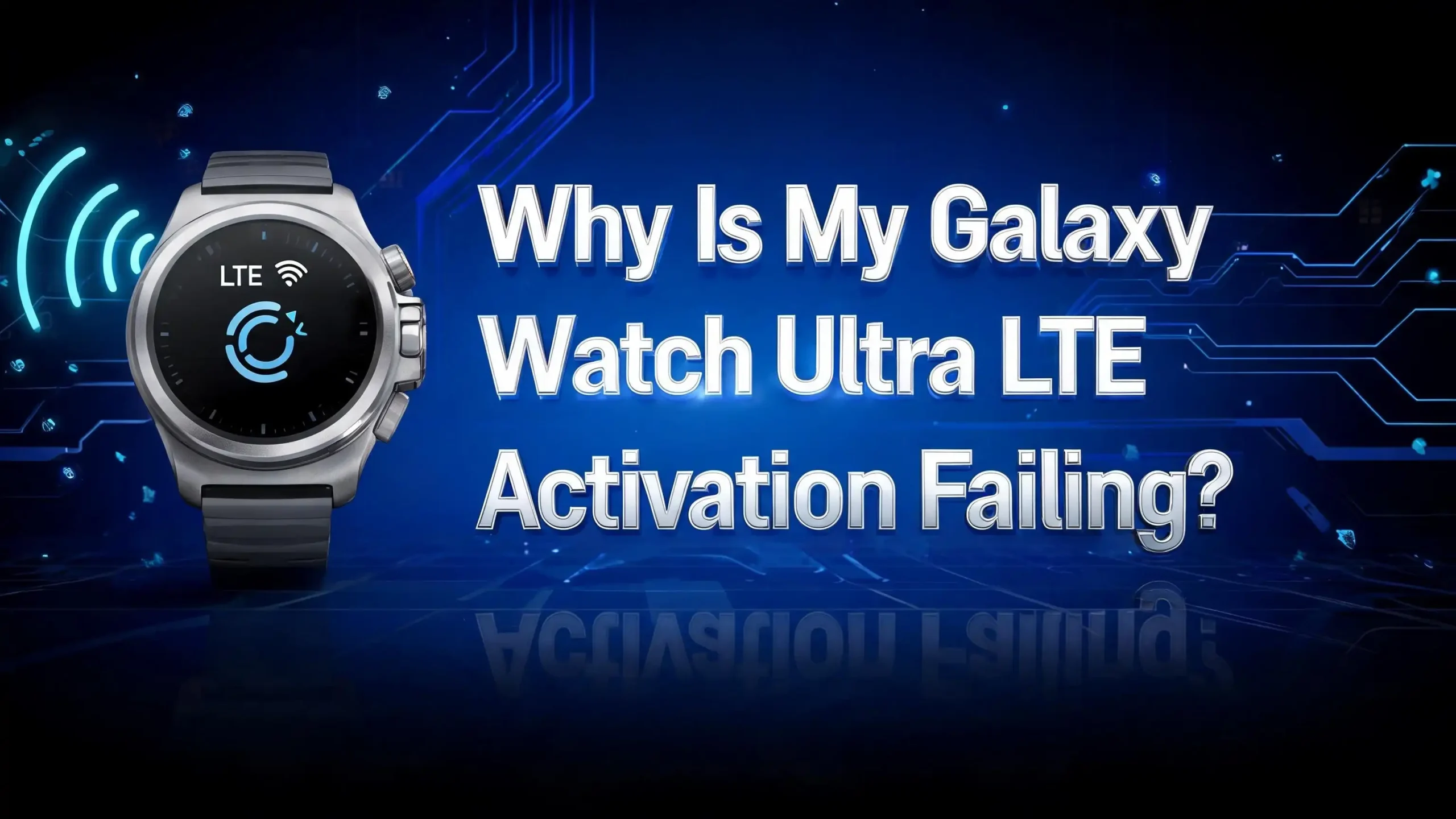
Why Is My Galaxy Watch Ultra LTE Activation Failing?
You just unboxed your brand new Samsung Galaxy Watch Ultra. You strapped it on, charged it up, and tried to activate the LTE connection. Then it happened. The activation failed. Maybe you got a vague error message.
You are not alone. Thousands of Galaxy Watch Ultra owners have reported LTE activation failures. The problem can stem from carrier issues, software bugs, account mismatches, or simple setup mistakes.
The good news is that most of these issues have clear fixes. This guide walks you through every known cause and solution so you can get your watch fully connected and independent from your phone.
In a Nutshell
- Carrier compatibility matters more than you think. Not every cellular plan supports the Galaxy Watch Ultra LTE. You need a specific smartwatch or wearable add-on plan from a supported carrier like AT&T, T-Mobile, or Verizon. Check with your carrier first before troubleshooting anything else.
- The Samsung Galaxy Wearable app is essential for activation. LTE activation happens through the Galaxy Wearable app on your paired Samsung or Android phone. If the app is outdated or glitching, activation will fail every time. Always update the app before you start.
- Your phone’s SIM and eSIM setup can block the process. The watch clones your phone number using an eSIM. If your phone uses a physical SIM in a way that conflicts with the carrier’s eSIM provisioning, the activation may not go through. Your phone’s own cellular setup directly affects the watch.
- Software updates fix many activation bugs. Samsung regularly pushes updates that resolve LTE provisioning errors. Running outdated software on the watch or the phone is one of the most common reasons activation fails.
- A factory reset is sometimes the fastest fix. If you have tried everything else and the watch still will not activate, a clean reset often clears whatever software conflict is blocking the process. It is a last resort, but it works more often than you might expect.
- Contacting your carrier is not optional in some cases. Certain activation failures happen on the carrier’s end. Only your carrier can fix provisioning errors, IMEI registration problems, or account-level blocks.
What Does LTE Activation Actually Do on the Galaxy Watch Ultra
LTE activation gives your Galaxy Watch Ultra its own cellular connection. This means the watch can make calls, send texts, stream music, and use apps without being near your phone. The watch shares your phone number through an eSIM that your carrier provisions remotely.
The activation process registers your watch’s unique eSIM with your carrier’s network. It essentially adds your watch as a companion device on your existing phone plan. This is different from getting a separate phone line. Your watch and phone share the same number, so calls and texts go to both devices.
Without LTE activation, your watch only works on Wi-Fi or Bluetooth through your phone. You lose the freedom to leave your phone at home during a run or a quick errand. The whole point of paying for an LTE model is that independence, so a failed activation is a real problem.
The process usually takes just a few minutes through the Galaxy Wearable app. You tap a few prompts, your carrier verifies your account, and the eSIM gets programmed. But when something goes wrong at any step, the entire process stalls.
Common Error Messages During LTE Activation
Samsung Galaxy Watch Ultra owners report several recurring error messages during LTE activation. One of the most frequent is “Unable to activate. Please try again later.” This generic message can mean almost anything from a server timeout to a carrier-side block.
Another common error reads “Activation request failed.” This typically points to a problem with carrier provisioning. Your carrier’s system may not have your watch’s IMEI on file, or your account may not be set up for a wearable line yet.
Some users see “Network not available” or “No service” even after activation appears to complete. This means the eSIM was partially provisioned but did not fully register on the network. The watch thinks it is activated, but the carrier does not recognize it.
A few users have also reported seeing “SIM card not provisioned” errors. This is misleading because the Galaxy Watch Ultra uses an embedded eSIM, not a physical SIM card. The error actually means the eSIM profile failed to download or install properly.
Knowing which error you are dealing with helps you choose the right fix. Write down or screenshot your exact error message before you start troubleshooting. It saves time if you need to call your carrier or Samsung support later.
Check Your Carrier Compatibility First
Not all carriers support the Galaxy Watch Ultra LTE. In the United States, AT&T, T-Mobile, and Verizon are the primary supported carriers. Some smaller carriers and MVNOs (Mobile Virtual Network Operators) like Cricket, Metro by T-Mobile, and Visible may also work, but support varies.
You also need a specific wearable or smartwatch plan added to your account. A standard phone plan alone will not activate LTE on the watch. These wearable plans usually cost between $5 and $15 per month depending on your carrier. If you have not added this plan, the activation will fail immediately.
Check your carrier’s website or call customer service to confirm two things. First, confirm that your carrier supports the Samsung Galaxy Watch Ultra LTE. Second, confirm that your account has an active wearable line or number share plan.
Some international carriers have limited or no support for Samsung’s wearable LTE activation. If you purchased the watch in one country and are trying to activate it on a carrier in another country, you may face compatibility issues. The watch’s model number must match your region’s carrier requirements.
Do not skip this step. Many people spend hours troubleshooting software and settings when the real problem is that their carrier simply does not support the device or the right plan is not on their account.
Update Everything Before You Try Again
Outdated software is one of the sneakiest causes of LTE activation failure. You need to update three things: your Galaxy Watch Ultra firmware, the Galaxy Wearable app, and your phone’s operating system.
Start with the Galaxy Wearable app. Open the Google Play Store on your phone, search for “Galaxy Wearable,” and tap Update if an update is available. Samsung frequently patches this app to fix bugs related to LTE provisioning and carrier integration.
Next, update your phone’s software. Go to Settings > Software update > Download and install. Carrier-related features on your phone sometimes depend on the latest system updates. An outdated phone OS can interfere with the eSIM provisioning process.
Finally, check your watch for updates. Open the Galaxy Wearable app, go to Watch settings > Band software update, and install any pending updates. Samsung has released multiple firmware updates specifically addressing LTE connectivity and activation bugs on the Galaxy Watch Ultra.
Restart both your phone and your watch after installing all updates. A fresh restart ensures all new software loads properly. Then try the LTE activation again. Many users report that simply updating and restarting fixed their activation failure without any other changes.
Restart the Watch and Your Phone
This sounds basic, but a simple restart fixes more activation issues than you might expect. Both your phone and your Galaxy Watch Ultra maintain active connections to carrier servers. If any of these connections become stale or corrupted, the activation process cannot complete.
To restart your Galaxy Watch Ultra, press and hold the Home button (the orange button) until the power menu appears. Tap Restart. Wait for the watch to fully boot back up before trying anything.
Restart your phone the standard way as well. Power it down completely, wait about 30 seconds, and turn it back on. This clears temporary network caches and forces fresh connections to your carrier’s servers.
After both devices restart, open the Galaxy Wearable app and try the LTE activation again. Go to Watch settings > Mobile plans > Activate. Follow the prompts from your carrier. The process should take two to five minutes if everything is working correctly.
If a single restart does not help, try a network settings reset on your phone. Go to Settings > General management > Reset > Reset network settings. This clears saved Wi-Fi networks, Bluetooth pairings, and cellular settings. You will need to reconnect to Wi-Fi afterward, but it often resolves deep network configuration issues that block eSIM provisioning.
Remove and Re-add Your Watch in the Wearable App
Sometimes the pairing between your phone and watch develops a glitch that blocks LTE activation. Removing the watch from the Galaxy Wearable app and pairing it again can fix this.
Open the Galaxy Wearable app on your phone. Tap the three-dot menu in the top right corner. Select Remove or Disconnect. Confirm that you want to unpair the watch. This does not erase your watch data if you back it up first through Samsung Cloud.
After removing the watch, restart both devices. Then open the Galaxy Wearable app again and tap Start to pair your watch as if it were new. Follow the setup prompts step by step. When the app asks about mobile plans or LTE activation, proceed with the activation.
This fresh pairing rebuilds the communication channel between your phone and watch. It also forces the Galaxy Wearable app to pull fresh carrier information from your phone’s SIM or eSIM. Any corrupt pairing data that was blocking the activation gets cleared in this process.
Back up your watch data before you unpair. You can do this through the Galaxy Wearable app under Account and backup > Back up data. This saves your watch faces, settings, and health data so you can restore everything after re-pairing.
Verify Your Phone’s SIM or eSIM Configuration
Your Galaxy Watch Ultra gets its LTE connection by sharing your phone’s number. This means your phone’s SIM setup must be correct for the watch activation to work. If your phone uses dual SIM or a combination of physical SIM and eSIM, things can get complicated.
Check which SIM is set as your primary line for calls and data. The watch will try to clone the primary line. If you have two different carriers active on your phone, make sure the one you want on your watch is set as the default. Go to Settings > Connections > SIM manager on your Samsung phone.
Some users have found that switching their phone from a physical SIM to an eSIM (or vice versa) fixes the watch activation. Certain carriers handle eSIM provisioning differently depending on whether the parent device uses a physical SIM or eSIM. Call your carrier and ask which configuration they recommend for wearable number sharing.
If you recently changed your phone number, ported your number from another carrier, or swapped SIM cards, your carrier’s system may not be ready to provision a wearable device. Wait 24 to 48 hours after any SIM changes before trying to activate LTE on your watch. Carrier systems sometimes need time to fully update account records.
Also confirm that your phone has an active, working cellular connection. If your phone itself is having network issues, the watch activation will not succeed.
Clear the Galaxy Wearable App Cache and Data
App cache buildup can cause the Galaxy Wearable app to malfunction during LTE activation. Clearing the cache and app data forces a fresh start without uninstalling the app.
On your phone, go to Settings > Apps > Galaxy Wearable. Tap Storage. You will see two options: Clear cache and Clear data. Start by clearing the cache first. This removes temporary files that may be corrupted.
Try the LTE activation again after clearing the cache. If it still fails, go back and tap Clear data. This resets the app to its default state, so you will need to set up the connection to your watch again. It essentially forces the app to re-establish all connections with Samsung’s servers and your carrier’s provisioning system.
After clearing data, open the Galaxy Wearable app and follow the pairing prompts. The app will detect your watch and walk you through setup. When you reach the LTE activation step, it will pull fresh provisioning information.
You should also clear the cache for related apps like Samsung Health, Galaxy Watch Plugin, and any carrier-specific apps installed on your phone. These background apps sometimes hold stale data that interferes with the activation handshake between Samsung and your carrier.
This step is quick, free, and safe. It does not delete your personal data from your phone. It only affects the app’s own stored files.
Contact Your Carrier for Account-Level Fixes
Some LTE activation failures cannot be fixed from your end. They require your carrier to make changes on their system. If you have tried all the device-side troubleshooting steps and the activation still fails, it is time to call your carrier.
Ask the representative to check whether your account is provisioned for a wearable line. Sometimes the plan exists on your account, but the provisioning was not completed correctly. The carrier can re-provision the line or reset the wearable activation on their end.
Provide the representative with your watch’s IMEI and EID numbers. You can find these on the watch by going to Settings > About watch > Device information. The IMEI identifies your watch on the cellular network. The EID identifies the embedded SIM. Your carrier may need to manually register these numbers in their system.
Ask specifically if there are any blocks or holds on your account that might prevent eSIM activation. Fraud protection settings, account suspensions, or billing issues can all silently block the activation process without giving you a clear error message.
Some carrier representatives are unfamiliar with wearable device activation. If the first person you speak with cannot help, ask to be transferred to the technical support team or a department that handles wearable and IoT devices. T-Mobile, AT&T, and Verizon all have specialized teams for this.
Document the name of every representative you speak with and any reference or ticket numbers. This speeds up follow-up calls if the issue requires escalation.
Try Activating Over Wi-Fi Instead of Mobile Data
The LTE activation process requires a stable internet connection. Most people assume it will work over their phone’s mobile data. But in some cases, activating over a strong Wi-Fi connection works better.
Mobile data connections can be inconsistent, especially indoors or in areas with poor cell coverage. The activation process downloads an eSIM profile from your carrier’s server. If the connection drops even briefly during this download, the activation fails.
Connect your phone to a reliable Wi-Fi network before starting the activation. Make sure the signal is strong. Avoid public Wi-Fi networks with login pages or restrictions, as these can interfere with the secure connection required for eSIM provisioning.
Also make sure your watch is connected to Wi-Fi or is within Bluetooth range of your phone. The watch and phone communicate during activation. If the Bluetooth connection drops, the process can fail even if your internet connection is perfect.
Some users have reported success by turning off mobile data entirely on their phone and running the activation purely over Wi-Fi. This prevents any conflict between mobile data and the eSIM provisioning servers. You can turn mobile data back on after the activation completes.
If you have been trying in a location with poor Wi-Fi, move to a spot with a stronger signal and try again. Network stability is critical during the two to five minutes that the activation process takes.
Factory Reset the Watch as a Last Resort
If nothing else works, a factory reset on your Galaxy Watch Ultra can clear software conflicts that prevent LTE activation. This erases all data on the watch and restores it to its original out-of-the-box state.
Before you reset, back up your watch data through the Galaxy Wearable app. Go to Account and backup > Back up data. Save your watch faces, settings, health data, and apps. You can restore this data after the reset.
To factory reset the watch, go to Settings > General > Reset on the watch itself. Tap Reset and confirm. The watch will restart and show the initial setup screen. You will need to pair it with your phone again through the Galaxy Wearable app.
During the fresh setup process, the app will prompt you to activate LTE. This time, the watch has no leftover configuration files, corrupted eSIM data, or glitched software that could block the process. Many stubborn activation issues disappear after a clean reset.
Do not restore your backup immediately. Complete the LTE activation first on the freshly reset watch. Once the cellular connection is working, then restore your data. Restoring a backup before activation can sometimes reintroduce the same bug that caused the problem in the first place.
A factory reset takes about 10 to 15 minutes including the re-pairing process. It is not ideal, but it resolves the majority of persistent LTE activation failures that survive all other troubleshooting steps.
When to Contact Samsung Support Directly
Sometimes the problem is not with your carrier or your settings. It is a hardware or deep software issue with the watch itself. In these cases, Samsung Support is your best option.
Contact Samsung if your watch shows no IMEI number in the device information screen. A missing IMEI means the cellular modem may have a hardware defect. No amount of software troubleshooting will fix a hardware problem.
Also contact Samsung if you have completed a factory reset, verified carrier compatibility, updated all software, and worked with your carrier but the activation still fails. This pattern suggests a deeper issue that requires Samsung’s diagnostic tools.
You can reach Samsung Support through the Samsung Members app on your phone, through their website, or by calling their support line. If your watch is still under warranty or covered by Samsung Care Plus, repairs or replacements for hardware defects are typically free.
Samsung’s support team can run remote diagnostics on your watch in some cases. They can check whether the eSIM chip is functioning correctly and whether the cellular modem is communicating with the rest of the hardware as expected.
Bring your proof of purchase and have your watch’s serial number, IMEI, and EID ready when you contact them. If they determine the watch needs repair, Samsung operates service centers and also offers mail-in repair options.
Tips to Prevent LTE Activation Issues in the Future
Once you get your LTE working, a few habits will help you avoid activation problems down the road. First, always keep your Galaxy Wearable app and watch firmware updated. Samsung regularly patches bugs that affect LTE functionality.
Second, if you ever switch carriers or change your phone plan, deactivate the watch’s LTE service before making the change. Activate it again on the new carrier or plan after the switch is complete. Trying to use an old LTE configuration on a new plan is a common cause of post-switch failures.
Third, if you get a new phone, unpair your watch from the old phone before setting up the new one. Transfer your watch to the new phone through the Galaxy Wearable app’s proper migration process. Skipping this step can leave orphaned LTE configurations that cause problems.
Keep a record of your watch’s IMEI and EID numbers in a safe place. You will need these if you ever have to troubleshoot with your carrier. Having them ready saves significant time.
Finally, avoid interrupting the LTE activation process once it starts. Do not close the app, switch to another app, or let your phone go to sleep during activation. Keep both devices charged above 50% to prevent a low battery shutdown mid-process. A smooth, uninterrupted activation is much more likely to succeed.
Frequently Asked Questions
Can I activate LTE on my Galaxy Watch Ultra without a Samsung phone?
You can pair the Galaxy Watch Ultra with any compatible Android phone running Android 11 or later. However, LTE activation works most reliably with Samsung Galaxy phones. Some non-Samsung Android phones may not support the carrier activation prompts within the Galaxy Wearable app. Check your phone’s compatibility on Samsung’s official support page before purchasing the LTE model.
How much does LTE service cost for the Galaxy Watch Ultra?
Most US carriers charge between $5 and $15 per month for a wearable or number share plan. AT&T charges around $10 per month, T-Mobile charges about $5 per month with some plans, and Verizon’s pricing varies by plan type. Contact your carrier for exact pricing. The watch shares your existing phone number, so you do not need a separate phone line.
Why does my Galaxy Watch Ultra say “No network” after successful activation?
This usually means the eSIM profile was installed but the network registration did not complete. Restart your watch and wait a few minutes. If the issue persists, toggle Airplane mode on and off through the watch’s quick settings panel. This forces the watch to re-register on the cellular network. If it still shows no network, contact your carrier to verify the line is active.
Can I use my Galaxy Watch Ultra LTE internationally?
International LTE roaming support depends on your carrier and plan. Most US carriers do not include wearable roaming by default. You may need to add an international roaming feature to your wearable line. Check with your carrier before traveling. The watch will still work on Wi-Fi and Bluetooth abroad even without active LTE roaming.
Will a factory reset delete my health and fitness data?
A factory reset erases all data stored locally on the watch. However, if you have Samsung Health syncing enabled and you backed up through the Galaxy Wearable app, your health data should be saved to your Samsung account. Always verify your backup is complete before performing a factory reset to avoid losing workout history, sleep data, or heart rate records.

Hi, I’m Lusi. I’m a tech enthusiast who loves digging into gadgets, testing products, and helping people find the best tech for their needs and budget. Got a question or a product you’d like me to review? Drop me a mail— I’d love to hear from you!