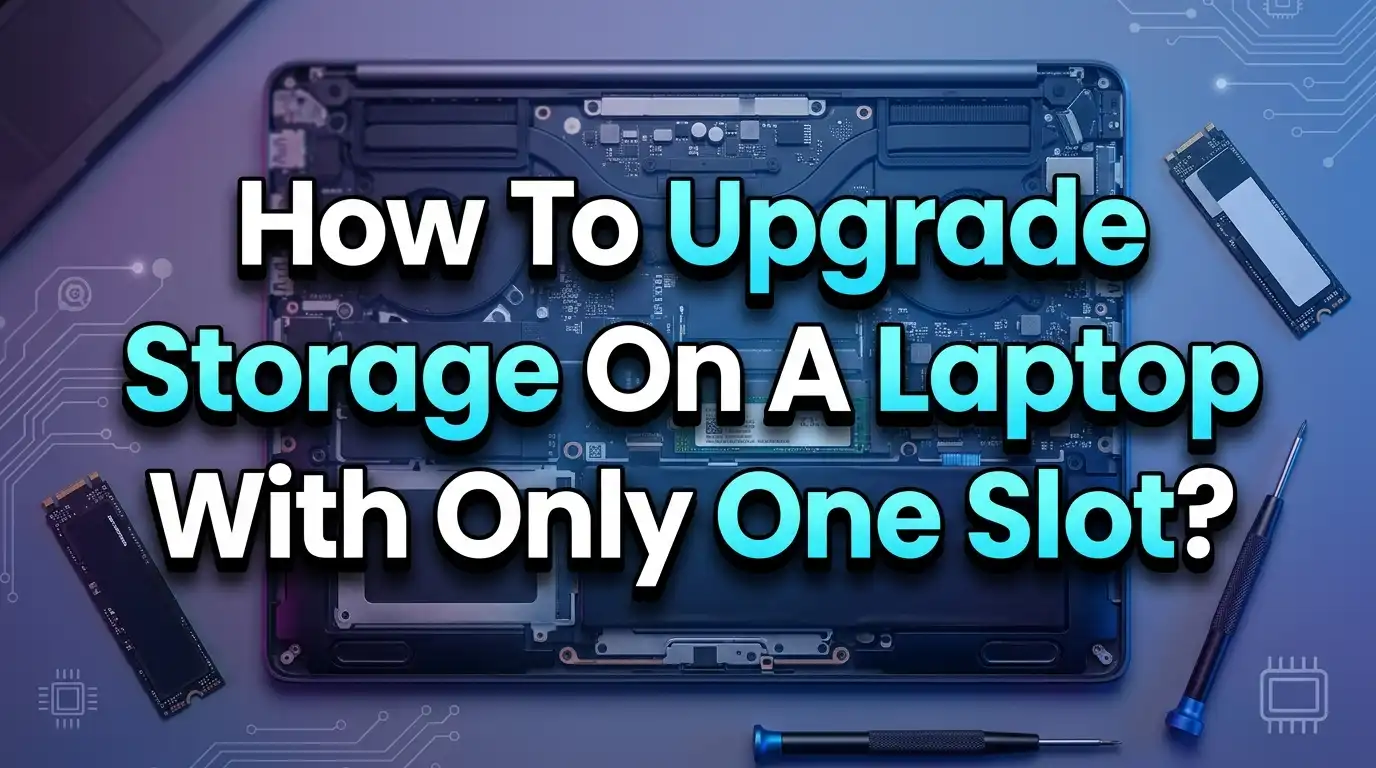
How To Upgrade Storage On A Laptop With Only One Slot?
Running out of storage on your laptop is frustrating, especially when you find out you only have one storage slot. You might think your options are limited — but they are not.
This guide walks you through every solution available today, from replacing your drive entirely to using external options that give you instant extra space.
You will learn exactly what steps to take, what tools you need, and which method fits your situation best. Read on — the solution to your storage problem is closer than you think.
In a Nutshell
- You can replace your existing drive with a larger one. Even with a single slot, you can swap out your current drive for a bigger SSD. You just need an M.2 enclosure, cloning software, and about an hour of your time. Your files, apps, and operating system stay intact.
- An external SSD or HDD is one of the fastest solutions. If you do not want to open your laptop, connecting a fast USB external drive adds large amounts of storage instantly. Some external SSDs deliver speeds fast enough for creative work and gaming.
- Cloud storage handles documents, photos, and media efficiently. Services like Google Drive, OneDrive, and Dropbox let you store files off your laptop and access them from anywhere. This frees up local storage without any hardware changes.
- SD cards and USB drives provide lightweight, low-cost expansion. If your laptop has an SD card slot or spare USB port, you can use a high-speed card or flash drive as semi-permanent extra storage for media and files.
- A NAS (Network Attached Storage) device is ideal for home or office setups. It gives your laptop access to terabytes of centralized storage over your home Wi-Fi network without physically connecting any drives.
- Backing up your data before any upgrade is absolutely critical. Before you replace or clone any drive, always create a full backup. This protects your files from any accidental data loss during the upgrade process.
Why Laptops Often Come With One Storage Slot:
Many modern laptops are designed to be thin, light, and compact. To achieve that slim profile, manufacturers cut back on internal components, including storage slots. Budget laptops, ultrabooks, and even some mid-range models often ship with just one M.2 slot — and sometimes that slot holds a small 128GB or 256GB drive.
This is a design trade-off. Thinner chassis leave less room for multiple drive bays. Some laptops also solder storage directly onto the motherboard, leaving only one replaceable slot. Understanding your laptop’s exact configuration is the first step before choosing any upgrade path.
You can check your laptop’s storage type and slot count by visiting the manufacturer’s website and looking up your specific model number. Alternatively, you can use free software like CPU-Z or Speccy to see your drive type from within Windows. You can also physically open the bottom panel of the laptop to inspect the slot directly — though this should be done carefully using a plastic pry tool and the correct screwdriver.
Knowing whether your slot supports NVMe, SATA, or both will determine which drives are compatible. This simple check saves you from buying the wrong hardware and wasting money.
Understanding Your Current Drive Type Before Upgrading
Before you spend any money, you need to know exactly what type of drive is in your laptop. There are two main types of M.2 drives: SATA-based M.2 and NVMe-based M.2. These look similar physically but perform differently and may require different enclosures and replacement drives.
An NVMe drive uses the PCIe interface and is significantly faster than a SATA M.2 drive. NVMe drives have a single notch (called an M-key), while SATA M.2 drives have two notches (B+M key). You can check which type you have by looking at the physical connector on the drive or by checking Device Manager on Windows.
To check in Windows, right-click the Start button, open Device Manager, expand “Disk drives,” and look at the drive name. If it says “NVMe,” your drive uses the NVMe protocol. If you see “SATA” in the name, your drive is SATA-based. You can also open Task Manager, click the Performance tab, then click Disk to see the drive type displayed on the right side.
Knowing your drive type ensures you buy the right replacement SSD and the right USB enclosure for cloning. A mismatch will either mean the drive does not fit or the enclosure does not support your drive’s protocol.
Option 1: Replace the Drive With a Larger SSD:
This is the most direct and effective solution. You replace the small SSD that came with your laptop with a larger one. If your laptop currently has a 256GB NVMe SSD, you could replace it with a 1TB or 2TB NVMe SSD, giving you four to eight times more storage without buying any additional hardware.
The process involves cloning your current drive to the new one, then physically swapping the drives. Here is what you need:
- A new M.2 SSD that matches your laptop’s slot type (NVMe or SATA)
- An M.2 USB enclosure to temporarily hold the new drive during cloning
- Free cloning software such as Macrium Reflect or EaseUS Todo Backup
- A small Phillips head screwdriver and a plastic pry tool
The cloning process copies everything from your old drive to the new one, including your operating system, apps, and all personal files. This means you do not need to reinstall Windows or anything else. After cloning, you simply swap the drives and boot up.
This method is the most permanent fix because it increases your laptop’s internal storage capacity directly. Once done, you have a faster, larger drive with no external accessories needed. Most users find the process takes between 30 and 90 minutes depending on how much data is on the current drive.
Option 2: How To Clone Your SSD With Only One Slot (Step-By-Step):
This is the part most people get stuck on. You have one slot, but you need both the old and new drive connected at the same time to clone. The solution is to use an M.2 USB enclosure to connect your new drive externally via USB while the old drive stays inside the laptop.
Follow these steps carefully:
Step 1: Download and install your cloning software before anything else. Macrium Reflect Free and EaseUS Todo Backup Free are both reliable options that support drive cloning.
Step 2: Place your new SSD into the M.2 USB enclosure. Connect the enclosure to your laptop’s USB port. Your laptop should recognize the new drive as an external storage device.
Step 3: Open your cloning software. Select your internal drive (the source) and your new externally-connected drive (the destination). Make sure you select the correct drives to avoid overwriting the wrong one.
Step 4: Start the clone. The software will copy every byte from your old drive to your new one. This takes time depending on the amount of data. Do not close the laptop or disconnect anything during this process.
Step 5: Once cloning is complete, shut down your laptop. Open the back panel, remove the old SSD, insert the new SSD into the slot, and reassemble the laptop.
Step 6: Power on your laptop. It should boot directly into Windows with all your files and apps exactly as before, but now with much more free space.
This method works reliably for most laptops and is the preferred approach recommended across tech communities and forums.
Option 3: Use an External SSD for Extra Storage
If you prefer not to open your laptop, an external SSD is a practical and immediately effective solution. Modern external SSDs connect via USB-C and deliver fast enough speeds for everyday work, large file storage, and even some gaming. USB 3.2 Gen 2 external drives can reach up to 1,050 MB/s read speeds, which is fast enough for editing photos and videos directly off the drive.
You simply plug the external SSD into a USB port and it shows up as a new drive letter in Windows Explorer. You can then move large folders like your Downloads, Documents, or Media library to the external drive and free up your internal storage significantly.
For best performance, always use a USB 3.0 or higher port. Using a USB 2.0 port will significantly slow down transfer speeds. Most modern laptops have at least one USB-A 3.0 or USB-C port that delivers full speed performance.
External SSDs are portable, require no installation, and can be moved between devices. They are a great solution for users who frequently transfer large files, carry their work between locations, or simply need more space without any technical process.
For users who want something compact and low-profile, some ultra-small external SSDs measure less than the size of a credit card and weigh under 30 grams, making them easy to keep attached to the laptop at all times.
Option 4: Use a High-Speed SD Card for Semi-Permanent Storage
If your laptop has an SD card slot, this is one of the simplest ways to add extra storage. A high-speed SD card can act as a secondary storage drive for documents, photos, media, and even app data. Modern UHS-I and UHS-II SD cards offer read speeds of up to 300 MB/s, which is fast enough for most non-system storage needs.
To use an SD card as extra storage in Windows, insert it into the slot, open Settings, go to System, then Storage, and set your SD card as the default save location for new documents, music, pictures, and videos. This means all new files automatically save to the SD card, freeing up your main drive.
For this to work well as permanent storage, leave the SD card inserted at all times. Some SD cards sit slightly flush inside the slot, making them barely visible — perfect for semi-permanent use.
The main limitation is speed. SD cards are slower than internal SSDs, so avoid running applications or the operating system from them. They work best for storing files, media, and data you do not access constantly.
When choosing an SD card for this purpose, look for one rated Class 10 or above, with UHS-I or higher. Capacity options go up to 1TB on today’s market, giving you a significant amount of extra space for a relatively affordable price.
Option 5: Expand Storage Using USB Flash Drives
USB flash drives have come a long way. Today’s compact USB drives support USB 3.2 speeds and come in capacities up to 1TB — making them a viable solution for lightweight extra storage. Some USB-C flash drives are so small they barely stick out of the port, making them suitable for semi-permanent use.
You can configure Windows to automatically save specific file types to a USB drive the same way you do with an SD card. Go to Settings, click System, then Storage, and change the default save locations for photos, music, videos, and documents to the USB drive.
A USB drive works best for storing media files, backups, and secondary documents rather than running apps or the operating system. Running applications from a USB drive leads to slower performance and premature wear on the drive.
If your laptop has a USB-C port with USB 3.2 Gen 2 support, you can find small USB-C flash drives that deliver 400 MB/s or more. These are significantly faster than older USB-A drives and comfortable enough to leave plugged in all day.
This solution requires no tools, no opening the laptop, and no technical knowledge. It is the lowest-barrier option for someone who needs extra space immediately without any setup time.
Option 6: Offload Files Using Cloud Storage
Cloud storage is not just for backups — it can actively free up local storage on your laptop. Services like Google Drive, Microsoft OneDrive, and Dropbox let you move your files off the laptop while keeping them accessible through a folder on your desktop.
OneDrive, which is built into Windows 11 and Windows 10, has a feature called “Files On-Demand.” This feature shows all your cloud files as if they are stored locally, but only downloads them when you open them. This means you can see and access thousands of files without them taking up space on your SSD.
To set this up, open OneDrive settings, go to the Sync and Backup tab, and enable Files On-Demand. Then move your large folders like Documents, Pictures, and Videos into your OneDrive folder. These files will sync to the cloud and the local copies can be freed from your drive.
Google Drive works similarly through the Google Drive desktop app. Once installed, you can set certain folders to be “online only,” saving gigabytes of space on your laptop’s internal drive.
This approach works best when you have a reliable internet connection. It is ideal for professionals who work from multiple devices, students with document-heavy workloads, or anyone storing large photo or video collections they do not need offline constantly.
Option 7: Use a NAS Device for Home or Office Storage
A NAS (Network Attached Storage) device connects to your home or office router and provides centralized storage accessible by all devices on the network. This is one of the most powerful long-term storage solutions for users who regularly work with large files or need shared storage across multiple devices.
Your laptop connects to the NAS over your Wi-Fi or wired network and accesses it like a shared folder. You can move large libraries of video, music, or project files to the NAS and access them from your laptop without taking up any internal SSD space.
NAS devices support multiple drives, giving you several terabytes of capacity in a single unit. Many also support RAID configurations, which means your data is mirrored across drives for redundancy and safety.
Setting up a NAS involves connecting the device to your router, inserting drives, and following the manufacturer’s setup wizard. Most modern NAS systems have a browser-based interface that makes the process straightforward.
The main trade-off with a NAS is that you need a network connection to access your files. It works perfectly at home or in an office but is not useful when working in locations without your home network. For users who primarily work from a fixed location, a NAS offers enormous value and flexibility.
Option 8: Back Up Your Data Before Any Upgrade
Before you replace your drive, clone your SSD, or make any hardware change, backing up your data is absolutely essential. If anything goes wrong during the upgrade — a power outage, a cloning error, or a dropped drive — you could lose everything on your laptop permanently.
The safest backup strategy follows the 3-2-1 rule: keep three copies of your data, store them on two different types of media, and keep one copy off-site (such as in the cloud).
Here is a simple backup plan before upgrading:
- Copy your most important files to an external USB drive manually
- Create a full system image using Windows Backup or Macrium Reflect Free
- Upload critical documents and photos to Google Drive or OneDrive as a second layer of protection
A system image backup captures everything on your drive, including Windows, your installed programs, and all personal data. If the upgrade fails, you can restore the image to your new drive and recover from the situation entirely.
This step takes only 30 to 60 minutes but can save you days of reinstalling software and recreating lost files. Never skip it, regardless of how straightforward the upgrade seems.
How To Open Your Laptop Safely
If you are replacing your internal drive, you will need to open the laptop. This process is straightforward on most laptops but varies by model, so always look up a disassembly guide specific to your laptop model before starting.
Here is a general process that applies to most laptops:
Step 1: Power off the laptop completely and unplug it from any power source. Remove the battery if it is removable.
Step 2: Place the laptop upside down on a clean, flat surface. Use a Phillips head screwdriver (usually size 0 or 1) to remove all the screws from the bottom panel. Keep the screws organized — some laptops use screws of different lengths.
Step 3: Use a plastic pry tool or guitar pick to gently separate the bottom panel from the chassis. Work around the edges slowly to avoid cracking any clips.
Step 4: Once open, locate the M.2 SSD. It is usually a small rectangular chip seated at an angle into the slot and secured with a single screw.
Step 5: Remove the screw holding the SSD, gently pull the drive out at a slight angle, and insert your new SSD at the same angle. Press it down gently and replace the screw.
Step 6: Reassemble the laptop in reverse order, replace all screws, and power on the device.
Always ground yourself before touching internal components to avoid static discharge damage. Touching a metal surface before handling the drive is a simple precaution that prevents this.
What To Do After Installing the New SSD
After physically installing the new drive, you need to make sure everything is working correctly. If you cloned the drive, your laptop should boot directly into Windows without any extra steps. However, there are a few things worth checking.
First, open Disk Management (right-click the Start button and select “Disk Management”) and verify that the new drive is showing its full capacity. If the partition does not use the full drive, right-click the main partition and select “Extend Volume” to use all available space.
If you installed a fresh drive without cloning, you will need to install Windows from a bootable USB drive. Download the Windows 11 Media Creation Tool from Microsoft’s website, create a bootable USB, and boot your laptop from it. Follow the on-screen instructions to install Windows fresh.
After the upgrade, run Windows Update to install all driver updates. Also check that your storage is recognized correctly by going to Settings, then System, then Storage, to confirm the full capacity is available.
Finally, move any data back from your backup to the new drive and reinstall any applications that were not captured in a clone. Your laptop should now perform faster and have significantly more storage room for all your files.
Choosing the Right SSD for Your Single-Slot Laptop
Not all SSDs are created equal, and choosing the right one makes a real difference. The key factors to consider are drive type (NVMe or SATA), form factor (2242, 2260, or 2280), and capacity.
Most laptops use M.2 2280 drives, meaning the drive is 22mm wide and 80mm long. Some ultrabooks use shorter drives like 2242 or 2260. Check your laptop’s manual or look up the model online to confirm the correct size before buying.
For performance, NVMe drives are the clear winner. They are significantly faster than SATA SSDs, with read speeds ranging from 3,000 MB/s to 7,000 MB/s on modern PCIe Gen 4 drives compared to 550 MB/s for SATA. If your laptop supports NVMe, choose an NVMe drive.
For most users, a 1TB drive offers a sweet balance between cost and capacity. Power users who work with video, large game libraries, or creative projects should consider 2TB. Storage prices have dropped significantly, making larger capacities more accessible than ever in 2026.
Always verify that the new SSD is compatible with your specific laptop model. Manufacturer websites often list tested and supported drives. Forums like Reddit’s r/laptops and Tom’s Hardware are also excellent resources for confirming compatibility with your exact model.
Troubleshooting Common Issues After a Storage Upgrade
Even with careful preparation, issues can arise after a laptop storage upgrade. Knowing how to handle the most common problems will save you time and frustration.
The most common issue is the laptop not booting after replacing the drive. This usually means the boot order in BIOS needs to be updated. To fix this, press the BIOS key during startup (usually F2, F10, Del, or Esc depending on your laptop brand), go to the Boot menu, and set your new SSD as the first boot device. Save and exit.
Another common issue is the new drive showing less capacity than expected. This happens when the partition does not extend to fill the full drive. Open Disk Management, right-click the primary partition, and select “Extend Volume” to claim the remaining space.
If the laptop does not recognize the new drive at all, re-seat it by removing and reinserting the drive carefully. Make sure the drive is fully pressed into the slot before securing the screw. A loose connection is the most common cause of a drive not being detected.
If the clone did not transfer correctly and Windows fails to boot, boot from a Windows USB recovery drive, go to Troubleshoot, then Advanced Options, then Startup Repair. This often resolves boot issues caused by minor cloning inconsistencies.
Frequently Asked Questions
Can I upgrade my laptop storage if it only has one M.2 slot?
Yes, you can absolutely upgrade your laptop storage with a single M.2 slot. The most effective method is to use an M.2 USB enclosure to connect your new drive externally, clone your existing drive to it using free cloning software, then swap the drives. This lets you upgrade without reinstalling Windows or losing any data.
How do I know if my laptop’s M.2 slot supports NVMe or SATA?
You can check by looking at the notch on your current drive. An NVMe drive has one notch (M-key), while a SATA M.2 drive has two notches (B+M key). You can also check in Windows Device Manager under “Disk drives” — if the drive name includes “NVMe,” it uses the NVMe protocol. Checking your laptop’s spec sheet on the manufacturer’s website is the most reliable method.
What is the easiest way to add storage without opening the laptop?
The easiest options are using an external SSD connected via USB, inserting a high-speed SD card if your laptop has a slot, using a USB flash drive, or expanding to cloud storage through services like OneDrive or Google Drive. None of these require opening the laptop or any technical knowledge.
Will replacing my SSD delete all my files?
Replacing your SSD will only delete your files if you install a fresh copy of Windows on the new drive. If you clone your existing drive to the new one using software like Macrium Reflect or EaseUS Todo Backup, all your files, apps, and system settings transfer to the new drive without any loss.
Is a 1TB SSD enough for most laptop users?
For most users, yes. A 1TB SSD is enough for the operating system, a full suite of applications, thousands of documents, and a large photo library. Gamers and video editors may want 2TB. If you are unsure, check how much of your current drive is used and multiply that by two for a comfortable upgrade with room to grow.
Can I use an SD card as permanent storage on my laptop?
Yes, you can use a high-speed SD card as semi-permanent storage. Insert it and configure Windows to save new files (documents, photos, music) directly to the SD card through the Storage Settings menu. This works best for files and media rather than apps. Use a UHS-I or higher card for the best performance and leave it inserted at all times for it to function like a secondary internal drive.
What free software can I use to clone my SSD?
Macrium Reflect Free and EaseUS Todo Backup Free are two of the most trusted free cloning tools available. Both support full disk cloning, are compatible with Windows 10 and 11, and walk you through the process with a clear interface. Macrium Reflect is especially recommended in tech communities for its reliability and support for bootable recovery media.

Hi, I’m Lusi. I’m a tech enthusiast who loves digging into gadgets, testing products, and helping people find the best tech for their needs and budget. Got a question or a product you’d like me to review? Drop me a mail— I’d love to hear from you!