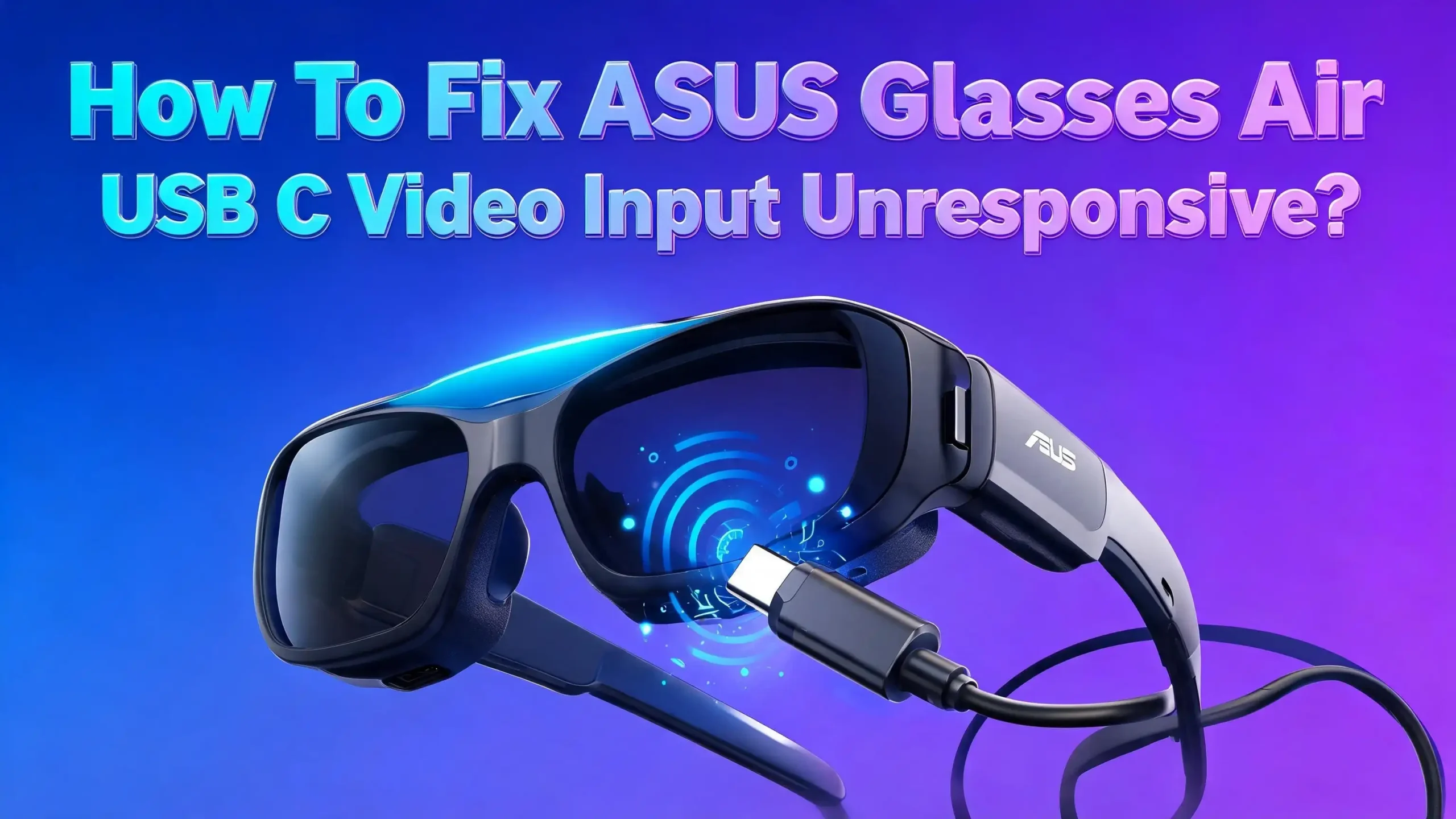
How To Fix ASUS Glasses Air USB C Video Input Unresponsive?
You plug your ASUS AirVision M1 glasses into your laptop or phone, and nothing happens. The screen stays black. The USB C video input feels completely dead. You try wiggling the cable, switching ports, and restarting your device, but the glasses refuse to display anything.
The good news is that most USB C video input problems with ASUS smart glasses have clear causes and straightforward fixes.
The issue usually comes down to port compatibility, cable quality, driver conflicts, or firmware bugs. In many cases, you can solve the problem in a few minutes without any special tools.
This guide walks you through every possible cause and solution. You will learn how to check your USB C port capabilities, fix driver problems, update firmware, and troubleshoot hardware faults.
Key Takeaways
- Your USB C port must support DP Alt Mode or Thunderbolt. Not every USB C port can send video signals. Many USB C ports on laptops and phones only handle data transfer and charging. The ASUS AirVision M1 glasses need a port that supports DisplayPort Alternate Mode. Without this feature, the glasses will never receive a video signal regardless of what you try.
- Always use the included cable or a certified replacement. Cheap USB C cables often lack the wiring needed for video output. The cable that ships with the glasses supports both video and audio transmission. A charging cable will not work for display output.
- Outdated graphics drivers and firmware cause many display failures. Windows may not send video to the glasses if your GPU driver is old or corrupted. The glasses themselves also have firmware that needs periodic updates through the ASUS AirVision app.
- A simple power drain can fix unresponsive USB C ports. Shutting down your device, removing all cables, and holding the power button for 30 seconds can clear electrical issues that block video output from the USB C port.
- 3D mode can make it look like the display is broken. The ASUS AirVision M1 has a 3D mode that splits the image. If this mode gets activated by accident, you may see a blank screen or distorted image and mistake it for a hardware failure.
- Contact ASUS support if firmware updates fail or the glasses remain unresponsive after all software fixes. A hardware defect in the USB C connector or internal display module may require professional repair.
Verify That Your USB C Port Supports DP Alt Mode
The most common reason the ASUS Glasses Air USB C video input stays unresponsive is port incompatibility. Your USB C port may look identical to every other USB C port, but its internal capabilities can vary. The ASUS AirVision M1 glasses require a USB C port that supports DisplayPort Alternate Mode (DP Alt Mode) or Thunderbolt.
Check your laptop or phone specifications to confirm DP Alt Mode support. On most laptops, only certain USB C ports carry video signals. A port near the charging connector or one labeled with a small display icon or Thunderbolt lightning bolt symbol usually supports video output.
You can also open Device Manager on Windows and expand the Display Adapters section. If your GPU lists a USB C output or DisplayPort output, the port likely supports DP Alt Mode. Another method is to check your device manual or the manufacturer’s product page for USB C port specifications.
On smartphones, the situation is trickier. Not all phones with USB C ports support video output. For example, Samsung Galaxy S series and ROG Phone models generally support DP Alt Mode. Many budget phones do not. Check your phone manufacturer’s specifications to confirm this feature before assuming the glasses are faulty.
If your port does not support DP Alt Mode, you will need an adapter. An HDMI to USB C adapter with DP Alt Mode output can bridge the gap for devices that only have HDMI video output. This adds a step but solves the compatibility issue entirely.
Inspect and Replace the USB C Cable
A faulty or incompatible cable is the second most frequent cause of an unresponsive video input. USB C cables are not all the same. Some cables support only charging and basic data transfer. Others support full video, audio, and power delivery. The ASUS AirVision M1 ships with a specific cable that handles all these functions.
Start by examining the included cable for visible damage. Look for bent connectors, frayed shielding, or kinks along the cable length. Even minor physical damage can interrupt the video signal while still allowing charging to work.
Try the cable on a different device to test if it carries video. If the cable works with another display or device, the cable itself is likely fine. If it fails on every device, replace it.
When buying a replacement, look for a USB C cable that explicitly supports DP Alt Mode and video output. Cables rated for USB 3.2 Gen 2 or Thunderbolt 3/4 typically include the wiring needed for video transmission. Avoid using random cables from a drawer because they are often charging cables that lack the internal pins for display signals.
Also pay attention to the angled connector. The ASUS AirVision M1 uses an angled USB C plug on the glasses side. Make sure the connector seats firmly and does not wobble. A loose connection can cause intermittent video dropouts or a completely blank display.
Perform a Full Power Drain on Your Device
Sometimes the USB C controller on your laptop, phone, or handheld gets stuck in a bad state. A power drain resets the internal circuitry and can restore normal USB C function. This fix takes less than a minute and solves the problem more often than you might expect.
On a laptop, shut down the computer completely. Do not use sleep or hibernate. Close the lid only after the system powers off fully. Disconnect the charger and all USB devices. Then press and hold the power button for at least 30 seconds. This drains residual charge from the motherboard and resets the USB controller.
After 30 seconds, release the power button. Plug the charger back in and power on the laptop. Connect the ASUS glasses and check if the video input responds.
On a smartphone, power off the phone completely. Wait 30 seconds before turning it back on. Then connect the glasses using the included cable and see if the display appears.
For gaming handhelds like the ROG Ally, the process is similar. Power off the device, disconnect all cables, and hold the power button for 15 to 30 seconds. This clears any USB C port errors that may prevent video output.
This simple reset resolves a surprising number of “unresponsive USB C” reports. If it does not work for you, continue to the next steps.
Update Your Graphics Drivers
Outdated or corrupted graphics drivers can block video output over USB C entirely. Your operating system relies on the GPU driver to communicate with external displays, and the ASUS AirVision M1 functions as an external display from the system’s perspective.
On Windows, open Device Manager and expand the Display Adapters section. Right click your GPU and select Update Driver. Choose the option to search automatically for updated driver software. Windows will check for newer versions and install them if available.
For better results, visit the GPU manufacturer’s website directly. If you have an NVIDIA GPU, download the latest driver from the NVIDIA website. For AMD GPUs, use the AMD Software tool to check for updates. Intel integrated graphics users should visit Intel’s download center or use the Intel Driver & Support Assistant tool.
After installing the update, restart your computer. Then connect the ASUS glasses and test the video input again. A fresh driver installation often resolves display detection failures that no other fix can address.
If updating does not help, try a clean installation. Use the Display Driver Uninstaller (DDU) tool to fully remove the existing GPU driver. Then install the latest driver fresh. This eliminates any corrupted files or settings left behind by previous installations.
Update the ASUS AirVision M1 Firmware
The glasses themselves run firmware that controls how they receive and process video signals. Outdated firmware can cause display failures, input detection issues, and other problems. ASUS releases firmware updates that fix bugs and improve compatibility.
To update the firmware, download and install the ASUS AirVision app on your Windows laptop. Connect the glasses to the laptop using the included USB C cable. Open the app and go to the Device Information section. The app will show your current firmware version and offer an update button if a newer version is available.
Click the update button and do not disconnect the glasses during the update process. Interrupting a firmware update can brick the device. Wait for the app to confirm the update is complete before removing the cable.
If the AirVision app does not detect the glasses, try a different USB C port on your laptop. Also make sure your laptop’s USB C port supports DP Alt Mode, as the app needs this connection to communicate with the glasses.
ASUS also notes that if a firmware update fails, you should contact ASUS customer service and send the glasses to their repair center. A failed update can leave the firmware in a broken state that only a professional reflash can fix.
Check and Disable 3D Mode
A surprisingly common cause of what looks like an unresponsive display is the accidental activation of 3D mode. The ASUS AirVision M1 includes a 3D viewing mode that splits the display into two separate images for each eye. If you trigger this mode by accident, the screen may appear blank, distorted, or split in half.
To check, look for different images in the left and right lenses. If you see the screen divided into two halves or the left and right views show different content, 3D mode is likely active.
To disable 3D mode, press and hold the touchpad on the left temple with two fingers for 1.5 seconds. The display should merge back into a single clear image. This gesture toggles 3D mode on and off.
You should also confirm through the AirVision app that 3D mode is turned off. Open the app and check the display settings. Make sure no 3D related settings are enabled unless you actually want to watch 3D content.
This issue catches many users off guard. They assume the glasses are broken when the display looks wrong, but a quick two finger hold on the touchpad fixes the problem instantly. Always check this before moving on to more complex troubleshooting.
Reinstall USB Drivers in Device Manager
Corrupted USB drivers on your Windows computer can prevent the system from recognizing the ASUS glasses as a display device. Reinstalling the USB Root Hub and USB Host Controller drivers forces Windows to load fresh copies and often resolves detection problems.
Open Device Manager by typing it into the Windows search bar. Expand the section labeled Universal Serial Bus controllers. Right click on USB Root Hub and select Uninstall device. Confirm the uninstall. Repeat this for every USB Root Hub entry in the list.
Next, do the same for every USB Host Controller entry. Uninstall each one. If your system supports USB4, also uninstall the USB4 Root Device Router and USB4 Host Router entries.
After removing all these drivers, restart your computer. Windows will automatically reinstall the correct USB drivers during the reboot process. Once the computer is back up, connect the ASUS glasses and check if the video input responds.
This process does not delete any personal files or settings. It only refreshes the USB communication layer between your hardware and operating system. Many users report that this fix resolves stubborn USB C display detection failures that persist through cable swaps and port changes.
Run a Windows Update and Monitor Driver Update
Windows updates frequently include patches for USB C display output, Thunderbolt support, and general hardware compatibility. A missing update can leave your system unable to communicate properly with USB C display devices like the ASUS AirVision M1.
Open Settings on your Windows computer. Go to Windows Update and click Check for updates. Download and install all available updates, including optional driver updates that appear under the advanced options section.
ASUS specifically recommends updating the Monitor driver to version 1.0.0.0 or later through Windows Update. This monitor driver helps Windows recognize the AirVision M1 as a display device. Without this driver, the glasses may not be detected even when the USB C connection is physically working.
After installing all updates, restart your computer. Then connect the glasses and test the video input. The combination of a fresh Windows build and the correct monitor driver solves many first time connection failures.
You should also use MyASUS if it is installed on your computer. Open MyASUS and go to the system update section. Download and install any available BIOS, chipset, or driver updates. These updates often include fixes for USB C port behavior that standard Windows updates do not cover.
Load BIOS Defaults To Reset USB C Settings
Changed BIOS settings can sometimes disable USB C video output or limit port functionality. Restoring the BIOS to default settings reverses any accidental changes and resets the USB C controller configuration.
To access the BIOS, power off your computer completely. Then press and hold the F2 key on your keyboard and press the power button. Keep holding F2 until the BIOS screen appears. On some older ASUS desktops, press the Delete key instead. On the ROG Ally, hold the Volume Down button while pressing the power button.
Once inside the BIOS, look for an option labeled Load Optimized Defaults, Restore Defaults, or something similar. Select it and confirm. Then save your changes and exit the BIOS. The computer will restart with default settings.
After the restart, connect the ASUS glasses and test the video input. If a BIOS setting was blocking USB C video output, this reset should fix the problem. Pay special attention to any Thunderbolt or USB C related settings in the BIOS if you want to investigate further before restoring defaults.
This step is especially useful if you recently changed BIOS settings for overclocking, boot configuration, or peripheral control. Any of these changes could have a side effect on USB C port behavior.
Try a Different Device To Isolate the Problem
Before concluding that the glasses are defective, test them on a completely different device. This step tells you whether the problem is with the glasses or with your original device’s USB C port, drivers, or settings.
Connect the ASUS AirVision M1 to a different laptop, a smartphone with DP Alt Mode support, or a gaming handheld like the ROG Ally. Use the included cable for each test. If the glasses display an image on a different device, the original device is the source of the problem.
If the glasses stay unresponsive on every device you test, the issue is likely with the glasses or the cable. Try a different USB C cable that supports video output. If a new cable works, the original cable was the problem. If nothing works on any device with any cable, the glasses may have a hardware defect.
For smartphone testing, remember that you need a phone with USB C DP Alt Mode support. Samsung Galaxy flagship phones, ROG Phones, and many Sony Xperia models support this feature. Budget or mid range phones often do not.
Isolating the problem saves you time. It prevents you from spending hours troubleshooting your laptop when the real issue is a damaged cable. It also prevents unnecessary returns when the glasses are fine but the USB C port on your device does not support video output.
Check Power Delivery and System Resources
The ASUS AirVision M1 glasses draw power from the USB C connection. If your device’s USB C port cannot deliver enough power, the glasses may fail to start or may turn on briefly and then shut off without displaying anything.
Laptops connected to their charger generally provide sufficient power through their USB C ports. But if you run the laptop on battery and the battery level is low, the system may reduce USB C power output to conserve energy. Keep your laptop plugged in while using the glasses for the most reliable experience.
On smartphones, USB C power delivery varies by model. Some phones limit power output when the battery drops below a certain percentage. Charge your phone to at least 50% before connecting the glasses.
System resources also matter on Windows. The ASUS AirVision app creates virtual screens that consume GPU power. If your GPU is already under heavy load from games or rendering software, the system may struggle to initialize the additional display. Close unnecessary applications before connecting the glasses to free up GPU and CPU resources.
The AirVision app includes a Light Load Mode that reduces system resource consumption. Enable this mode if your device has limited hardware capabilities. It lowers the graphical demand on your GPU while still providing a functional display output through the glasses.
Contact ASUS Support for Hardware Issues
If you have tried every software fix and the glasses remain unresponsive on every device with every cable, the problem is most likely hardware related. The USB C connector on the glasses, the internal display driver board, or the display panels themselves may be damaged.
Visit the ASUS support website and locate the contact options for your region. You can reach ASUS through live chat, phone support, or email. Have your product serial number ready. You can find the serial number on the glasses arm or in the original packaging.
ASUS also offers a product registration page through the AirVision app. Registering your product ensures you receive warranty coverage and makes the support process faster.
If ASUS determines the glasses need repair, they will provide instructions for shipping the device to their service center. Do not attempt to open or repair the glasses yourself, as this will void the warranty and may cause additional damage to the delicate display components inside.
Keep your original packaging and accessories. ASUS may request that you ship everything together. The repair process typically takes one to three weeks depending on your location and the nature of the defect.
FAQs
Why does my ASUS AirVision M1 show no display when connected to my laptop?
Your laptop’s USB C port may not support DP Alt Mode or Thunderbolt. Check the port specifications in your device manual or on the manufacturer’s website. Only USB C ports with DP Alt Mode or Thunderbolt can send video signals to the glasses. Also verify that you are using the included USB C cable, as charging cables do not carry video signals.
Can I use any USB C cable with the ASUS AirVision M1 glasses?
No. You need a USB C cable that supports video and audio transmission. The cable included with the glasses is designed for this purpose. Generic charging cables lack the internal wiring for DisplayPort signals. If you need a replacement, choose a cable rated for USB 3.2 Gen 2 or Thunderbolt that explicitly lists DP Alt Mode support.
How do I know if my phone supports USB C video output for the glasses?
Check your phone’s specifications for “USB C DP Alt Mode” or “DisplayPort output” support. Flagship phones from Samsung, ASUS ROG, and Sony typically include this feature. Budget and mid range phones often do not. You can also contact your phone manufacturer’s support team to confirm.
What should I do if the firmware update on my ASUS glasses fails?
Contact ASUS customer service immediately. A failed firmware update can leave the glasses in a non functional state. ASUS recommends sending the device to their repair center for a professional firmware reflash. Do not attempt to reset or re update the firmware repeatedly, as this may cause further damage.
Why does the display look split or distorted instead of showing a normal image?
This happens when 3D mode is accidentally activated. Press and hold the touchpad on the left temple with two fingers for 1.5 seconds to toggle 3D mode off. The image should return to a single clear display. You can also disable 3D mode through the AirVision app settings on your computer.
Will the ASUS AirVision M1 glasses work with an iPhone?
The ASUS AirVision M1 can work with iPhone 15 and later models because these phones use USB C with DP Alt Mode. However, you may experience volume control limitations. ASUS recommends using Bluetooth headphones and setting audio output to the headphones when using the glasses with an iPhone.

Hi, I’m Lusi. I’m a tech enthusiast who loves digging into gadgets, testing products, and helping people find the best tech for their needs and budget. Got a question or a product you’d like me to review? Drop me a mail— I’d love to hear from you!