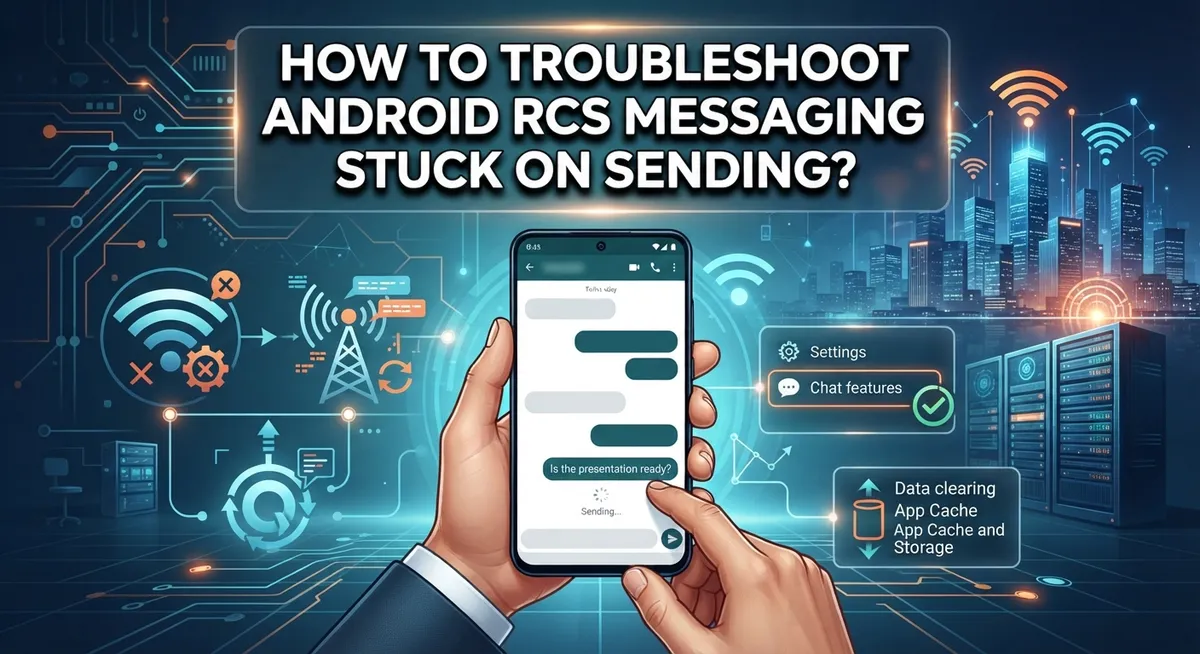
How To Troubleshoot Android RCS Messaging Stuck On Sending?
You send a text and it just sits there. The little clock icon spins next to “Sending” and never turns into “Delivered.”
This is one of the most annoying problems in Google Messages. Your Android RCS messaging feature stalls, and your friend never gets your text.
RCS (Rich Communication Services) is supposed to make texting better. It gives you read receipts, typing indicators, and better group chats. But when it breaks, it can leave your messages stuck for good.
The good news is that this problem is usually fixable. It often comes down to a shaky internet connection, an outdated app, or a carrier setting that got switched off.
In this guide, we will walk you through simple fixes for RCS messages stuck on sending. You will learn how to check your connection, restart key apps, and clear stubborn cache data.
In a Nutshell
- Check your connection first. Switch between Wi-Fi and mobile data. Sometimes one works better than the other for RCS.
- Restart your phone. This refreshes your carrier connection and clears small glitches. It solves the problem more often than you’d think.
- Turn on Chat Features. Go to Settings and then Chat features inside Google Messages. RCS won’t work if this is switched off.
- Force stop and clear cache. Do this for both Google Messages and Carrier Services. This clears out any corrupted data causing the freeze.
- Toggle Airplane mode. Turn it on for a few seconds, then turn it off. This forces your phone to reconnect to network services.
- Update your apps. Make sure Google Messages and Google Play Services are running the latest versions. Old versions often cause sending errors.
- Contact your carrier if needed. Some carriers disable RCS by default or have outages. A quick call can confirm if it’s on their end.
What Is RCS Messaging and Why Messages Get Stuck on Sending
RCS stands for Rich Communication Services. It’s an upgrade from basic SMS texting that lets you send high quality photos, videos, and group messages through Google Messages. RCS also shows you when someone is typing and whether they read your message.
The key difference between RCS and SMS is that RCS uses your internet connection. This means it needs either Wi-Fi or mobile data to work properly. When your RCS message gets stuck on sending, it usually means your phone can’t connect to the internet or complete the handshake with your carrier’s RCS servers.
Why do messages get stuck on sending? The most common reason is a weak or interrupted internet connection. Your phone might lose signal for a moment, and the message fails to send. Sometimes the app itself has a glitch and can’t process the message correctly.
Another reason is carrier support. Not all carriers enable RCS by default. Your carrier might have it disabled on your account, which stops messages from going through. Some carriers also experience temporary outages that affect RCS services.
App issues also cause this problem. If Google Messages or Carrier Services hasn’t been updated recently, it might struggle to send RCS messages. The app cache can get corrupted too, which prevents proper communication with your carrier.
Finally, account setup problems can block RCS. If your Google account isn’t properly linked to your phone or if chat features aren’t enabled in settings, messages will stay stuck.
The good news is that most of these issues have simple fixes. You just need to check your connection, restart your apps, and verify your settings are correct.
Quick Fixes to Try First: Connection and Restart Checks
Start by checking your internet connection. RCS messages need a strong, stable connection to send. Open your browser and load a webpage to confirm you have internet access. If the page loads slowly or not at all, your connection is the problem.
Switch between Wi-Fi and mobile data. Sometimes one connection works better than the other. If you are using Wi-Fi, turn it off and use mobile data instead. If mobile data is active, try switching to Wi-Fi. This simple change often unsticks messages that are frozen on sending.
Next, restart your device completely. Power off your phone, wait 10 seconds, and turn it back on. This refreshes your carrier connection and clears temporary glitches. Restarting is one of the most effective fixes because it resets how your phone talks to your carrier’s network.
After restarting, open Google Messages and try sending a test message. If it sends successfully, the problem is solved. If the message still gets stuck, move to the next step.
Enable Chat Features in your settings. Open Google Messages, go to Settings, and tap Chat features. Make sure the toggle is turned on. If Chat Features are disabled, RCS cannot work. Your carrier must also support RCS for this feature to activate.
Check if you have a notification saying “RCS chats disabled by carrier.” If you see this message, your carrier has turned off RCS. Contact your carrier’s customer support to request they enable RCS on your account. Some carriers require you to opt in to this service.
These connection and restart checks solve most stuck message problems. They are fast, free, and require no technical skills.
Enabling and Verifying Chat Features in Google Messages
Enabling Chat Features is one of the most important steps to get RCS messaging working properly. This feature activates Rich Communication Services on your device and allows Google Messages to connect with your carrier’s RCS network.
Open Google Messages on your phone. Tap the three dots in the top right corner to access the menu. Select “Settings” from the dropdown options. Look for a section called “Chat features” or “Advanced” depending on your Android version.
Once you find Chat features, you should see a toggle switch. Make sure this toggle is turned ON. Your phone will then attempt to verify your account with your carrier’s RCS system. This verification process can take a few minutes, so be patient.
While your phone verifies, you may see a message that says “Setting up” or “Trying to verify.” This is normal. Do not close the app during this time. Let the process complete on its own.
After verification finishes, you should see a message confirming that Chat features are enabled. The status should display as “Connected” or “Active.” This means your device is now registered on the RCS network.
If you see a message saying “RCS chats disabled by carrier,” this means your carrier has not activated RCS for your account. Contact your carrier’s customer support to request RCS activation.
Once Chat features show as enabled and connected, try sending a test message. Use a different contact to verify that messages are no longer stuck on sending. If problems continue, move forward with other troubleshooting steps like clearing your app cache or restarting your device.
Force Stopping and Clearing Cache for Messages and Carrier Services
When your RCS messages stay stuck on sending, force stopping and clearing cache often fixes the problem. This process removes temporary files that may corrupt your messaging apps.
Start by opening your phone’s Settings app. Tap Apps or Application Manager depending on your Android version. Search for “Google Messages” and open it.
Look for the Force Stop button and tap it. This completely closes the app and stops any background processes. Wait a few seconds, then return to the app list.
Find “Carrier Services” in your app list. This app manages your carrier’s RCS connection. Tap Force Stop on this app as well.
Now you need to clear the cache for both apps. Go back to Google Messages in your settings. Tap Storage or Storage and Cache depending on your phone model.
You should see options like “Clear Cache” and “Clear Data.” Start by tapping Clear Cache. This removes temporary files without deleting your messages. If clearing cache doesn’t work, you can tap Clear Data, but this removes your app settings and you’ll need to set up Chat features again.
Repeat this process for Carrier Services. Clear the cache first, then clear data if needed.
After clearing both apps, restart your phone completely. This gives your system a fresh start and allows the apps to rebuild their connections properly.
Open Google Messages and check if Chat features are still enabled. Go to Settings and tap Chat features to verify. If it shows as disabled, enable it again.
Try sending a test message to see if your stuck messages now go through. Most users find that force stopping and clearing cache solves their sending problems within minutes.
Checking App Updates, Android Version, and Google Play Services
Your Android device runs several systems that work together to send RCS messages. If messages stay stuck, you need to check if these systems are up to date.
Start by opening Google Play Store on your phone. Tap your profile icon in the top right corner. Select “Manage apps and device.” Look for Google Messages in your list. If you see an “Update” button, tap it and wait for the installation to finish. An outdated app often causes sending problems.
Next, check your Android version. Open Settings on your phone. Scroll down and tap “About phone.” Look for “Android version.” Write down this number because you’ll need it. Google Messages works best on Android 6.0 or newer. If your version is older, consider updating your device if available.
Now check Google Play Services. Go back to Google Play Store. Search for “Google Play Services” in the search bar. If an update is available, tap “Update” and let it install completely. This service runs behind the scenes and manages many phone functions. Without the latest version, RCS messaging may fail.
After updating all three items, restart your phone completely. Power it off fully, then turn it back on. This refresh helps your phone load the new versions properly.
Open Google Messages and check your Chat features status. Go to Settings, then tap Chat features. You should see either “Connected” or a setup message. If everything shows as connected now, try sending a test message. These updates often solve stuck message issues completely.
Fixing Account and Setup Issues: When RCS Gets Stuck Verifying
When RCS gets stuck during the verification process, the issue usually stems from your account setup or how your device communicates with your carrier’s system. Account verification problems often appear as “Setting up” or “Trying to verify” messages that refuse to progress.
Your Google account connection is the first place to check. Sometimes your device loses sync with your Google account, which prevents RCS from completing its verification handshake. Remove your Google account from your phone’s Settings, then add it back. This forces your device to re-authenticate with Google’s servers and often resolves stuck verification states.
Next, check if your carrier requires manual account activation. Some carriers need you to contact them directly to enable RCS on your phone number. Your carrier support team can confirm whether RCS is active on your specific account and phone line.
Device-level account issues can also block verification. Go to your phone’s Settings and look for “Accounts” or “Users and Accounts.” Tap your Google account and select “Manage your account.” Check the “Security” tab to ensure your account shows no suspicious activity or security alerts that might trigger verification blocks.
If you’ve recently changed your phone number or switched carriers, RCS verification may fail because the system doesn’t recognize your new number yet. Wait 24 to 48 hours for your carrier’s system to fully update.
Try signing out of Google Messages completely, then sign back in. This refreshes your authentication tokens and often completes stuck verifications. After signing back in, enable Chat features again and monitor the verification progress closely.
Common Mistakes That Prevent RCS From Working Properly
Many people make simple mistakes that cause RCS messages to get stuck on sending. Understanding these errors helps you fix the problem faster.
The biggest mistake is relying only on Wi-Fi when RCS fails to send. RCS works best over mobile data because your carrier controls the connection. If messages stay stuck on sending, switch from Wi-Fi to your mobile network immediately. Try sending a test message on mobile data to see if the issue disappears.
Another common error is skipping the cache clearing step. Your app stores temporary files that sometimes become corrupted. People assume restarting their phone fixes everything, but clearing cache is actually essential. Without this step, old broken data blocks new RCS connections from forming properly.
Many users also ignore their carrier’s RCS status. Some carriers disable RCS by default or haven’t activated it in your region yet. If you see “RCS chats disabled by carrier,” contacting your carrier is mandatory. No troubleshooting step will work if your carrier hasn’t enabled RCS on their network.
Updating apps inconsistently causes problems too. People update Google Messages but forget about Carrier Services or Google Play Services. All three need current versions to communicate properly. Missing even one update breaks the entire RCS system.
Finally, users often don’t wait long enough during setup. RCS verification takes time, especially on slower connections. Restarting your phone or force stopping apps during this process interrupts verification. Let the setup complete fully before taking any troubleshooting actions.
Avoiding these mistakes saves you hours of frustration and gets your RCS messages sending again quickly.
When the Issue Is Your Carrier: Recognizing and Resolving Carrier-Side Problems
Your carrier plays a crucial role in whether RCS messaging works properly. Some carriers disable RCS by default or have limited support for the service. Understanding your carrier’s status is the first step to fixing stuck messages.
Check your carrier’s RCS availability. Contact your carrier’s customer support and ask if they support RCS messaging. Some carriers have rolled out RCS support gradually, so your region might not have access yet. Ask them to confirm that Chat Features are enabled on your account.
Look for specific error messages. If you see “RCS chats disabled by carrier” in your Google Messages app, this tells you your carrier has turned off RCS on their end. This message means you need carrier intervention to fix the problem. Don’t waste time troubleshooting your phone settings if your carrier hasn’t enabled the service.
Request manual activation if needed. Some carriers require you to manually activate RCS on your account. Call your carrier and ask if you need to enable Chat Features through their customer portal or by phone. They can often activate it immediately.
Switch carriers if necessary. If your carrier doesn’t support RCS and has no plans to add it, you may need to consider switching. Check which carriers in your area offer RCS support before making this decision.
Verify your account status. Ask your carrier if there are any restrictions on your account that might block RCS. Sometimes account holds or service suspensions prevent RCS from working, even if the service is available in your area.
Contact your carrier before spending more time on device troubleshooting steps.
Final Thoughts
RCS messaging stuck on sending feels frustrating. But most fixes are simple and quick.
Start with the basics. Check your internet connection first. Then restart your device and app.
Clearing cache and force stopping apps solves many problems. This fixes issues without deleting your data or messages.
If basic fixes don’t work, look deeper. Check your Google account connection. Verify your carrier supports RCS messaging.
Account and setup issues often cause verification to get stuck. Signing out and back in helps in many cases.
Remember the common mistakes too. Don’t rely only on Wi-Fi. Don’t skip cache clearing steps.
Carrier problems need different solutions. Contact your carrier if you see specific disable messages.
Some carriers require manual activation. Others simply don’t support RCS yet.
Patience matters during troubleshooting. Some fixes take a few minutes to work. Setup processes need time to complete properly.
Work through these steps in order. Start simple, then move to complex fixes if needed.
Most people solve their RCS problems within these steps. The issue usually comes down to connectivity, app data, or carrier settings.
Keep your apps updated regularly. This prevents many future messaging problems.
Check your carrier’s RCS status occasionally too. Support for RCS keeps expanding across carriers.
If nothing works after trying everything, contact your carrier’s support team directly. They can check your account settings and confirm RCS availability.
Android RCS messaging works well once configured correctly. A few minutes of troubleshooting usually restores normal sending function.
Don’t give up if the first fix doesn’t work. Try the next step on this list.
Your messages will start sending normally again soon.
Frequently Asked Questions
Why does my RCS message stay stuck on sending?
RCS messages get stuck when your device cannot connect to the carrier’s RCS network. This happens due to poor internet, app glitches, or carrier configuration issues. Your phone needs either Wi-Fi or mobile data to send RCS messages successfully.
The most common cause is a connectivity problem. Switch between Wi-Fi and mobile data to see which one works. Sometimes one connection type fails while the other succeeds. If both fail, restart your device to refresh the carrier connection.
Should I use Wi-Fi or mobile data for RCS?
Mobile data is more reliable for RCS messaging. Many carriers optimize their RCS service for mobile data connections. Wi-Fi can work, but switching to mobile data often solves stuck sending issues faster.
Try this: disable Wi-Fi and use mobile data only. If your message sends within seconds, you found the problem. Keep mobile data enabled while troubleshooting RCS issues.
What does “Setting up” or “Trying to verify” mean?
This message appears when your device tries to activate RCS with your carrier. The process usually completes within a few minutes. If it stays stuck for over 30 minutes, force stop both Google Messages and Carrier Services apps.
Clear the cache for both apps afterward. Then restart your phone. Your device will restart the verification process automatically.
Can my carrier block RCS messaging?
Yes. Some carriers disable RCS by default or don’t support it yet. If you see “RCS chats disabled by carrier,” contact your carrier’s support team directly. Ask them to enable RCS on your account.
A few carriers require manual activation. Others need you to update your account settings. Your carrier can confirm their specific requirements.
How long should I wait before trying again?
Wait at least 5 to 10 minutes after clearing cache and restarting. RCS setup takes time to communicate with carrier servers. Patience during this waiting period prevents repeated failed attempts.

Hi, I’m Lusi. I’m a tech enthusiast who loves digging into gadgets, testing products, and helping people find the best tech for their needs and budget. Got a question or a product you’d like me to review? Drop me a mail— I’d love to hear from you!