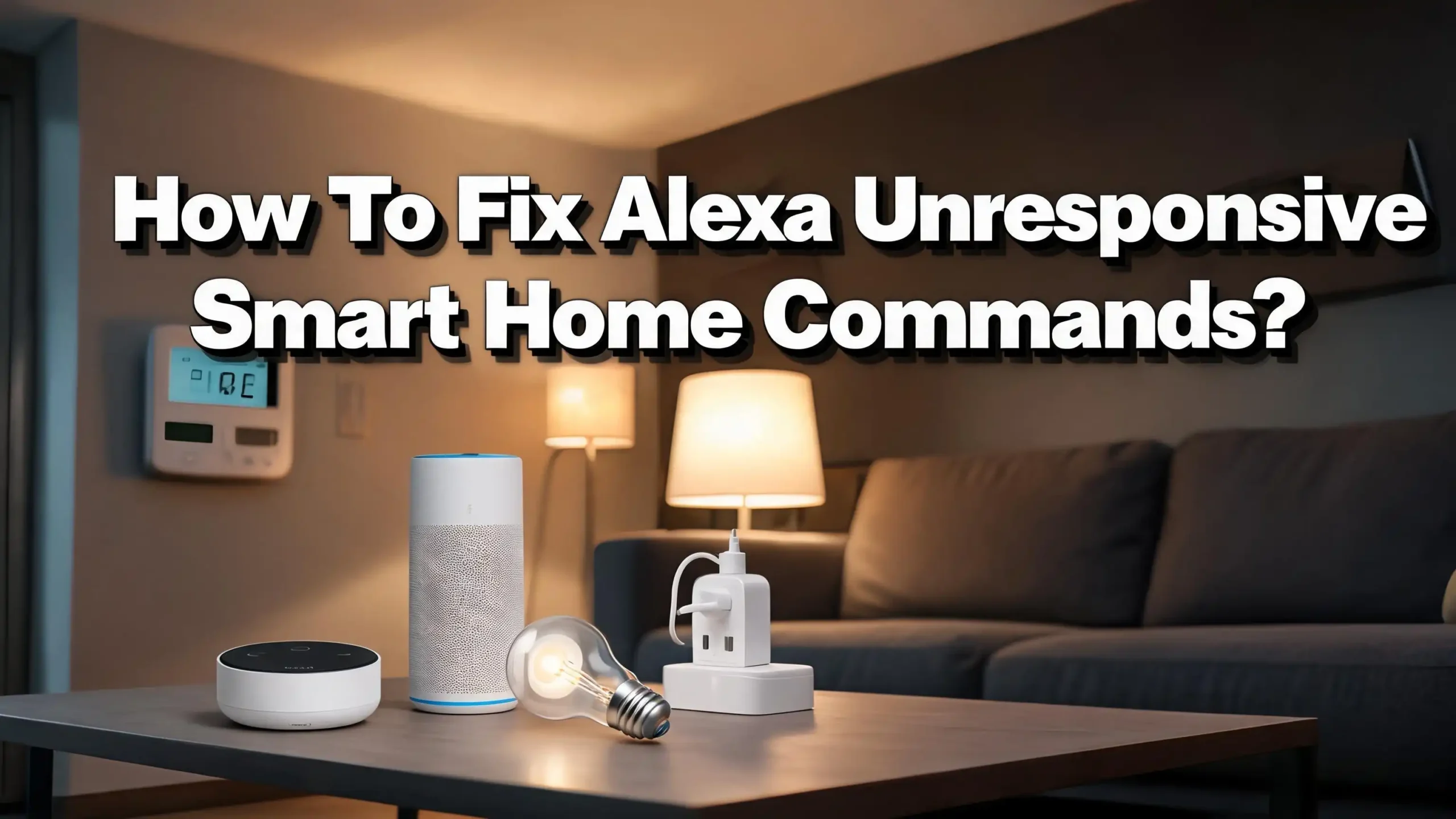
How To Fix Alexa Unresponsive Smart Home Commands?
You just walked into your living room, said “Alexa, turn on the lights,” and nothing happened. Maybe Alexa responded with “the device is unresponsive.” Maybe she ignored you altogether. Either way, your smart home just stopped feeling smart.
This is one of the most common frustrations for Alexa users, and it can strike without warning. One moment everything works perfectly. The next, your lights, plugs, thermostats, and locks refuse to listen.
The good news? Most of these issues have straightforward fixes. The causes range from simple Wi-Fi hiccups and outdated software to incorrect device naming and skill connection errors.
In this guide, you will find practical, step by step solutions that cover every major reason Alexa stops controlling your smart home devices.
Key Takeaways
- Wi-Fi problems are the most common cause of Alexa failing to control smart home devices. A quick router reboot or switching your devices to the 2.4 GHz band often solves the issue instantly.
- Outdated firmware on your Echo or smart home device can break communication between Alexa and your connected gadgets. Always check for software updates on both your Echo and the third party device’s app.
- Skill linking errors happen more often than you think. If a smart home skill becomes unlinked or corrupted, Alexa loses the ability to talk to that device. Disabling and re-enabling the skill in the Alexa app usually restores the connection.
- Device naming matters a lot. If you use special characters, duplicate names, or names that sound too similar, Alexa may get confused or refuse to respond. Keep device names short, unique, and descriptive.
- A simple power cycle fixes a surprising number of issues. Unplug your Echo device, your router, and the smart home device for 30 to 60 seconds. Plug them back in and test again. Many users report this resolves the “device unresponsive” error immediately.
- Factory resetting your Echo should be your last resort. If nothing else works, a factory reset clears all cached data and forces a fresh connection to your smart home ecosystem.
Check Your Wi-Fi Connection First
The first thing to examine is your Wi-Fi network. Alexa relies entirely on a stable internet connection to communicate with cloud based smart home devices. If your Wi-Fi drops even briefly, Alexa will report devices as unresponsive.
Start by asking Alexa, “Are you connected to the internet?” If she confirms connectivity, the issue might be with the smart home device itself. If she does not respond or says she cannot connect, your Wi-Fi is the problem.
Restart your router and modem by unplugging them for 30 seconds. Plug the modem back in first, wait for all lights to stabilize, and then plug in the router. This clears temporary memory issues in the router that can block smart home traffic.
Also confirm that your smart home devices are connected to the 2.4 GHz Wi-Fi band, not the 5 GHz band. Most smart home devices, including smart plugs, light bulbs, and sensors, only work on 2.4 GHz. If your router combines both bands under one network name, your devices may accidentally connect to 5 GHz and lose their connection to Alexa.
Place your Echo device at least six feet away from your router to avoid signal interference. Putting them too close together can cause wireless signal conflicts. At the same time, make sure neither the Echo nor your smart devices are too far from the router, as weak signal strength leads to dropped connections.
Restart Your Echo Device
A simple restart fixes a large percentage of Alexa smart home problems. Echo devices run background processes that can become stuck or overloaded over time. Restarting clears these processes and gives the device a fresh start.
Unplug your Echo device from the power outlet. Wait at least 30 seconds. Then plug it back in and wait for the light ring to turn blue and then orange, indicating the device is booting up. Once the light ring turns off, Alexa is ready.
Do not use the “restart” voice command for this purpose. A physical unplug is more effective because it fully resets the hardware. The voice command only performs a soft reboot, which may not clear all stuck processes.
If you own multiple Echo devices, restart all of them. Smart home commands sometimes route through a specific Echo in your network, and if that particular device has an issue, your commands may fail even though you are speaking to a different Echo.
Some users on community forums report success with a hard reset method. Hold the volume down button and the mute button together for 25 seconds. The device will announce that it is entering setup mode. This is more aggressive than a simple unplug but does not erase your settings. It forces the Echo to re-establish all connections.
After restarting, test a simple command like “Alexa, turn on the living room light.” If it works, the restart solved the issue. If not, continue to the next steps.
Update Your Echo and Smart Home Device Firmware
Outdated software is a silent troublemaker. Amazon frequently releases firmware updates for Echo devices that improve smart home compatibility. Similarly, third party device manufacturers push updates through their own apps. If either side falls behind, communication breaks down.
To check your Echo’s software version, say “Alexa, check for software updates.” The device will download and install any available updates. You can also check in the Alexa app by going to Devices, selecting your Echo, and scrolling to About to see the current firmware version.
For your smart home devices, open the manufacturer’s app (such as the Philips Hue app, TP-Link Kasa app, or Tuya Smart app). Look for firmware update notifications in the device settings. Install any pending updates immediately.
Keep the Alexa app itself updated too. Open your phone’s app store and check for updates to the Amazon Alexa app. An outdated app version can cause device discovery failures and prevent new smart home commands from working correctly.
After updating everything, restart your Echo and your smart home devices. Updates sometimes require a reboot to take full effect. This two step process of updating and restarting eliminates one of the most overlooked causes of unresponsive smart home commands.
Re-Enable the Smart Home Skill
Alexa communicates with most third party smart home devices through skills. These skills act as bridges between Alexa’s cloud and the device manufacturer’s cloud. If this bridge breaks, Alexa cannot send commands to your device even though the device works fine on its own.
Open the Alexa app and go to More > Skills & Games. Search for the skill that matches your smart home device brand. Tap on it and select “Disable Skill.” Wait 10 seconds, then tap “Enable to Use” and sign back into your manufacturer account when prompted.
After re-enabling the skill, go to Devices and tap “Discover Devices” or say “Alexa, discover my devices.” This forces Alexa to scan for all connected devices again and rebuild the connection.
This fix is especially important after password changes. If you recently changed the password on your smart home manufacturer account (like your Kasa or SmartThings account), the skill link breaks silently. Alexa will show the device in your list, but commands will fail. Re-enabling the skill and logging in with the new password restores the connection.
Some users find that skills randomly unlink after Amazon server updates. If your devices suddenly stop working after being fine for weeks, a skill re-link is the first thing to try before attempting more drastic solutions.
Verify Device Compatibility and Setup
Not all smart home devices work with Alexa. Before spending hours troubleshooting, confirm that your device carries the “Works with Alexa” badge. This badge means the manufacturer has tested and certified the device for Alexa compatibility.
Check the device packaging, the manufacturer’s website, or the product listing page to verify compatibility. If the device does not officially support Alexa, no amount of troubleshooting will make it respond to voice commands.
For devices that do support Alexa, make sure the initial setup was completed correctly in the manufacturer’s app. Many smart home devices require full setup through their own app before they can connect to Alexa. For example, a smart plug must first be added to the Kasa app, connected to your Wi-Fi, and functioning properly before Alexa can discover it.
Matter and Zigbee devices have additional requirements. Matter Wi-Fi devices must connect to the same 2.4 GHz network as your compatible Matter controller (such as a 4th generation Echo or newer). Zigbee devices must be within 30 feet of your Zigbee hub or another connected Zigbee device. Bluetooth devices also need to stay within 30 feet of your compatible Echo.
If your device previously worked but stopped after a firmware update from the manufacturer, check the manufacturer’s community forums. Some updates accidentally break Alexa integration, and the manufacturer may have a fix or a rollback available.
Fix Device Naming Conflicts
Alexa uses device names to identify and control your smart home gadgets. Poor naming choices cause command failures more often than most people realize. If Alexa says she cannot find a device or controls the wrong one, the device name is likely the problem.
Avoid using special characters, punctuation, or numbers in device names. Names like “Light #2” or “Fan (Bedroom)” can confuse Alexa’s voice recognition system. Instead, use clear, simple names like “Bedroom Light” or “Kitchen Fan.”
Do not give two devices the same name or very similar names. If you have “Living Room Lamp” and “Living Room Light,” Alexa may struggle to distinguish between them. Rename one to something more specific, like “Couch Lamp” or “Corner Light.”
Keep device names short and easy to pronounce. Long names like “The Big Floor Lamp Next To The Sofa” increase the chance of voice recognition errors. Two or three word names work best.
Also avoid using words that overlap with Alexa’s built in commands or group names. If you have a room group called “Bedroom” and a device called “Bedroom,” Alexa may get confused about which one you mean. Give each device a unique name that does not duplicate any room or group name.
To rename a device, open the Alexa app, go to Devices, select the device, tap the gear icon, and edit the name. After renaming, test the new name with a voice command immediately.
Check Room and Group Assignments
Alexa organizes smart home devices into rooms and groups. If a device is not assigned to the correct room, or if it belongs to multiple conflicting groups, commands may not work as expected.
Open the Alexa app and go to Devices. Tap on Rooms or Groups to see how your devices are organized. Make sure each device is assigned to exactly one room. If a light bulb is supposed to be in the bedroom but is accidentally assigned to the kitchen, saying “turn off the bedroom lights” will skip it.
Remove and re-add devices to groups if commands like “turn off all lights” are not working. Sometimes group assignments become corrupted after skill updates or device rediscovery. Removing the device from the group and adding it back forces Alexa to refresh the association.
Pay attention to the difference between rooms and custom groups. A room is a predefined location like “Kitchen” or “Bedroom.” A custom group is a collection of devices you create for specific scenes, such as “Movie Time” or “Good Night.” Devices can belong to both a room and a custom group, but make sure there are no conflicting instructions between the two.
If you use multiple Echo devices, each Echo should be assigned to the room where it sits. This allows Alexa to process room-specific commands correctly. Saying “turn off the lights” to a bedroom Echo should only affect bedroom lights, but only if the Echo is properly assigned to that room.
Resolve “Device Is Unresponsive” Errors
The “device is unresponsive” message is one of the most common Alexa smart home errors. It means Alexa sent a command, but the target device did not respond. Several factors can cause this.
Power cycle the unresponsive device. Unplug it for 30 seconds and plug it back in. For battery powered devices, remove the batteries, wait 30 seconds, and reinsert them. This clears temporary glitches in the device’s firmware.
Check whether the device works through its manufacturer’s app. Open the app and try controlling the device directly. If the device responds in its own app but not through Alexa, the issue lies in the skill connection or the Alexa cloud, not the device itself. Re-enable the skill as described earlier.
If the device does not respond in its manufacturer’s app either, the device itself has a connectivity problem. It may have lost its Wi-Fi connection or experienced a firmware crash. Reset the device using the manufacturer’s instructions and set it up again from scratch.
For situations where all your smart devices suddenly become unresponsive, the cause is almost always your router or internet connection. Restart your router first. Some users have resolved this by shutting off power to the entire house at the breaker for two minutes and then restoring it. This forces every device on the network to reconnect from a clean state.
Amazon server outages can also cause this error. Check websites like DownDetector to see if other Alexa users are reporting similar problems. If it is a server issue on Amazon’s end, you can only wait for them to fix it.
Ensure Proper Distance and Placement
Physical placement of your Echo and smart home devices plays a bigger role than most people expect. Signal interference and distance problems can make devices appear unresponsive even though nothing is technically wrong with them.
Keep your Echo device at least six feet away from your Wi-Fi router. The radio signals from the router can interfere with the Echo’s microphone and Wi-Fi receiver. Also keep the Echo away from microwaves, baby monitors, cordless phones, and other electronics that emit wireless signals.
Zigbee and Bluetooth devices have a range limit of approximately 30 feet from the hub or Echo device. If you move a smart plug or sensor beyond this range, it will drop off the network and appear unresponsive. You can extend Zigbee range by adding more Zigbee devices between the hub and the distant device, since Zigbee devices form a mesh network.
Matter devices also need to stay within 30 feet of your compatible Matter controller. Walls, floors, and large metal objects reduce this effective range. If a device sits on the other side of a thick wall, try moving it closer or adding a Matter border router in between.
For voice command issues specifically, make sure you are within clear hearing range of your Echo. Background noise from TVs, fans, and music can prevent Alexa from hearing your wake word. Speaking clearly and facing the Echo improves recognition accuracy.
Disconnect and Reconnect the Smart Home Device
Sometimes the cleanest fix is to remove a device from Alexa entirely and add it back. This process clears corrupted data and forces a completely fresh connection.
Open the Alexa app and go to Devices. Find the problematic device and tap on it. Tap the gear icon in the top right corner. Scroll down and select “Trash Can” icon or “Delete.” Confirm the deletion.
Next, make sure the device is still properly set up in its manufacturer’s app. Verify that it responds to commands within that app. If it does not, reset and re-add the device in the manufacturer’s app first.
Then return to the Alexa app and tap “Discover Devices” on the Devices page, or say “Alexa, discover my devices.” Alexa will scan your network and connected skills for available devices. The device should reappear in your list within 45 seconds.
After rediscovery, reassign the device to the correct room and groups. Deleting a device removes all room and group associations. You will need to set these up again manually.
This method works particularly well for devices that show up in the Alexa app with a grayed out icon or a perpetual “unresponsive” status. The fresh connection often clears whatever was blocking communication.
Factory Reset Your Echo as a Last Resort
If you have tried every other fix and your Echo still cannot control smart home devices, a factory reset may be necessary. This erases all settings, preferences, and cached data from the Echo and returns it to its original state.
The reset process varies by Echo model. For most Echo devices, press and hold the Action button (the button with a dot) for 20 to 25 seconds until the light ring turns orange. For Echo Show devices, say “Alexa, go to settings” and find the Reset to Factory Defaults option.
After the reset, the Echo will enter setup mode. Open the Alexa app and follow the prompts to connect it to your Wi-Fi network and sign into your Amazon account. Your smart home skills and device connections will need to be re-established.
The advantage of a factory reset is that it eliminates corrupted cache files, outdated connection tokens, and stuck background processes that simpler restarts cannot fix. The disadvantage is that you lose all customized settings, routines, and room assignments on that particular Echo.
Before performing a factory reset, document your current setup. Write down your room assignments, device groups, and any routines you have created. This will save you significant time during reconfiguration.
A factory reset should only be used after you have exhausted all other troubleshooting options. Most Alexa smart home problems are resolved long before this step becomes necessary.
Check for Amazon Service Outages
Not every problem is on your end. Amazon’s cloud servers handle all Alexa smart home commands. If Amazon’s servers go down, no smart home commands will work regardless of your local setup.
Visit DownDetector or similar outage tracking websites and search for “Alexa” or “Amazon.” These sites collect user reports in real time and display outage maps. If you see a spike in reports around the same time your devices stopped working, a server outage is the likely cause.
You can also check Amazon’s official social media accounts and the Alexa community forums for announcements about scheduled maintenance or known issues. Amazon does not always publicize minor outages, but community members usually report them quickly.
During a server outage, your smart home devices may still work through their manufacturer’s apps. For example, you can open the Philips Hue app and control your lights directly, bypassing Alexa entirely. This is a good temporary workaround while you wait for Amazon to restore service.
Server outages typically last anywhere from a few minutes to a few hours. If the problem persists for more than 24 hours and other users are not reporting outages, the issue is almost certainly local to your setup. Return to the earlier troubleshooting steps in this guide.
Prevent Future Alexa Smart Home Issues
Once you have fixed the current problem, take a few steps to prevent it from happening again. Ongoing maintenance keeps your smart home running smoothly.
Reboot your router once a week. Routers accumulate memory clutter over time, and a weekly restart prevents many connectivity issues before they start. Set a reminder or use a smart plug with a scheduled timer to automate this process.
Keep all your devices updated. Enable automatic updates in the Alexa app and in each manufacturer’s app. This ensures you always have the latest bug fixes and compatibility patches.
Avoid overloading your Wi-Fi network with too many devices on one band. If you have more than 20 smart home devices, consider upgrading to a mesh Wi-Fi system that handles high device counts more effectively. A dedicated 2.4 GHz network for smart home devices can also reduce conflicts.
Review your device names and group assignments every few months. As you add new devices, naming conflicts and group errors can creep in. A quick audit every quarter keeps everything clean and organized.
Finally, keep a record of your smart home setup. Note down which skills you use, which devices belong to which rooms, and any custom routines you have created. If you ever need to factory reset an Echo or start fresh, this record will save you hours of reconfiguration time.
Frequently Asked Questions
Why does Alexa say my device is unresponsive even though it works fine?
This usually means the device responds to its manufacturer’s app but has lost its connection to Alexa’s cloud. The most common fix is to disable and re-enable the device’s smart home skill in the Alexa app. After re-enabling, run device discovery again. If the issue persists, remove the device from Alexa and add it back. Also verify that your Wi-Fi is stable and that the device is on the 2.4 GHz band.
How do I reset Alexa’s smart home connections without losing everything?
You do not need a factory reset to refresh smart home connections. Simply disable and re-enable each smart home skill you use. This re-establishes the link between Alexa and the manufacturer’s cloud without erasing your Echo’s settings, routines, or room assignments. You may need to rediscover devices after re-linking skills.
Can too many smart home devices cause Alexa to stop responding?
Yes. If your Wi-Fi router supports a limited number of simultaneous connections, adding too many devices can overwhelm the network. Most consumer routers handle 20 to 30 devices comfortably. Beyond that, consider a mesh Wi-Fi system or a router designed for smart homes. Separating IoT devices onto their own network or VLAN also helps.
Why did all my Alexa smart home devices stop working at the same time?
When every device goes unresponsive simultaneously, the problem is usually your internet connection or an Amazon server outage. Restart your router and modem first. If that does not help, check DownDetector for reported Amazon or Alexa outages. In rare cases, a power fluctuation can knock all devices offline, and a full power cycle of your home may be needed.
Does Alexa work with all smart home devices?
No. Alexa only works with devices that support Alexa integration, usually indicated by a “Works with Alexa” badge. Some devices require a specific skill to be enabled. Others use protocols like Zigbee, Matter, or Bluetooth to connect directly to compatible Echo devices. Always check compatibility before purchasing a new smart home product.
How often should I restart my Echo device?
There is no strict schedule, but restarting your Echo once every two to four weeks helps maintain smooth performance. If you notice commands becoming slower or less reliable, an immediate restart is a good first step. Regular restarts clear accumulated cache and background process buildup that can interfere with smart home control.

Hi, I’m Lusi. I’m a tech enthusiast who loves digging into gadgets, testing products, and helping people find the best tech for their needs and budget. Got a question or a product you’d like me to review? Drop me a mail— I’d love to hear from you!