How to Troubleshoot Projector Overheating Warning Messages?
Your projector just flashed a temperature warning, and the screen went dark. You were right in the middle of a movie, a presentation, or a gaming session. The frustration is real.
Projector overheating is one of the most common problems users face, and it can cause sudden shutdowns, reduced image quality, and permanent damage to internal parts. The good news? Most overheating issues are easy to fix at home with the right steps.
This guide covers everything you need to know about projector overheating warning messages. By the end of this post, you will have a clear action plan to keep your projector cool and running at its best.
Key Takeaways
- Dust buildup is the number one cause of projector overheating. Clogged air filters and blocked vents force the cooling system to work harder, which raises the internal temperature past safe limits. Cleaning the filters and vents every month is the simplest and most effective fix.
- Poor placement causes most heat problems. A projector placed in a tight space, against a wall, or inside an enclosed cabinet cannot release hot air. You need at least 12 inches of clearance around all vents for proper airflow.
- Eco mode reduces heat output significantly. Switching your projector to eco or low lamp mode decreases brightness slightly but lowers internal temperatures and extends lamp life by thousands of hours.
- A faulty cooling fan can trigger false overheating warnings. If the fan is broken, slow, or blocked, the projector cannot cool itself. Listen for unusual sounds or complete silence from the fan area to identify this issue.
- Room temperature matters more than most people think. Operating your projector in a room above 35°C (95°F) puts extra stress on the cooling system. Keep the room between 20°C and 25°C (68°F to 77°F) for best results.
- Faulty temperature sensors can cause false alarms. Some projectors display overheating warnings even when the unit is cool. A malfunctioning thermistor or sensor may need replacement or recalibration.
What Causes Projector Overheating Warning Messages
Projector overheating warnings appear when the internal temperature exceeds a safe threshold set by the manufacturer. Every projector has built in thermal sensors that monitor heat levels. When these sensors detect a temperature spike, they trigger a warning message or indicator light on the unit.
The most common cause is restricted airflow. Projectors pull cool air in through intake vents and push hot air out through exhaust vents. If either set of vents is blocked by dust, walls, or objects, the hot air stays trapped inside the projector. This raises the internal temperature quickly.
Dust accumulation is the single biggest contributor to overheating. Over time, fine particles collect on the air filter, fan blades, and internal components. This layer of dust acts like insulation, trapping heat inside the unit. Even a thin coating of dust on the air filter can reduce cooling performance by a large margin.
Other causes include a failing cooling fan, an aging lamp that produces more heat than a new one, and high ambient room temperatures. Some users also experience false overheating warnings from defective temperature sensors. These sensors can degrade over time and send incorrect readings to the projector’s control board.
Understanding the root cause is the first step. Once you know what triggers the warning, you can apply the right fix.
How to Check Your Projector’s Warning Indicators
Most projectors use a combination of on screen messages and LED indicator lights to communicate overheating problems. Knowing what each signal means helps you respond quickly and correctly.
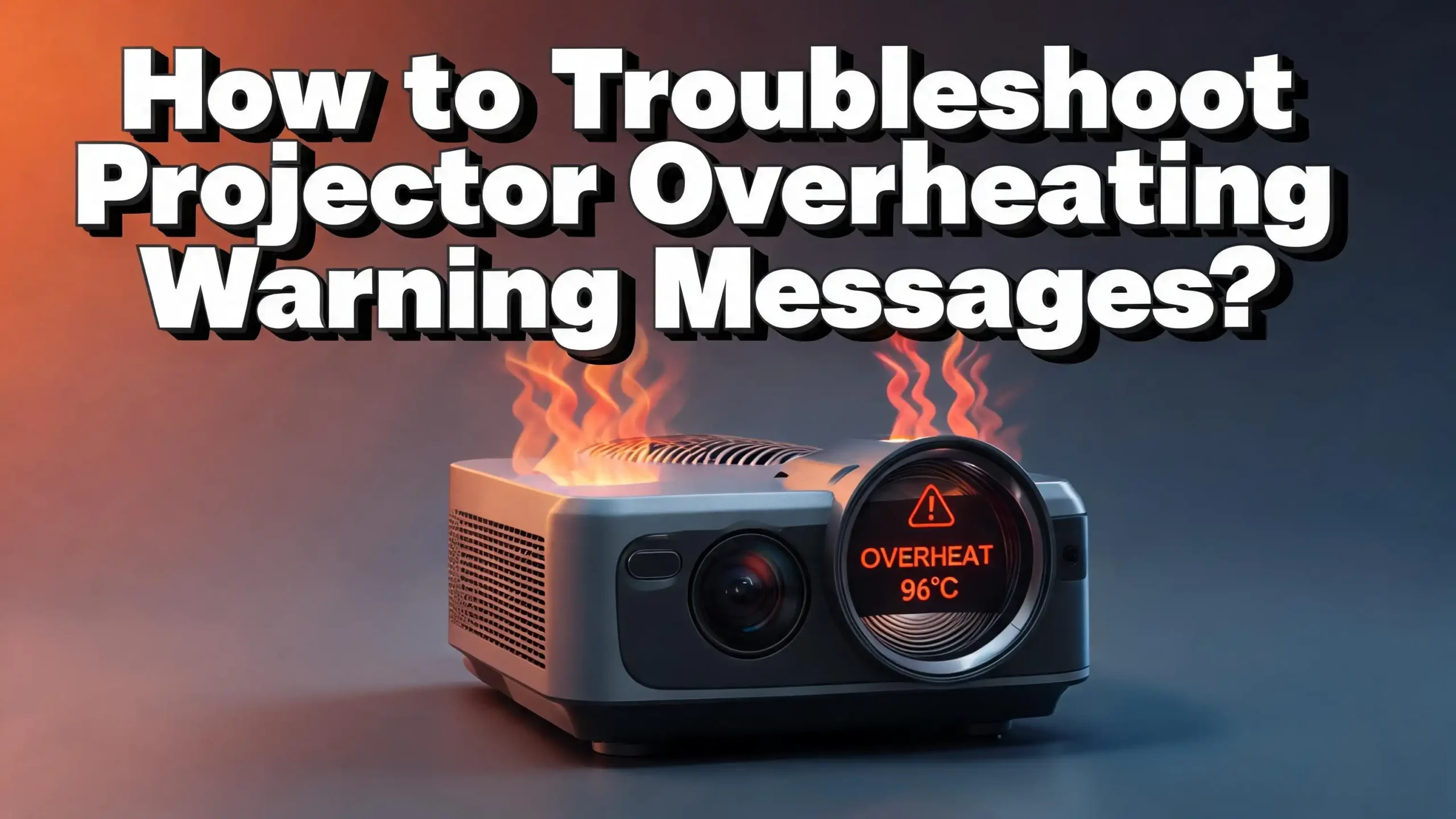
A red or orange temperature indicator light typically means the projector has detected dangerously high internal heat. Some models flash this light before shutting down automatically. Others display a text warning on the projected image that says something like “Temperature Warning” or “Overheating Detected.”
Check your projector’s user manual for a specific indicator chart. Most manuals include a table that explains what each light color and pattern means. For example, a solid red temperature light often means the projector has already shut down due to heat. A blinking red light may mean the temperature is rising but has not yet reached the shutdown threshold.
Some advanced projectors also log error codes in their service menu. You can access this menu through a specific button combination on the remote control. The error log can reveal whether the overheating is caused by a fan failure, a sensor issue, or a genuine temperature spike.
Write down the exact warning message or light pattern before you start troubleshooting. This information helps if you need to contact the manufacturer’s support team later.
How to Clean the Air Filter to Prevent Overheating
Cleaning the air filter is the most effective and easiest fix for projector overheating. The air filter catches dust and particles before they reach the projector’s internal parts. When the filter becomes clogged, airflow drops and heat builds up fast.
Step one: Turn off the projector and unplug it from the power source. Let it cool down for at least 20 minutes before you touch anything. The lamp and surrounding components can be extremely hot right after use.
Step two: Locate the air filter. Most projectors have the filter on the bottom or side panel. It usually sits behind a removable cover that you can slide or pop off without tools.
Step three: Remove the filter carefully. Hold it over a trash can and gently tap it to shake loose the surface dust. For deeper cleaning, use a small handheld vacuum on a low setting or a can of compressed air. Blow the air from the clean side of the filter outward to push the dust out the way it came in.
Step four: Inspect the filter for damage. If it looks torn, warped, or heavily discolored, replace it with a new one. Replacement filters are available from the projector manufacturer or authorized retailers.
Step five: Reinstall the filter and the cover panel. Plug the projector back in and turn it on. Monitor the temperature light for the next 30 minutes to confirm the issue is resolved.
Clean your air filter at least once a month if you use the projector regularly. In dusty rooms, clean it every two weeks.
How to Clear Blocked Vents and Exhaust Ports
Even with a clean air filter, blocked vents can still cause overheating. Projectors have both intake vents (where cool air enters) and exhaust vents (where hot air exits). Both must stay clear at all times.
Start by inspecting the outside of the projector. Look at every vent opening on the unit. Check for visible dust, lint, or debris stuck in the grille. Use a soft bristle brush or compressed air to clean these openings. Do not use a wet cloth, as moisture can damage the electronics.
Next, check the area around the projector. Objects placed too close to the vents act as barriers. Books, papers, decorations, or even the edge of a table can block airflow. Move all objects at least 12 inches away from every vent.
If your projector is ceiling mounted, make sure the exhaust does not blow directly into a ceiling corner or against a flat surface. Hot air needs somewhere to go. A small gap between the projector and the ceiling helps the exhaust dissipate.
For shelf mounted projectors, avoid placing the unit inside an enclosed shelf or cabinet. If you must use a cabinet, cut ventilation holes in the back panel or install a small USB powered fan to push hot air out. Restricted spaces are the second most common cause of overheating after dirty filters.
How to Improve Projector Placement for Better Airflow
Where you place your projector has a direct impact on how well it cools itself. Many overheating problems disappear simply by moving the projector to a better location.
Keep at least 30 to 50 centimeters of open space on all sides of the projector. This applies to the top, back, sides, and bottom. The exhaust side needs the most clearance because it pushes out the hottest air.
Never place a projector on a soft surface like a bed, couch, pillow, or carpet. Soft materials block the bottom vents and can also shed fibers that enter the intake. Always use a hard, flat, stable surface like a table, desk, or dedicated projector stand.
Avoid placing the projector near heat sources. Radiators, space heaters, direct sunlight from a window, and even the warm air from a computer or AV receiver can raise the ambient temperature around the projector. Position the unit in the coolest part of the room for best results.
If you use a projector mount, make sure the mount does not cover any vents. Some universal ceiling mounts can accidentally block side vents depending on the projector model. Check the fit carefully before tightening everything down.
Good placement is a preventive measure. It costs nothing and can save you from expensive repairs down the road.
How to Use Eco Mode to Reduce Heat Output
Most modern projectors include an Eco mode or Low lamp mode in their settings menu. This feature reduces the lamp brightness by about 20 to 30 percent. The trade off is a slightly dimmer image, but the benefits are significant.
Eco mode lowers the lamp’s power consumption, which directly reduces the amount of heat it produces. Less heat means the cooling fan does not need to work as hard. This leads to lower operating temperatures, quieter fan noise, and a longer lamp life. Some manufacturers report that eco mode can extend lamp life by 50 percent or more.
To enable Eco mode, open your projector’s menu using the remote control. Look for a setting labeled Eco Mode, Lamp Mode, Power Mode, or Brightness. Select the eco or low option. The change takes effect immediately.
Eco mode works best in rooms with controlled ambient light. If you are projecting in a dark room, the reduced brightness is barely noticeable. In brighter rooms, you may notice a slight dimming, but it is usually acceptable for most content.
If your projector frequently triggers overheating warnings, switching to eco mode is one of the fastest fixes you can apply. It reduces thermal stress on every internal component, not just the lamp.
How to Check and Fix the Cooling Fan
The cooling fan is the heart of your projector’s thermal management system. If the fan fails, the projector cannot cool itself. This leads to rapid temperature spikes and automatic shutdowns.
Listen to the fan when you turn on the projector. A healthy fan produces a steady, consistent hum. If you hear grinding, rattling, clicking, or complete silence, the fan may be failing. A fan that struggles to spin cannot move enough air to keep the projector cool.
Turn off and unplug the projector. If you are comfortable opening the case, remove the cover screws and locate the fan. Check for dust buildup on the fan blades. Even a small amount of dust can slow the fan down and reduce its effectiveness. Use compressed air to clean the blades carefully.
If the fan does not spin freely when you give it a gentle push, the bearings may be worn out. A replacement fan is usually available from the manufacturer or third party electronics suppliers. Match the fan size and voltage exactly to the original.
If you are not comfortable opening the projector yourself, take it to a certified repair technician. Fan replacement is a straightforward repair, and most technicians can complete it quickly. Continuing to use a projector with a broken fan risks serious damage to the lamp, color wheel, and main circuit board.
How to Address Faulty Temperature Sensors
Sometimes a projector displays an overheating warning even though the unit does not feel hot. This points to a faulty temperature sensor. Projectors use small components called thermistors to measure internal temperature. When a thermistor fails, it can send incorrect readings to the control board.
A faulty sensor may cause the projector to shut down within seconds or minutes of startup. The projector goes into an overheat protection cycle even though the actual temperature is normal. This is frustrating because cleaning the filters and improving airflow will not help.
To test for a faulty sensor, power on the projector and place your hand near the exhaust vent. If the air feels only warm (not hot) but the temperature warning activates, the sensor is likely the problem.
Sensor repair requires opening the projector. The thermistor is usually a small component attached to the lamp housing or the main board. Some repair guides suggest replacing the thermistor with a standard resistor of the same value, but this removes the projector’s ability to detect real overheating. A better approach is to replace the thermistor with a new, matching component.
This repair is best handled by a qualified technician unless you have experience with electronics. An incorrect repair can void your warranty and create a fire hazard. Always prioritize safety over convenience.
How to Manage Room Temperature for Your Projector
The room temperature where your projector operates affects its cooling performance directly. Projectors are designed to work within a specific ambient temperature range, usually 5°C to 35°C (41°F to 95°F). Operating outside this range stresses the cooling system.
The ideal room temperature for projector use is 20°C to 25°C (68°F to 77°F). At this range, the cooling fans can efficiently remove heat without running at maximum speed. In rooms above 30°C, the fan must work much harder, which increases noise and reduces the cooling margin.
During summer months, rooms without air conditioning can easily exceed safe operating temperatures. If you cannot cool the room, limit your projector sessions to shorter periods. Give the projector a 15 to 20 minute break for every two hours of use.
Avoid placing the projector near windows that receive direct sunlight. Even if the room temperature is moderate, direct sunlight on the projector body can heat it up quickly. Close curtains or blinds on the projector side of the room to block solar heat.
Humidity also plays a role. Very high humidity (above 60 percent) can cause condensation inside the projector, which may damage electronic components. Keep the room humidity between 40 and 60 percent for safe operation.
How to Handle Projector Shutdowns Caused by Overheating
When a projector shuts down due to overheating, it activates a thermal protection mode. This is a safety feature that prevents permanent damage to the lamp and internal circuits. The correct response is important for protecting your projector.
Do not turn the projector back on immediately. The thermal protection needs time to work. Wait at least 30 minutes before attempting to restart. Forcing a restart too soon can damage the lamp or trigger another shutdown cycle.
During the cool down period, unplug the projector from the power outlet. Check the air filter, vents, and fan while you wait. Clean anything that looks dirty or blocked. Make sure the room temperature is within the safe range.
After 30 minutes, plug the projector back in and turn it on. Watch the temperature indicator carefully for the first 15 minutes. If the light stays green or off, the issue was likely caused by temporary conditions like a clogged filter or blocked vent.
If the projector shuts down again within a short time, the problem may be deeper. A failing fan, a bad sensor, or an aging lamp could be responsible. At this point, contact the manufacturer’s support team or take the unit to a certified service center.
Repeated thermal shutdowns reduce your projector’s lifespan significantly. Each shutdown stresses the lamp and electronics. Solve the root cause as quickly as possible.
How to Replace an Aging Projector Lamp
An old projector lamp generates more heat than a new one. As lamps age, they become less efficient at converting electricity into light. More energy turns into waste heat, which raises the projector’s internal temperature.
Most lamp based projectors track the total lamp hours in the settings menu. Check this number and compare it to the manufacturer’s rated lamp life. If your lamp has used more than 75 percent of its rated hours, it may be contributing to overheating problems.
Replacing the lamp is straightforward on most projectors. Turn off the unit, unplug it, and wait for it to cool completely. Open the lamp access door (usually on the top or side of the projector). Remove the screws holding the lamp module. Pull the old lamp out and slide the new one in. Secure the screws and close the access door.
After installing a new lamp, reset the lamp timer in the projector’s menu. This ensures the projector accurately tracks the new lamp’s hours. Skipping this step can lead to premature replacement warnings.
A fresh lamp runs cooler, brighter, and more efficiently. If your projector has been overheating and the lamp is old, replacing it may solve the problem entirely.
How to Set Up a Maintenance Schedule for Your Projector
Prevention beats repair every time. A simple maintenance schedule keeps your projector running cool and extends its useful life by years. The key is consistency.
Weekly: Visually inspect the area around your projector. Make sure no objects have been placed near the vents. Check for dust buildup on the exterior grilles. Wipe the outside with a dry, soft cloth.
Monthly: Remove and clean the air filter. Use compressed air or a small vacuum to remove dust from the filter, vents, and accessible fan openings. Check the lamp hours in the settings menu and note any changes.
Every six months: Do a deeper inspection. Power off the projector and check the exhaust temperature by holding your hand near the vent during normal operation. Unusually hot exhaust may signal internal dust buildup that a surface cleaning cannot reach. Consider a professional internal cleaning once a year if you use the projector daily.
Annually: Evaluate the lamp hours and plan for replacement if needed. Review the projector’s error log if your model supports it. Update the firmware if the manufacturer has released new versions.
Keep a simple log of your maintenance activities. A notebook or a spreadsheet works fine. Record the date, what you cleaned, the lamp hours, and any warnings you observed. This log helps you spot patterns and catch problems early.
When to Seek Professional Repair for Overheating Issues
Some overheating problems go beyond what you can fix at home. Knowing when to call a professional saves time and prevents further damage.
Call a technician if the projector continues to overheat after you have cleaned the filter, cleared the vents, checked the fan, and confirmed good room conditions. Persistent overheating may indicate a problem with the internal heat sink, the lamp ballast, or the main circuit board.
A grinding or seized cooling fan requires replacement parts and soldering skills. If you do not have experience with electronics repair, let a professional handle it. Incorrect fan installation can cause vibration, noise, or electrical damage.
Faulty temperature sensors also require professional attention. Replacing a thermistor involves working with small, sensitive components on the projector’s main board. A mistake here can create new problems or void your warranty.
If your projector is still under warranty, contact the manufacturer before opening the case. Most warranties become void if you tamper with internal components yourself. The manufacturer may offer free repair or replacement for known defects.
For older projectors that are out of warranty, compare the estimated repair cost to the price of a new unit. If the repair costs more than 50 percent of a new projector’s price, upgrading may be the smarter financial decision. Newer models often run cooler thanks to LED and laser light sources that generate far less heat than traditional lamps.
Frequently Asked Questions
Why does my projector keep showing a temperature warning even after cleaning?
If the temperature warning persists after cleaning the filter and vents, the cooling fan may be failing or the temperature sensor may be faulty. A fan that spins slowly or not at all cannot remove heat effectively. A broken thermistor can send false overheating signals to the control board. Try listening to the fan during startup. If it sounds abnormal or silent, have a technician inspect the unit.
Can a projector overheat and catch fire?
Projectors have thermal protection systems that shut the unit down before temperatures reach dangerous levels. The risk of fire is very low in modern projectors with working safety features. However, blocking all vents, placing the projector on flammable materials, or using it with a broken cooling system increases the risk. Always follow the manufacturer’s placement guidelines and never cover the vents.
How long should I wait before turning on a projector after it overheats?
Wait at least 30 minutes before restarting a projector that has shut down from overheating. This gives the lamp and internal components time to cool to a safe temperature. Some manufacturers recommend waiting even longer. Check your user manual for model specific guidance.
Does eco mode really help with overheating?
Yes. Eco mode reduces the lamp’s power output, which directly lowers the amount of heat produced inside the projector. This gives the cooling system an easier job and reduces the chance of overheating. It also extends the lamp life and reduces fan noise. The slight decrease in brightness is barely noticeable in dark rooms.
How often should I clean my projector’s air filter?
Clean the air filter at least once a month for regular use. If the projector operates in a dusty environment, a room with pets, or a space with poor air quality, clean the filter every two weeks. Replace the filter entirely if it looks damaged, discolored, or no longer holds its shape after cleaning.
Is it safe to use an external fan to cool my projector?
Yes. External USB fans or laptop cooling pads can provide additional airflow and lower operating temperatures. Place the external fan so it directs cool air toward the projector’s intake vents or helps move hot air away from the exhaust. Make sure the external fan does not blow dust directly into the projector’s vents.

Hi, I’m Lusi. I’m a tech enthusiast who loves digging into gadgets, testing products, and helping people find the best tech for their needs and budget. Got a question or a product you’d like me to review? Drop me a mail— I’d love to hear from you!