Why Is Garmin Connect App Not Showing Activity Maps?
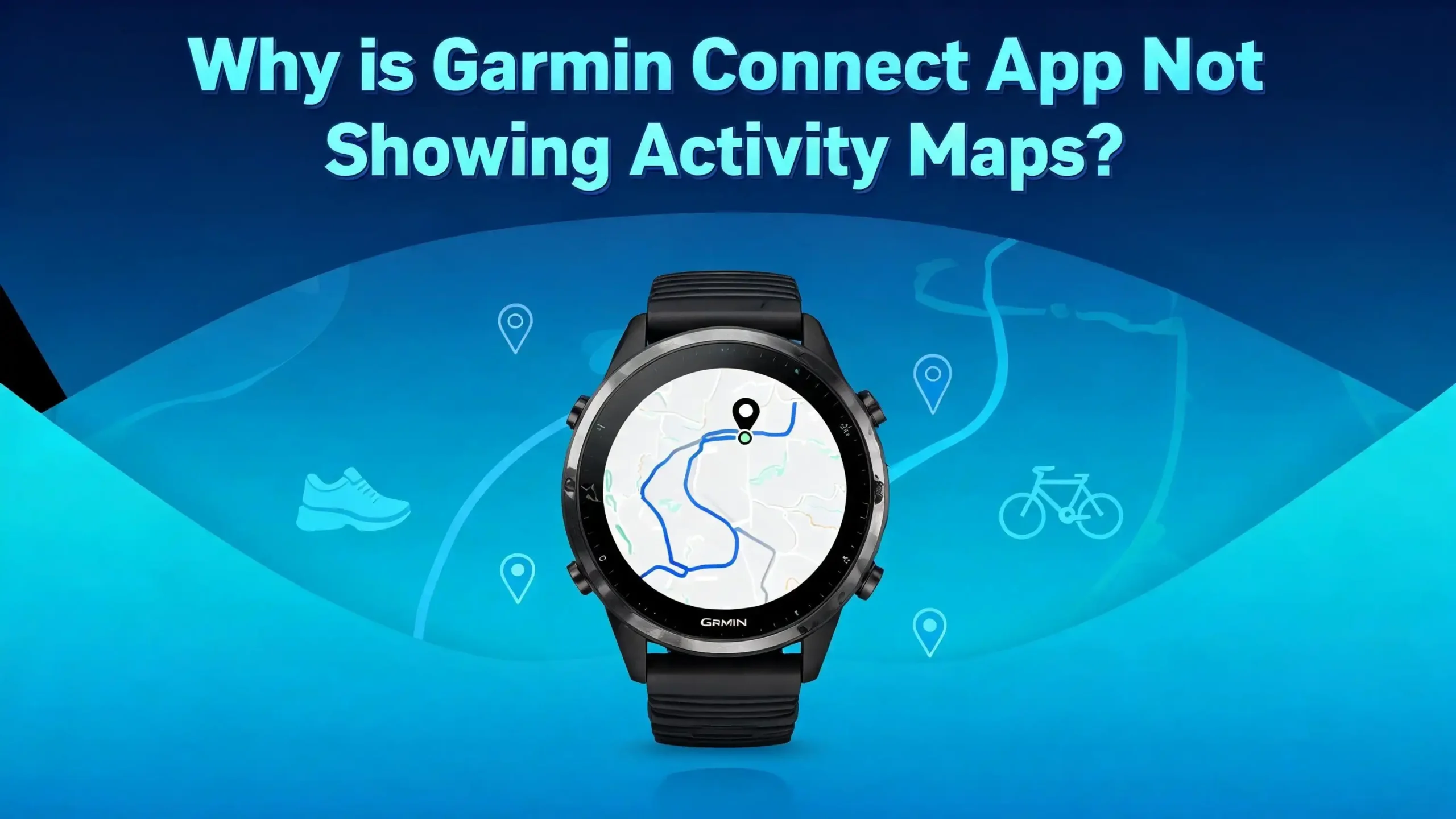
You just finished a great run, a long hike, or an intense cycling session. You open the Garmin Connect app to check your route and see your activity map. But there is nothing there. The map is blank, missing, or simply refuses to load. You know the GPS was on. You know you were outside. So what went wrong?
This is one of the most common and frustrating issues Garmin users face. The good news is that it almost always has a fixable cause. The problem can come from your watch settings, your GPS satellite data, your phone app, or even a temporary server issue on Garmin’s end. The fix is usually quick once you know where to look.
In this post, you will find every known reason why Garmin Connect does not show activity maps. You will also get clear, step by step solutions for each one. Whether you use a Forerunner, Fenix, Venu, Instinct, or any other Garmin watch, these fixes apply to you. Let’s get your maps back.
In a Nutshell
- GPS must be active during the activity for Garmin Connect to display a map. If you accidentally used an indoor activity profile, or if GPS was turned off in your power settings, the watch will not record location data and no map will appear.
- Expired satellite data (EPO/CPE files) is one of the most common causes. These files help your watch find GPS satellites quickly. They expire every 3 to 14 days, and if they are outdated, the GPS may fail silently during your activity.
- A simple hard reboot of your watch fixes the problem for many users. Press and hold the light/power button for 15 to 30 seconds until the screen goes dark. This clears cached satellite data and forces a fresh GPS lock on the next activity.
- App cache, outdated firmware, and sync errors can also prevent maps from showing up. Clearing the Garmin Connect app cache, updating your watch software, and ensuring a complete sync are all quick fixes that resolve the issue.
- Garmin server outages occasionally prevent maps from loading on the app or web platform. You can check the Garmin Connect status page to rule this out before troubleshooting your device.
- Privacy zone settings in Garmin Connect can hide portions of your activity map. If your map appears partially clipped or missing near your home, your privacy zone may be responsible.
How Activity Maps Work in Garmin Connect
Garmin Connect displays activity maps by reading GPS data recorded by your watch during an outdoor activity. Your watch receives signals from GPS satellites, and sometimes from GLONASS or Galileo satellites too. It records your position at regular intervals throughout the workout.
This GPS track data is stored in the activity file on your watch. The file format is typically a FIT file. After your workout ends and you save the activity, the watch syncs this file to the Garmin Connect app on your phone or to the Garmin Connect web platform through your computer.
Garmin Connect then reads the GPS coordinates in that file and draws your route on a map. If the activity file does not contain GPS data, or if the data did not transfer correctly, the app has nothing to plot. This is why you see a blank space where the map should be.
The entire process depends on three things working correctly: your watch recording GPS data, the data syncing completely to Garmin Connect, and the app or web platform rendering the map properly. A failure at any of these three stages will result in a missing activity map.
Your Activity Profile May Have GPS Turned Off
The most basic reason for a missing activity map is that GPS was not active during your workout. This happens more often than you might think. Garmin watches use different activity profiles for different sports, and some of these profiles have GPS disabled by default.
Indoor activity profiles such as Treadmill, Indoor Cycling, and Strength Training do not use GPS. If you accidentally selected one of these profiles before starting your outdoor run or ride, the watch will not record any location data. The activity will sync to Garmin Connect with distance and heart rate data, but there will be no map.
To check this, go to the activity on your watch. Long press the menu button. Select Activity Settings and then look for the GPS setting. Make sure it is set to GPS, GPS + GLONASS, or GPS + Galileo rather than Off. If you find that GPS was off, that is your answer.
Always double check your activity profile before you press start. A quick glance at the GPS icon on the activity screen will confirm whether satellite tracking is active. Most Garmin watches show a green bar or checkmark icon once GPS is locked.
Expired Satellite Data Is Causing GPS Failures
Your Garmin watch uses satellite prediction files called EPO (Extended Prediction Orbit) or CPE (Connected Predictive Ephemeris) data to find GPS satellites quickly. These files tell the watch where satellites will be in the sky at any given time. They make GPS lock faster and more reliable.
The problem is that these files expire. EPO and CPE data are usually valid for 3 to 14 days. If you have not synced your watch to a phone or computer recently, these files become outdated. When that happens, your watch may struggle to get a GPS lock. It might even start the activity without a proper satellite connection.
The result is an activity with no GPS data and no map in Garmin Connect. The watch may still show that GPS is “ready” because it found a partial signal, but the data quality is too poor to create a usable track.
To fix this, sync your watch with the Garmin Connect app on your phone or connect it to your computer through Garmin Express. This will download fresh satellite prediction files. Make it a habit to sync your watch at least once every few days to keep this data current. After syncing, go outside and let the watch sit with an outdoor activity screen open for a few minutes to confirm a solid GPS lock.
How to Hard Reboot Your Garmin Watch
A hard reboot is one of the most effective fixes for missing activity maps. Many users on Garmin forums report that this single step resolved their issue completely. A hard reboot is different from a regular power off and power on. It clears cached satellite data and forces the watch to start fresh.
To perform a hard reboot, press and hold the light/power button on your watch for 15 to 30 seconds. Keep holding it even after the screen goes dark. The watch will shut down completely. Then press the power button once to turn it back on.
After the reboot, sync your watch with your phone or computer to download fresh EPO/CPE satellite files. Then go outside and open an outdoor activity on the watch. Wait for the GPS bars to fill and for the watch to show a “Ready” message before you start moving. This ensures the watch has a solid satellite lock.
Do not skip the waiting step. Many users start their activity the moment they see any sign of GPS. But a partial lock can result in poor data or missing maps. Give it 30 to 60 seconds outdoors with a clear view of the sky. This patience pays off with accurate, complete activity maps in Garmin Connect.
Check Your Watch Power and Battery Settings
Modern Garmin watches offer several power saving modes that can disable GPS to extend battery life. If your watch was in a low battery state or in a power saver mode during your activity, GPS may have been turned off automatically.
Some power modes reduce GPS recording frequency from every second to every few seconds or even every minute. Others disable GPS entirely. The watch may still record heart rate, steps, and other sensor data, but without GPS, there is no map.
Check your power mode settings by going to Settings on your watch and then Power Manager or Battery Saver. Look for any options that reduce or disable GPS. If you were running low on battery during your activity, this is likely the cause of the missing map.
To avoid this in the future, charge your watch before long activities. You can also customize your power profiles. Create a profile that keeps GPS active at normal recording intervals while saving power in other ways, such as reducing screen brightness or turning off the always on display. This gives you the best balance of battery life and accurate map data.
Sync Issues Between Your Watch and Garmin Connect
Sometimes the GPS data exists on your watch, but it does not transfer properly to Garmin Connect. Bluetooth sync errors, interrupted connections, and incomplete data transfers can all cause the map to be missing from an activity that actually recorded GPS just fine.
If your Bluetooth connection dropped during the sync, the activity file may have uploaded only partially. Garmin Connect might display the activity with stats like distance and pace, but without the full GPS track needed to draw the map.
To fix this, try manually syncing the activity again. Open the Garmin Connect app on your phone. Pull down on the main screen to force a sync. If that does not work, connect your watch to your computer with a USB cable and use Garmin Express to upload the activity. This wired connection is more reliable than Bluetooth.
You can also export the activity file from your watch manually. Connect the watch to a computer via USB. Find the FIT file in the Garmin/Activity folder on the device. Then upload that file directly to Garmin Connect through the web interface. This bypasses any Bluetooth or app issues completely.
Clear the Garmin Connect App Cache
A corrupted or overloaded app cache can prevent Garmin Connect from displaying activity maps properly. The map might fail to render even though all the GPS data is present in the activity file. Clearing the app cache forces Garmin Connect to reload everything from scratch.
On Android, go to your phone’s Settings. Tap Apps and find Garmin Connect in the list. Tap Storage and then select Clear Cache. This removes temporary files without deleting your account data or activity history.
On iPhone, the process is slightly different. You may need to delete the Garmin Connect app and reinstall it from the App Store. Your activity data is stored on Garmin’s servers, so reinstalling the app will not erase anything. Log back in after reinstalling and let the app sync your data again.
After clearing the cache or reinstalling, open the activity that was missing its map. In many cases, the map will now load correctly. If the map still does not appear, the issue is likely with the activity file itself rather than the app. This step also helps resolve other display glitches, slow loading times, and blank screens in the app.
Update Your Watch Firmware
Outdated firmware on your Garmin watch can cause GPS recording bugs that result in missing activity maps. Garmin regularly releases software updates that fix known GPS issues, improve satellite acquisition, and resolve data recording problems.
To check for firmware updates, open the Garmin Connect app on your phone and make sure your watch is connected. Go to the device settings for your watch and look for Software Update. If an update is available, follow the prompts to install it. The watch will need to be charged to at least 50% battery.
You can also update through Garmin Express on your computer. Connect your watch with a USB cable, open Garmin Express, and it will check for available updates automatically. This method is often faster and more reliable for large firmware updates.
After updating, perform a hard reboot and then sync the watch again to refresh satellite data. This combination of steps resolves the vast majority of GPS related map issues. Check the release notes for your firmware update to see if Garmin specifically mentions GPS or activity recording fixes.
Garmin Server Outages Can Hide Your Maps
Your activity maps may be missing because of a problem on Garmin’s end rather than with your watch or app. Garmin Connect relies on servers to process activity data and render maps. If those servers are experiencing issues, maps may fail to load even though your GPS data is perfectly fine.
Garmin has a dedicated status page where you can check whether their services are running normally. Visit the Garmin Connect Status page to see real time updates. If there is an active outage or maintenance window, you will see it listed there.
During a server issue, your activity data is not lost. The GPS information is still stored in the activity file. Once Garmin resolves the server problem, the maps will usually appear automatically in your activities. You may need to open the activity again or force a refresh to see the updated map.
If you suspect a server issue, simply wait a few hours and check again. Garmin typically resolves outages within a short period. You can also check social media platforms and Garmin community forums to see if other users are reporting the same problem. A widespread map display issue almost always points to a server side cause.
Privacy Zone Settings May Be Hiding Part of Your Map
Garmin Connect includes a privacy zone feature that hides portions of your activity map around a specific address. Many users set up privacy zones around their home address to prevent others from seeing where they live on shared activities. But this feature can sometimes cause confusion.
If you have a privacy zone active, the map will be clipped or partially hidden near the start and end of your route. In some cases, especially for short activities that stay within the privacy zone radius, the entire map may appear blank.
To check your privacy zones, log in to Garmin Connect on the web. Go to Account Settings and then Privacy Settings. Look for the Privacy Zones section. You can see which zones are active, their radius, and which address they protect.
If your missing map is only affecting certain activities near your home or another saved address, the privacy zone is the likely cause. You can adjust the radius to be smaller, or temporarily disable the zone to confirm that this is the issue. Keep in mind that privacy zones only affect how maps appear to other users if your activities are set to public or visible to connections. If you view your own activities while logged in, you should still see the full map.
Verify GPS Lock Before Starting Your Activity
One of the most preventable causes of missing maps is starting an activity before the watch has a proper GPS lock. Many users press start the moment they see any indication of GPS activity on their watch screen. But a partial GPS lock can produce unreliable data or no usable track at all.
Before you start any outdoor activity, wait for the GPS icon on your watch to show a solid lock. On most Garmin watches, this is represented by green bars that fill up completely or a checkmark icon. The watch may also display a “Ready” message when GPS is fully acquired.
Stand still in an open area with a clear view of the sky. Buildings, dense tree cover, and tall structures can block satellite signals and delay the lock. If you are in a city with tall buildings, move to a more open area before starting.
If your watch takes an unusually long time to find GPS, this indicates that your satellite prediction files may be expired. Sync your watch to refresh them. You can also try switching to a different satellite system. For example, if you normally use GPS + GLONASS, try GPS + Galileo to see if the lock improves. After a good lock is confirmed, start your activity with confidence that the map will record properly.
Re sync the Activity Using Garmin Express on a Computer
If a wireless sync from your phone did not transfer the complete activity file, you can use Garmin Express on your computer as a backup method. This wired connection is more stable than Bluetooth and can often resolve map display issues caused by incomplete data transfers.
Connect your Garmin watch to your computer using the USB cable that came with the device. Open Garmin Express. The software will detect your watch and automatically check for new activities to upload. Let it sync completely without disconnecting the watch.
You can also manually upload the activity file. Navigate to the watch’s internal storage through your computer’s file manager. Find the Garmin/Activity folder and locate the most recent FIT file. Then go to Garmin Connect on the web, click the Import option, and upload the file directly.
This method is especially useful for older activities where the map never appeared. If the original GPS data was recorded but just did not transfer properly, this manual upload will often restore the map. If the uploaded file still shows no map, then the GPS data was genuinely missing from the activity, and the issue was with the recording rather than the transfer.
Perform a Factory Reset as a Last Resort
If none of the other solutions work, a factory reset of your Garmin watch can resolve deep software issues that affect GPS recording and map display. A factory reset erases all custom settings and data from the watch and returns it to its original state.
Before doing a factory reset, make sure all your activity data has synced to Garmin Connect. Your history is stored on Garmin’s servers, so you will not lose past activities. However, you will lose any custom watch faces, data fields, activity profiles, and settings.
To perform a factory reset, go to Settings on your watch, then System, and select Reset. Choose the option to delete all data and reset settings. The exact menu path varies by watch model, so check your specific model’s manual if needed.
After the reset, pair your watch with the Garmin Connect app again and sync to download fresh satellite data. Set up your activity profiles and make sure GPS is enabled for all outdoor activities. Go outside and do a short test activity to confirm that the map records properly. A factory reset is a last resort, but it resolves persistent software glitches that other fixes cannot.
Contact Garmin Support if the Problem Persists
If you have tried every fix in this guide and your activity maps are still missing, it is time to contact Garmin directly. Garmin’s support team can look at your account data, review your activity files, and identify issues that are not visible from the user side.
You can reach Garmin Support through their website, by phone, or through live chat. Have your watch model, firmware version, and a description of the problem ready. Mention which troubleshooting steps you have already tried. This will help the support agent skip basic suggestions and focus on deeper solutions.
In some cases, the issue may be a hardware defect with the GPS antenna or chip in your watch. If your watch is still under warranty, Garmin may offer a replacement. They may also ask you to send in the watch for diagnosis and repair.
You can also visit the Garmin Forums to see if other users have reported the same issue. Garmin staff and experienced community members often provide specific solutions for particular watch models and firmware versions. A quick search for your watch model plus “map not showing” will usually return relevant discussion threads.
Frequently Asked Questions
Why does my Garmin Connect show the activity but not the map?
This happens when your watch recorded workout data like heart rate, distance, and pace but did not record GPS data. The most common cause is an indoor activity profile that had GPS disabled, or a power saving mode that turned off GPS during the workout. Check your activity profile settings on the watch to make sure GPS is enabled for outdoor activities.
Can expired satellite data really cause missing maps in Garmin Connect?
Yes. Your Garmin watch uses EPO or CPE satellite prediction files to locate GPS satellites. These files expire every 3 to 14 days. If they are outdated, the watch may fail to get a proper GPS lock, and the activity will record without location data. Syncing your watch regularly with the Garmin Connect app or Garmin Express will keep these files current.
Will reinstalling the Garmin Connect app delete my activities?
No. Your activity data is stored on Garmin’s servers, not just on your phone. Reinstalling the app will clear the local cache and fix display glitches. After you reinstall and log back in, all your activities, maps, and stats will still be available. This is a safe and effective troubleshooting step.
How do I check if Garmin servers are down?
Visit the Garmin Connect Status page at connect.garmin.com/status. This page shows the current status of all Garmin Connect services. If map rendering or activity processing is affected by a server outage, you will see a notification there. You can also check Garmin’s social media accounts and community forums for reports from other users.
Does a factory reset fix the missing map issue on Garmin watches?
A factory reset can fix deep software issues that cause GPS recording problems. It restores the watch to its original settings and clears any corrupted data. However, it should be used as a last resort after trying simpler fixes like hard rebooting, updating firmware, and refreshing satellite data. Make sure all your data is synced before resetting.
Why does the map show on the watch but not in Garmin Connect?
This usually indicates a sync or data transfer issue. The GPS data exists on the watch but did not transfer completely to Garmin Connect. Try syncing again through the app, or connect the watch to a computer and use Garmin Express. You can also manually export the FIT file from the watch and upload it to Garmin Connect through the web interface.

Hi, I’m Lusi. I’m a tech enthusiast who loves digging into gadgets, testing products, and helping people find the best tech for their needs and budget. Got a question or a product you’d like me to review? Drop me a mail— I’d love to hear from you!