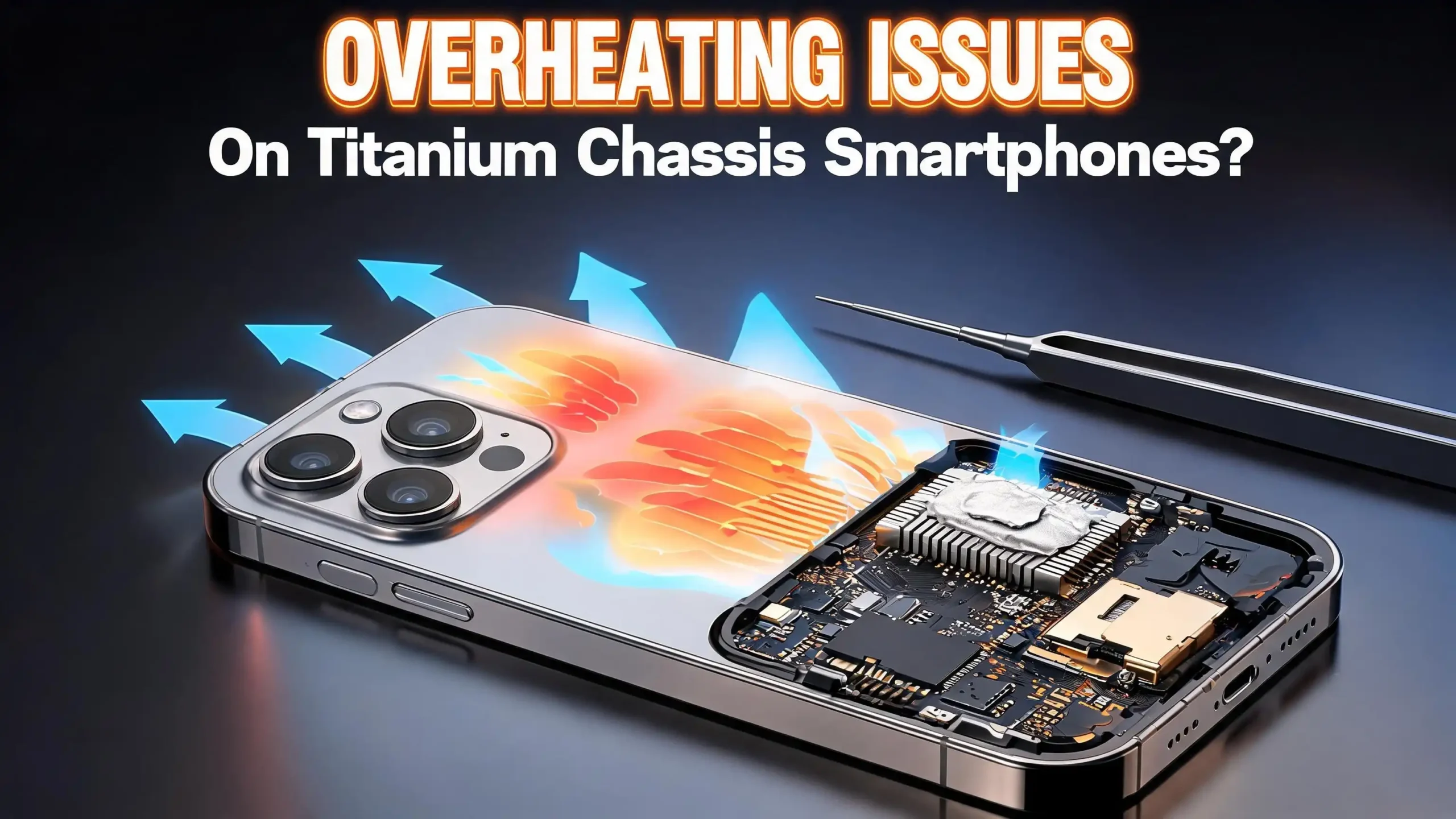
How To Fix Overheating Issues On Titanium Chassis Smartphones?
Titanium chassis smartphones look and feel premium. Brands like Apple and Samsung have used titanium frames in their flagship devices to deliver strength and a sleek finish. But there is one problem many users face after buying these phones. They get hot. Sometimes, too hot.
Titanium has a thermal conductivity of about 21.9 W/m·K. Aluminum sits at roughly 205 W/m·K. That means aluminum dissipates heat almost 10 times better than titanium.
Your titanium phone might feel cooler to the touch, but that is because heat stays trapped inside rather than spreading out through the frame. The internal processor, battery, and other components absorb that extra heat, and your phone starts to struggle.
This post gives you 15 clear and practical solutions to reduce and fix overheating on your titanium chassis smartphone. Every fix here is something you can do today without special tools or technical skills. Let us get started.
Key Takeaways
- Titanium conducts heat nearly 10 times less efficiently than aluminum, which means flagship phones with titanium frames retain more internal heat during use. This is a material property, not a defect, and it affects every titanium chassis phone on the market right now.
- Background apps, outdated software, and faulty chargers are the most common causes of overheating on any smartphone, but these issues hit harder on titanium frame devices because the heat has fewer paths to escape through the chassis.
- Simple software changes like disabling background app refresh, lowering screen brightness, and turning off unnecessary location services can reduce your phone’s internal temperature by several degrees during normal use.
- Using your phone while it charges is one of the fastest ways to trigger overheating, especially on titanium phones. The charging process already generates heat, and active use adds processor heat on top of that.
- A proper case choice matters more than most people realize. Thick insulating cases trap heat around a titanium frame that already struggles with heat dissipation. Thin cases or cases with ventilation cutouts help significantly.
- If your phone overheats regularly despite trying all software fixes, a factory reset or a visit to an authorized service center may be necessary to rule out hardware faults or malware running in the background.
Why Titanium Chassis Smartphones Overheat More Than Aluminum Ones
The core reason titanium phones run hotter comes down to basic physics. Titanium has a thermal conductivity of approximately 21.9 W/m·K, while aluminum alloys used in smartphones sit around 205 W/m·K. This means aluminum can move heat away from internal components roughly ten times faster than titanium.
In a phone with an aluminum frame, heat generated by the processor and battery spreads through the frame and dissipates into the surrounding air. You might feel the phone get warm on the outside, which is actually a good sign. It means heat is leaving the device. A titanium frame blocks this transfer. Heat builds up around the processor and battery instead of moving outward.
This does not mean titanium is a bad material for phones. It offers excellent scratch resistance, superior drop protection, and a lighter feel at similar strength levels compared to stainless steel. Manufacturers chose titanium for very good reasons. But the trade off is thermal performance.
Apple acknowledged this challenge with the iPhone 15 Pro when users reported significant heating during initial setup and heavy use. The company released iOS 17.0.3 specifically to address thermal management on that device. Samsung Galaxy S24 Ultra owners have reported similar warm spots along the titanium frame during camera use and gaming.
Understanding this trade off helps you set the right expectations and take the right steps to keep your phone cool.
Close Background Apps That Drain Your Processor
One of the fastest ways to reduce heat on any smartphone is to stop apps from running in the background when you do not need them. Every app that stays active uses processor cycles, and processor activity generates heat. On a titanium chassis phone, that heat accumulates faster because the frame does not dissipate it well.
On an iPhone, go to Settings > General > Background App Refresh. You can turn this feature off entirely or disable it for specific apps. Social media apps, news apps, and email clients are common offenders that constantly refresh data in the background.
On Samsung Galaxy devices, go to Settings > Battery and device care > Battery > Background usage limits. Add apps you do not use frequently to the Sleeping apps or Deep sleeping apps list. Deep sleeping apps only run when you open them, which significantly reduces background processor load.
On Google Pixel phones, go to Settings > Apps > App battery usage, select the problem app, and change its usage setting to Optimized. You can also disable background usage entirely for specific apps.
Pay attention to any notifications your phone gives you about apps using excessive resources. Both iOS and Android flag these apps. Do not ignore those warnings. Closing or restricting just two or three heavy background apps can make a noticeable difference in your phone’s temperature.
Update Your Phone Software Immediately
Software updates often contain thermal management improvements that directly affect how your phone handles heat. Manufacturers monitor overheating reports after every product launch and push fixes through software updates.
The most notable example is Apple’s iOS 17.0.3 update, which was released specifically to fix overheating on the iPhone 15 Pro and iPhone 15 Pro Max. The update adjusted how the processor managed its workload and fixed a bug related to certain third party apps that caused excessive CPU usage.
On your iPhone, go to Settings > General > Software Update to check for available updates. Turn on Automatic Updates so your phone installs fixes as soon as they become available. On Android, look for Settings > Software Update or Settings > System > System Update, depending on your manufacturer.
App updates are equally important. Developers regularly optimize their apps to use less CPU and memory. An outdated app might run inefficiently and generate extra heat. On iPhone, open the App Store and check for pending updates. On Android, open Google Play, tap your profile icon, and select Manage apps & device to see available updates.
Running outdated software on a titanium chassis phone is a recipe for overheating. The frame already limits heat dissipation, so you need every software optimization available to keep temperatures in check.
Remove Your Phone Case While It Overheats
Phone cases protect your device from drops and scratches. But they also act as insulation that traps heat against the phone’s body. On a titanium chassis phone that already retains heat internally, a thick case makes the problem significantly worse.
When your phone starts to feel hot, remove the case immediately. Place the phone on a cool, flat surface like a table or countertop. Avoid soft surfaces like beds, couches, or pillows because these materials insulate the phone further and block airflow around the device.
For daily use, consider switching to a thin, breathable case instead of a heavy duty rugged case. Cases made from thin polycarbonate or those with ventilation cutouts allow more heat to escape from the phone’s surface. Some case manufacturers now design products specifically with thermal performance in mind.
Never put your phone in a freezer or refrigerator to cool it down. Sudden temperature changes can cause condensation inside the phone, which leads to moisture damage on circuit boards and connectors. Let the phone cool naturally at room temperature.
If you use a magnetic wallet case or a case with a built in battery pack, these add extra insulation and heat sources. Switch to a simpler case if overheating is a recurring issue on your titanium frame phone.
Avoid Using Your Phone While Charging
Charging generates heat. Using your phone generates heat. Doing both at the same time creates a double heat load that overwhelms the thermal management system in most smartphones, especially those with titanium frames.
When you charge your phone, the battery converts electrical energy into stored chemical energy, and this process produces heat. If you also play a game, stream video, or use GPS navigation while charging, the processor adds its own heat output on top of the charging heat. The result is a phone that gets uncomfortably hot and may trigger a temperature warning.
The best practice is to leave your phone alone while it charges. Place it on a hard, flat surface in a cool area. Remove the case if possible. Avoid charging under pillows, blankets, or stacked papers. These materials trap heat and create a dangerous situation.
If you must use your phone while it charges, stick to light tasks only. Reading text messages, checking email, or browsing simple web pages produces far less heat than gaming or video streaming. Also consider using a slower charging speed if your phone supports it. Fast charging generates more heat than standard charging.
On Samsung devices, you can go to Settings > Battery and device care > Battery > Charging settings and disable Super Fast Charging or Fast Charging temporarily to reduce heat buildup during charging.
Lower Your Screen Brightness and Refresh Rate
Your phone’s display is one of its biggest power consumers. A brighter screen draws more power, which generates more heat from the display panel and the processor driving it. On a titanium chassis phone, this extra heat adds up quickly.
Turn down your screen brightness manually or enable adaptive brightness so the phone adjusts based on your environment. You do not need maximum brightness indoors. Even reducing brightness by 30% can lower heat output noticeably.
The refresh rate is another important setting. Many flagship titanium phones support 120Hz displays. A 120Hz refresh rate looks smooth and responsive, but it forces the GPU to render twice as many frames as a 60Hz display. This means more processor work and more heat.
On iPhone, go to Settings > Accessibility > Motion and enable Limit Frame Rate to lock the display at 60Hz. On Samsung Galaxy phones, go to Settings > Display > Motion Smoothness and select Standard instead of Adaptive. On Google Pixel, look for Settings > Display > Smooth Display and turn it off.
You do not need to keep these settings changed permanently. Switch to lower refresh rates and brightness during periods when your phone tends to overheat, like long gaming sessions or hot summer days. Switch back when conditions improve.
Disable Location Services You Do Not Need
Location services use your phone’s GPS antenna, Wi-Fi, Bluetooth, and cellular data to determine your position. Running GPS continuously is one of the most processor intensive tasks your phone can perform, and many apps request location access even when they do not need it.
Go through your location permissions and disable access for apps that have no reason to track your position. A weather app might need your general location, but it does not need precise GPS coordinates updating every few seconds. A shopping app does not need your location at all.
On iPhone, go to Settings > Privacy & Security > Location Services. Review each app and change the setting to Never or While Using for apps that do not need constant location access. On Android, go to Settings > Location > App permissions and make similar adjustments.
Turning off location services entirely is not practical for most people. But limiting which apps can access your location and when they can do it makes a real difference in CPU usage and heat generation. Every background GPS request adds processing load, and on a titanium frame phone, that extra load turns into trapped heat faster than it would on an aluminum frame device.
Turn Off Wi-Fi and Bluetooth When Not in Use
Wireless radios consume power and generate heat even when they are not actively transferring data. Your phone constantly scans for Wi-Fi networks and Bluetooth devices unless you tell it to stop. Each scan uses the processor and wireless chipsets, producing small amounts of heat that add up over time.
If you are not using Wi-Fi, turn it off. If you do not have Bluetooth headphones or a smartwatch connected, turn off Bluetooth. On both iPhone and Android, you can do this from the quick settings panel by swiping down from the top of the screen.
Be aware that using the Control Center toggles on iPhone does not fully disable Wi-Fi or Bluetooth. It only disconnects from current connections. To fully turn them off, go to Settings > Wi-Fi and Settings > Bluetooth and toggle them off there.
Also consider turning off features like AirDrop (iPhone) or Nearby Share (Android) when you are not using them. These features keep your Bluetooth and Wi-Fi radios active and scanning for nearby devices.
Airplane mode is the nuclear option. If your phone is overheating and you need it to cool down fast, switching to airplane mode disables all wireless radios at once. This cuts a significant amount of processor activity and lets your phone recover. You can still use the phone offline for tasks like reading downloaded content or taking photos.
Check Your Charger and Charging Cable
A faulty or cheap charger can cause excessive heat during charging. Damaged cables, counterfeit adapters, and incompatible power bricks can send the wrong voltage to your phone, forcing it to work harder to regulate the incoming power. This extra work produces heat.
Inspect your charging cable for visible damage. Look for frayed wires, bent connectors, or melted plastic near the plug. If you see any damage, stop using that cable immediately. A damaged cable is both a heat risk and a fire hazard.
Use the charger that came with your phone or buy one from the phone manufacturer. If you need a third party charger, choose a reputable brand that has proper safety certifications. Look for MFi certification on iPhone accessories and USB-IF certification on USB-C accessories.
Avoid charging your phone in a hot car, near a window with direct sunlight, or next to other heat generating devices. The ambient temperature around your charging phone matters. A phone charging in a 95°F room will get much hotter than one charging in a 72°F room.
Wireless charging pads can also contribute to overheating. Wireless charging is inherently less efficient than wired charging, which means more energy is lost as heat. If your titanium phone overheats during wireless charging, switch to a wired connection.
Reduce Gaming and Heavy App Sessions
Gaming is one of the most processor intensive activities you can do on a smartphone. Modern games push the GPU and CPU to their limits, which generates significant heat. On a titanium chassis phone, extended gaming sessions can raise internal temperatures to levels that trigger thermal throttling.
Thermal throttling means your phone deliberately slows down its processor to prevent heat damage. You will notice frame rate drops, stuttering, and lag when this happens. This is your phone protecting itself, and it means you should take a break.
Limit gaming sessions to 20 to 30 minutes at a time, then let your phone rest for a few minutes before continuing. During breaks, close the game completely rather than just switching to another app. Place the phone on a cool surface and remove the case.
Graphics settings in games can also make a difference. Many mobile games let you choose between performance modes. Selecting a lower graphics quality or capping the frame rate at 30fps instead of 60fps reduces GPU workload significantly. The visual difference is often small, but the temperature difference can be substantial.
Video streaming, video editing, augmented reality apps, and camera recording for extended periods also generate similar heat loads. Apply the same principle: take breaks, lower quality settings where possible, and let your phone cool between intensive sessions.
Perform a Factory Reset as a Last Resort
If you have tried every other fix and your titanium chassis phone still overheats regularly, a factory reset can eliminate software issues that are difficult to identify individually. Corrupted system files, rogue apps, and accumulated cache data can all contribute to excessive processor usage and heat.
Before you reset, back up all your important data. On iPhone, use iCloud or connect to a computer and back up through Finder or iTunes. On Android, use Google Drive backup or your manufacturer’s backup solution like Samsung Smart Switch.
On iPhone, go to Settings > General > Transfer or Reset iPhone > Erase All Content and Settings. On Samsung, go to Settings > General Management > Reset > Factory Data Reset. On Pixel, go to Settings > System > Reset options > Erase all data.
After the reset, set up your phone fresh rather than restoring from a backup immediately. Use the phone for a day or two to see if the overheating stops. If it does, the problem was in your software or apps. Gradually reinstall your apps and monitor the temperature after each installation to identify the culprit.
If the phone still overheats after a factory reset, the problem is likely hardware related. Contact your manufacturer’s support team or visit an authorized service center for a professional diagnosis.
Scan for Malware and Suspicious Apps
Malware can run hidden processes that push your CPU to maximum usage without your knowledge. Some malware even uses your phone to mine cryptocurrency in the background, which generates extreme heat and can damage your battery over time.
On Android devices, open Google Play Store, tap your profile icon, and select Manage apps & device. Look for the security scan section that shows whether harmful apps have been detected. Tap Scan to run a manual check. Consider installing a reputable antivirus app for ongoing protection.
On iPhone, malware is less common but not impossible. Apple’s closed ecosystem provides strong protection, but compromised apps and phishing attacks can still cause problems. If you have installed apps from outside the App Store using enterprise certificates or other methods, remove them immediately.
Watch for warning signs of malware infection: unexpected battery drain, sluggish performance, random pop up ads, and apps you do not remember installing. If your titanium phone overheats even when idle with the screen off, malware is a strong possibility.
Uninstall any app you do not recognize or no longer use. The fewer apps you have installed, the fewer potential sources of background processor activity and heat generation.
Use an External Cooling Accessory for Intense Tasks
If you regularly use your titanium chassis phone for gaming, video recording, or other intensive tasks, an external cooling accessory can help manage temperatures that software fixes alone cannot handle.
Clip on phone coolers use small fans or thermoelectric cooling pads to pull heat away from the back of your phone. These devices attach directly to the phone’s rear panel and can lower surface temperatures by 10 to 20 degrees during heavy use.
Magnetic coolers work especially well with MagSafe compatible iPhones. They attach securely without clips and provide consistent cooling across the back panel. Some models are rechargeable and portable enough to carry in a pocket.
Do not use makeshift cooling methods. Placing your phone in front of an air conditioner vent, wrapping it in a wet cloth, or blowing on it with a desk fan provides minimal benefit and can introduce moisture. Purpose built phone coolers are designed to work with smartphone form factors and deliver effective results.
These accessories are particularly useful during summer months when ambient temperatures are already high. A titanium frame that struggles to dissipate heat at 72°F will perform even worse at 90°F. An external cooler compensates for the frame material’s thermal limitations.
Manage Your Display and Connectivity Settings in Hot Weather
Hot weather amplifies every overheating issue on a titanium chassis phone. When the air around your phone is already warm, the device has less capacity to shed its internal heat into the environment. A few proactive setting changes can prevent overheating before it starts.
Switch to dark mode on your display. OLED screens, which most titanium chassis flagships use, consume less power in dark mode because black pixels are turned off entirely. Less power consumption means less heat. On iPhone, go to Settings > Display & Brightness and select Dark. On Android, look for the same option under Display settings.
Turn off auto-play for videos in social media apps. Scrolling through a feed while videos play automatically forces constant GPU activity. Disable this in the settings of apps like Instagram, Facebook, and X (formerly Twitter).
Reduce your screen timeout to 30 seconds so the display turns off quickly when you stop using the phone. Every second the screen stays on draws power and produces heat. Also consider disabling the Always On Display feature if your phone has one.
On extremely hot days, consider switching to Low Power Mode (iPhone) or Power Saving Mode (Android). These modes reduce background activity, lower performance, and dim the screen, all of which help keep temperatures manageable on a titanium frame device.
Know When to Visit an Authorized Service Center
Sometimes overheating is not something you can fix with settings and software. Hardware problems like a swollen battery, damaged thermal paste, or a faulty processor require professional repair. If your titanium chassis phone overheats during light use, gets hot while idle, or shows a temperature warning frequently, it may have a hardware defect.
Visit an authorized service center rather than a third party repair shop. Titanium frames are harder to work with than aluminum, and technicians at authorized centers have the right tools and training for your specific device. Unauthorized repairs can void your warranty and potentially cause additional damage.
Document your overheating issues before your visit. Note when the phone gets hot, what apps you were using, how long you had been using it, and what the ambient temperature was. Screenshots of battery usage statistics can also help technicians diagnose the problem faster.
If your phone is still under warranty and overheats despite normal use, the manufacturer may replace the device at no cost. Apple, Samsung, and other major brands have warranty programs that cover manufacturing defects, including thermal management failures.
Do not delay a service center visit if your phone shows signs of battery swelling, such as the screen lifting away from the frame or the back panel bulging. A swollen battery is a safety risk that needs immediate professional attention.
Frequently Asked Questions
Does the titanium frame cause smartphones to overheat?
Titanium itself does not generate heat, but it conducts heat about 10 times less efficiently than aluminum. This means heat from the processor and battery stays trapped inside the phone longer. The frame contributes to the overheating issue by limiting heat dissipation, but it is usually a combination of factors including software, usage habits, and environmental conditions.
Is it normal for a titanium chassis phone to feel warm?
Yes, some warmth during charging, gaming, or extended camera use is normal for any smartphone. Titanium phones may feel slightly less warm on the outside compared to aluminum phones, but that is because the heat stays inside. If your phone triggers a temperature warning or becomes too hot to hold comfortably, that is not normal and you should take action.
Can overheating damage my titanium frame phone permanently?
Yes. Sustained high temperatures can degrade your battery’s capacity over time, cause the processor to throttle permanently, damage solder connections on the logic board, and in extreme cases, cause the battery to swell. Addressing overheating early protects your phone’s long term health and resale value.
Will a phone cooling fan solve the overheating problem completely?
An external cooling fan helps significantly during heavy use like gaming or video recording. It can lower surface temperatures by 10 to 20 degrees. However, it does not fix underlying software issues like rogue background apps or outdated firmware. Use a cooling fan as one part of a complete overheating management strategy, not the only solution.
Should I switch from a titanium phone to an aluminum phone to avoid overheating?
Not necessarily. Titanium phones offer better scratch resistance and drop protection. The overheating issue on titanium phones is manageable with the software and habit changes described in this guide. Aluminum phones dissipate heat better, but they are more prone to dents and bending. Choose based on your overall priorities, and use the solutions in this post to manage heat on whichever device you own.
Does fast charging make overheating worse on titanium phones?
Yes. Fast charging pushes more electrical current into the battery in less time, which generates more heat than standard charging. On a titanium phone with limited heat dissipation through the frame, this extra heat can push temperatures into uncomfortable or warning territory. Switching to standard charging speed during hot weather or when your phone is already warm is a smart precaution.

Hi, I’m Lusi. I’m a tech enthusiast who loves digging into gadgets, testing products, and helping people find the best tech for their needs and budget. Got a question or a product you’d like me to review? Drop me a mail— I’d love to hear from you!