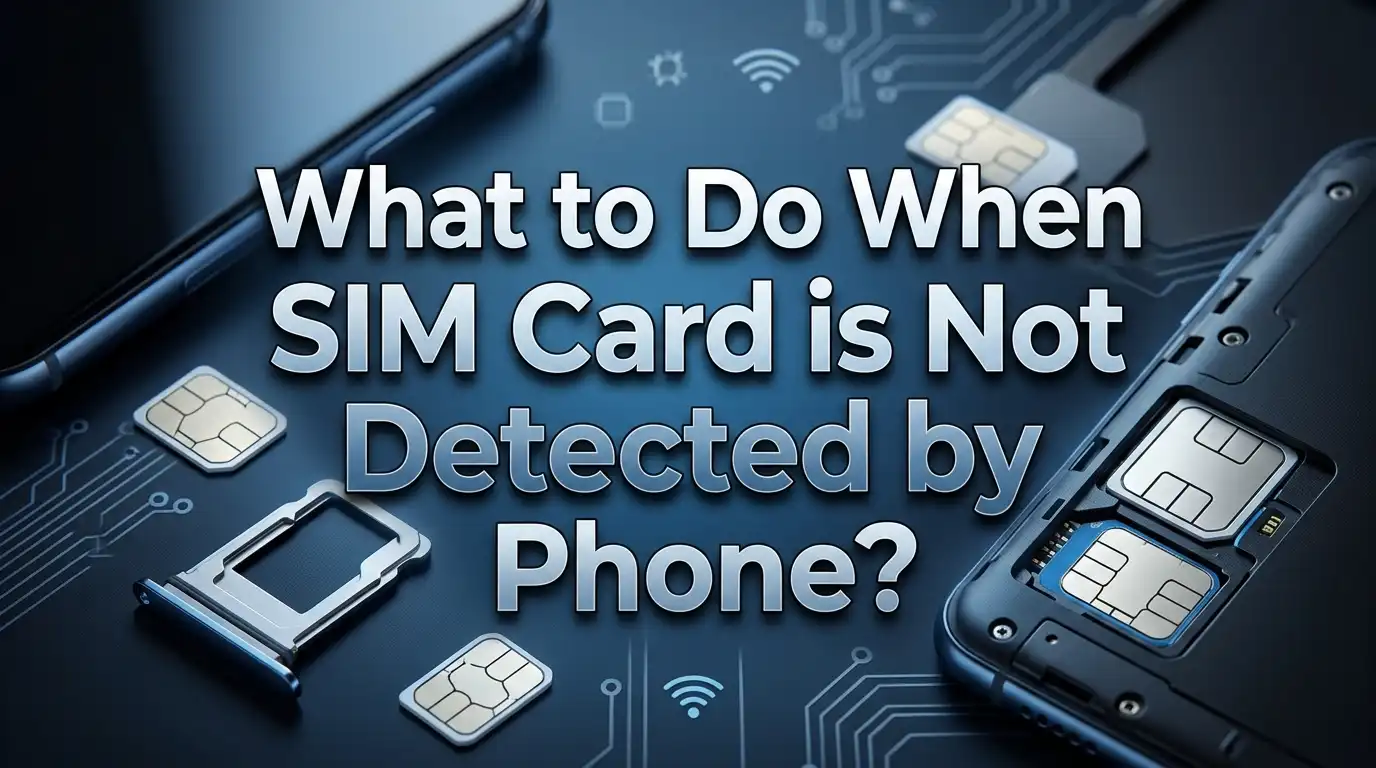
What to Do When SIM Card Is Not Detected by Phone?
You grab your phone to make an important call, and suddenly you see it: “No SIM Card Detected.” Your heart sinks. No calls, no texts, no mobile data. You know your SIM card is physically inside the phone, but the device refuses to recognize it. This is one of the most frustrating phone problems people face every day.
The good news? In most cases, this issue has a simple fix. The error can happen on any phone, whether you use an iPhone, a Samsung Galaxy, a Google Pixel, or any other Android device. The causes range from a tiny speck of dust on the SIM card to a software glitch that needs a quick reset.
This guide walks you through every possible solution, starting with the easiest fixes and moving to more advanced steps. By the end of this post, you will have your phone back in working order with a fully detected SIM card.
In a Nutshell
- Restart your phone first because a simple reboot clears temporary software glitches and forces the device to re-read the SIM card. This single step fixes the problem for a large number of users.
- Remove and reinsert the SIM card carefully to make sure it sits properly in the tray. A slightly misaligned SIM card will break contact with the phone’s internal reader and trigger the “No SIM” error.
- Clean the SIM card’s gold contacts with a soft, lint-free cloth or a gentle pencil eraser. Dust, fingerprint oils, and grime on the contacts prevent your phone from reading the card.
- Test your SIM card in a different phone to determine if the problem is with the card itself or your device. This step saves you hours of troubleshooting the wrong thing.
- Reset your network settings as a last resort before contacting your carrier. This step restores your phone’s cellular and Wi-Fi configurations to their factory defaults and resolves deeper software conflicts.
- Contact your carrier for a SIM replacement if nothing else works. SIM cards have a limited lifespan, and physical damage or wear can make them unreadable over time.
Why Does Your Phone Say “No SIM Card Detected”?
Understanding the cause behind the error helps you pick the right fix. The “No SIM Card Detected” message appears when your phone’s internal SIM reader fails to establish a connection with your SIM card. This can happen for several reasons.
Physical causes include a dirty SIM card, a misaligned SIM tray, scratches on the gold contacts, or water damage to the card. Even a tiny particle of dust between the SIM and the reader can break the connection. Phones that have been dropped may also suffer from a loosened SIM tray that no longer holds the card firmly in place.
Software causes include outdated carrier settings, corrupted network configurations, bugs introduced by a recent operating system update, or conflicts caused by airplane mode glitches. Sometimes, a phone update changes how the device communicates with the SIM, and a simple settings reset fixes it.
Carrier and account issues can also trigger this error. An expired plan, a deactivated SIM, or a carrier lock on your phone may prevent detection. If you recently switched carriers or traveled internationally, the issue might be related to your account status rather than your hardware.
Restart Your Phone Immediately
The first and easiest step is a restart. This sounds too simple, but a reboot forces your phone to re-initialize all hardware connections, including the SIM card reader. Many users report that this fix alone resolves their problem.
On an iPhone, open the Settings app, tap General, then tap Shut Down. Drag the slider to turn off your phone. Wait about 30 seconds, then press and hold the side button to turn it back on.
On a Samsung Galaxy, press and hold the Volume Down and Power buttons at the same time for at least seven seconds. Tap Restart when the option appears. On other Android phones, press and hold the Power button and select Restart from the menu.
Give your phone a full minute after restarting before you check for the SIM card. The device needs time to scan and register the SIM. If the error persists after a restart, move on to the next step.
Remove and Reinsert the SIM Card
A loose or slightly misaligned SIM card is one of the most common causes of the detection error. Removing the card and putting it back ensures proper contact between the gold pins and the phone’s SIM reader.
Turn off your phone completely before you begin. Locate the SIM card tray on the side of your device. Insert the tip of the SIM ejector tool (or a straightened paperclip) into the small hole next to the tray. Press firmly until the tray pops out.
Carefully remove the SIM card from the tray. Look at the gold contacts on the SIM for any visible damage, scratches, or dirt. Place the SIM card back into the tray, making sure the gold contacts face the correct direction (usually downward) and the notched corner aligns with the tray’s shape. The card should sit flush and snug inside the tray without any wobble.
Push the tray back into the phone until it clicks into place. Make sure the tray is fully closed and not sticking out even slightly. Turn on your phone and check if the SIM card is detected.
Clean the SIM Card and SIM Tray
Dirt, dust, and oil buildup on the SIM card contacts can prevent your phone from reading the card. Cleaning the SIM and the tray takes just a few minutes and often solves the problem right away.
Remove the SIM card from your phone using the steps described above. Take a soft, lint-free cloth (like a microfiber cloth) and gently wipe the gold contacts on the SIM card. If you see visible grime, lightly rub the contacts with a clean pencil eraser. The eraser removes oxidation and buildup without scratching the surface.
For stubborn dirt, you can dampen a cotton swab with a small amount of isopropyl alcohol (rubbing alcohol) and gently clean the gold contacts. Let the SIM card dry completely before reinserting it.
Do not forget to clean the SIM card slot inside your phone. Use a can of compressed air to blow out any dust or debris from the slot. Avoid inserting sharp objects into the slot, as this can damage the internal pins. Once everything is clean and dry, reinsert the SIM card and power on your phone.
Toggle Airplane Mode On and Off
Airplane mode disables all wireless connections on your phone. Toggling it on and off forces your phone to reconnect to the cellular network, and this can clear up temporary SIM detection issues.
Swipe down from the top of your screen to open the quick settings panel. Tap the airplane icon to enable Airplane Mode. Wait about 15 to 30 seconds with Airplane Mode turned on.
Then tap the airplane icon again to disable it. Your phone will immediately search for your carrier network and attempt to read the SIM card again. This process is faster than a full restart and works well for intermittent detection problems.
If you notice that the “No SIM” error keeps appearing and disappearing throughout the day, the Airplane Mode toggle is a quick workaround. However, recurring issues suggest a deeper problem that you should address with the other solutions in this guide.
Check for Software and Carrier Settings Updates
An outdated operating system or carrier configuration can cause SIM detection failures. Phone manufacturers and carriers regularly release updates that fix bugs and improve hardware compatibility.
On an iPhone, go to Settings, tap General, then tap Software Update. Download and install any available update. Also check for carrier settings updates by going to Settings, then General, then About. If an update is available, a pop-up will prompt you to install it.
On an Android phone, go to Settings, then System (or Software Update), and tap Check for Updates. Install any pending updates. Some Android phones also receive carrier-specific updates that improve SIM card compatibility, so always keep your device up to date.
After updating, restart your phone and check if the SIM card is now detected. Software updates frequently resolve SIM reader bugs that affect specific phone models.
Reset Network Settings
If basic fixes have not worked, resetting your network settings restores all cellular, Wi-Fi, and Bluetooth configurations to their factory defaults. This step clears corrupted network data that might block SIM detection.
On an iPhone, open Settings, tap General, then tap Transfer or Reset iPhone. Select Reset, then tap Reset Network Settings. Enter your passcode when prompted.
On a Samsung Galaxy, open Settings, tap General Management, then tap Reset. Select Reset Mobile Network Settings and confirm by tapping Reset Settings.
On other Android devices, go to Settings, tap System, then Reset Options. Select Reset Wi-Fi, Mobile & Bluetooth and tap Reset Settings.
Be aware that this step will erase all saved Wi-Fi passwords and Bluetooth pairings. You will need to reconnect to your Wi-Fi networks and re-pair your Bluetooth devices afterward. However, your personal data, apps, and files will remain untouched.
Test Your SIM Card in Another Phone
This diagnostic step helps you determine whether the problem is with your SIM card or your phone. Borrow a working phone from a friend or family member and insert your SIM card into it.
If the SIM card works in the other phone, the problem lies with your device. This points to a hardware issue such as a damaged SIM reader, a bent internal pin, or a faulty SIM tray. In this case, you may need professional repair.
If the SIM card does not work in the other phone either, the SIM card itself is likely damaged or deactivated. Contact your carrier and request a replacement SIM card. Most carriers provide replacement SIM cards for free or for a small fee, and they will transfer your existing number to the new card.
This test takes only a few minutes but provides critical information. It prevents you from spending time and money fixing the wrong thing.
Check if Your Phone Is Carrier Locked
A carrier-locked phone only accepts SIM cards from a specific network provider. If you insert a SIM card from a different carrier into a locked phone, the device will display a “No SIM” or “Invalid SIM” error.
On an iPhone, go to Settings, tap General, then tap About. Look for the “Carrier Lock” field. If it says “No SIM restrictions,” your phone is unlocked. If it shows a specific carrier name, your phone is locked to that network.
On Android phones, the method varies by manufacturer. You can usually find carrier lock information in Settings under About Phone or Network. Another quick test is to insert a SIM card from a different carrier. If it does not work, your phone is likely locked.
If your phone is locked and you want to use a different carrier’s SIM, contact your current carrier to request an unlock. Most carriers will unlock your phone after you meet certain requirements, such as paying off the device in full.
Inspect the SIM Card for Physical Damage
SIM cards are small and fragile. Over time, they can suffer scratches, bends, cracks, or corrosion that make them unreadable. Take your SIM card out and examine it closely under good lighting.
Look at the gold contact area for deep scratches, discoloration, or any signs of moisture damage. Check the edges of the card for chips or cracks. A bent SIM card will not sit properly in the tray and may fail to make contact with the reader.
If you cut a larger SIM card down to a smaller size (for example, from a standard SIM to a nano SIM), the edges may be uneven. This can cause fitting problems. An improperly cut SIM card may work intermittently or not at all.
If you notice any visible damage, the best course of action is to visit your carrier’s store and get a replacement SIM card. Damaged SIM cards cannot be repaired. Your carrier will transfer your number and plan to a new card.
Verify Your eSIM Is Active and Enabled
Many modern phones use an eSIM (embedded SIM) instead of, or in addition to, a physical SIM card. If your eSIM is not enabled or has been accidentally turned off, your phone will display the “No SIM” error.
On an iPhone, go to Settings and tap Cellular. Find your eSIM line in the list and tap on it. Make sure the toggle for “Turn On This Line” is enabled. If the line appears grayed out or inactive, toggle it off and back on.
On an Android phone, go to Settings, then Connections or Network & Internet, then SIM Card Manager. Tap on your eSIM and make sure the switch is turned on.
If your eSIM was recently installed and is not working, make sure your phone is connected to Wi-Fi during the activation process. Some eSIM activations require an internet connection to complete. If problems continue, contact your carrier to verify the eSIM profile is properly provisioned on their end.
Try a Factory Reset as a Last Resort
If none of the previous steps have worked, a factory reset returns your phone to its original software state. This eliminates any deep software corruption that may be interfering with SIM card detection.
Back up all your data before you proceed. A factory reset erases everything on your phone, including apps, photos, messages, and settings. Use iCloud or Google Drive to create a complete backup.
On an iPhone, go to Settings, tap General, then tap Transfer or Reset iPhone. Select Erase All Content and Settings and follow the prompts.
On an Android phone, go to Settings, then System, then Reset Options. Select Erase All Data (Factory Reset) and confirm.
After the reset, set up your phone as new and check if the SIM card is detected before restoring your backup. This helps you confirm that the issue was software-related. If the SIM is still not detected after a factory reset, the problem is almost certainly hardware-related.
When to Seek Professional Repair
If you have tried every solution in this guide and your phone still does not detect the SIM card, the issue is likely a hardware malfunction. Internal components such as the SIM card reader, the logic board connections, or the antenna module may be damaged.
Common signs of a hardware issue include a SIM card that works in other phones but not in yours, a SIM tray that feels loose or does not click into place, and a phone that stopped reading SIM cards after a drop or water exposure.
Visit an authorized service center for your phone’s brand. Apple stores, Samsung service centers, and authorized repair shops can diagnose and fix internal SIM reader problems. Avoid unofficial repair shops, as they may use low-quality parts that cause additional issues.
If your phone is still under warranty or covered by insurance, the repair may be free or covered at a reduced cost. Keep your proof of purchase and warranty documents ready when you visit the service center.
How to Prevent SIM Card Detection Problems in the Future
Prevention is always easier than repair. A few simple habits will keep your SIM card and SIM reader working reliably for years.
Always turn off your phone before removing or inserting a SIM card. Hot-swapping a SIM card while the phone is on can cause software glitches and, in rare cases, damage the reader. Handle the SIM card by its edges and avoid touching the gold contacts with your fingers.
Keep your phone in a protective case to minimize the impact of drops and bumps. A hard drop can shift the SIM tray or damage internal connections. If you live in a humid environment, consider using a small silica gel packet near your phone storage area to absorb excess moisture.
Update your phone’s software regularly. Manufacturers release patches that fix SIM-related bugs and improve overall device stability. Set your phone to automatically download updates so you never miss an important fix. Finally, if your SIM card is more than five years old, consider requesting a replacement from your carrier even if it still works. Older SIM cards become less reliable over time.
Frequently Asked Questions
Why does my phone keep saying “No SIM card” even though the SIM is inside?
The most common reasons are a dirty SIM card, a slightly misaligned SIM tray, or a temporary software glitch. Remove the SIM card, clean the gold contacts with a soft cloth, reinsert it carefully, and restart your phone. If the error persists, try the SIM card in another phone to rule out hardware damage.
Can a software update cause the “No SIM” error?
Yes, a buggy software update can interfere with SIM card detection. This happens when the update changes how the phone communicates with the SIM reader. Check for a newer update that might contain a fix, and try resetting your network settings to clear any corrupted configurations.
How do I know if my SIM card is damaged beyond repair?
Visible signs of damage include deep scratches on the gold contacts, a bent or warped card, discoloration, and cracks along the edges. If your SIM card works intermittently or fails to register in multiple phones, it is likely damaged and needs to be replaced by your carrier.
Does the “No SIM” error mean my phone is broken?
Not always. In most cases, the issue is related to the SIM card, software settings, or minor connection problems. Only after testing your SIM in another device and trying all software fixes should you consider that the phone hardware may be faulty. A professional diagnosis at an authorized service center can confirm this.
How much does it cost to replace a SIM card?
Most carriers provide replacement SIM cards for free or for a very small fee, usually around $5 to $10. You can visit your carrier’s retail store with a valid photo ID and request a new SIM card. The store staff will transfer your existing phone number and plan to the new card on the spot.
Can I fix a SIM card reader at home?
Attempting to repair internal phone components at home is risky and may void your warranty. The SIM card reader is a delicate part soldered to the logic board. Professional technicians have the proper tools and expertise to handle this repair safely. If your phone is under warranty, always go through the manufacturer’s official service channel.

Hi, I’m Lusi. I’m a tech enthusiast who loves digging into gadgets, testing products, and helping people find the best tech for their needs and budget. Got a question or a product you’d like me to review? Drop me a mail— I’d love to hear from you!